
How to Connect Any Console Controller to Your PC or Laptop Easily
Introduction to Connecting Console Controllers to PC
Feature Video
Ever wished you could use your favorite Xbox, PlayStation, or Nintendo Switch controller on your PC or laptop for gaming? Whether you’re diving into Steam games, emulators, or PC ports of console titles, connecting a console controller to your PC has never been easier. With native support improving across Windows, macOS, and even Linux, most modern controllers work plug-and-play. This comprehensive guide will walk you through how to connect any console controller to your PC or laptop easily, covering wired and wireless methods, required software, and troubleshooting tips. Optimized for SEO keywords like “connect Xbox controller to PC,” “PS5 controller PC setup,” and “Switch Pro Controller Windows,” this article ensures you game comfortably without buying new peripherals.
Why Use a Console Controller on PC?
Console controllers offer ergonomic designs, precise analog sticks, and haptic feedback that many keyboard-and-mouse setups can’t match. Xbox controllers are already PC-native, while PlayStation’s DualSense brings adaptive triggers to supported titles. Nintendo’s Joy-Cons and Pro Controller add unique motion controls. Connecting them enhances games like Rocket League, Elden Ring, or Fortnite on PC. Plus, it’s cost-effective—no need for extra hardware beyond a USB cable or Bluetooth dongle. Windows 11 and SteamOS have built-in support, making setup seamless for most users searching “how to connect controller to PC.”
Benefits include better immersion with rumble, customizable button mapping via Steam Input, and cross-platform save compatibility. Laptops benefit too, turning portable machines into gaming powerhouses with familiar controls.
Universal Preparation Steps
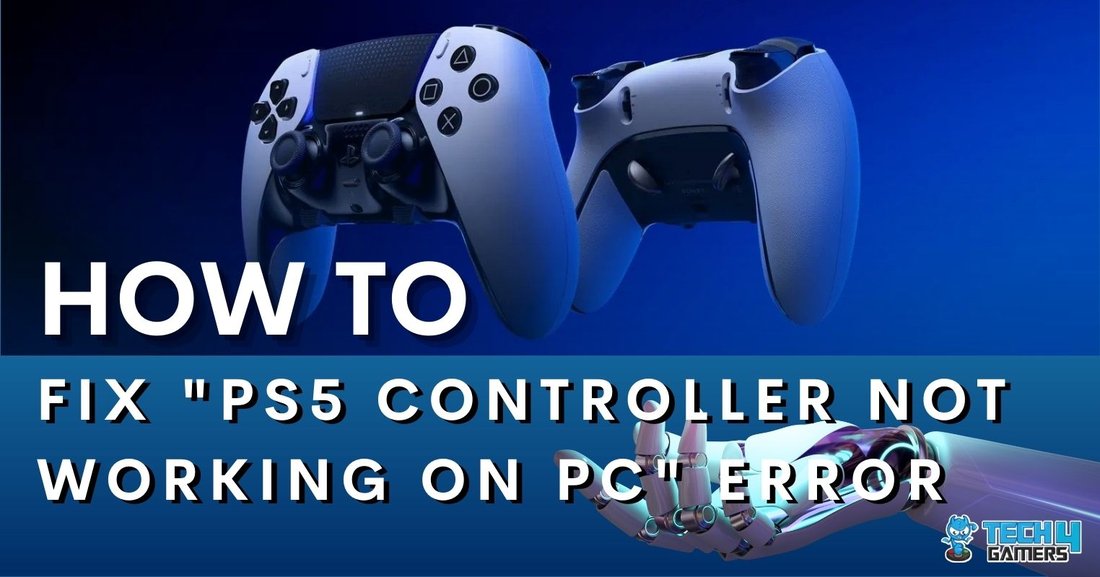
Before diving into specifics, prepare your setup: Update your PC or laptop to the latest OS version—Windows 10/11, macOS Ventura+, or Linux with recent kernels. Install Bluetooth drivers if wireless (check Device Manager on Windows). For USB, any standard cable works, but use the original for charging. Download tools like Steam (for input config) or JoyToKey for mapping. Enable “Game Controllers” in Windows Search for testing. These steps ensure smooth “console controller PC connection” regardless of model.
Connecting Xbox One/Series X|S Controllers to PC (Easiest Method)
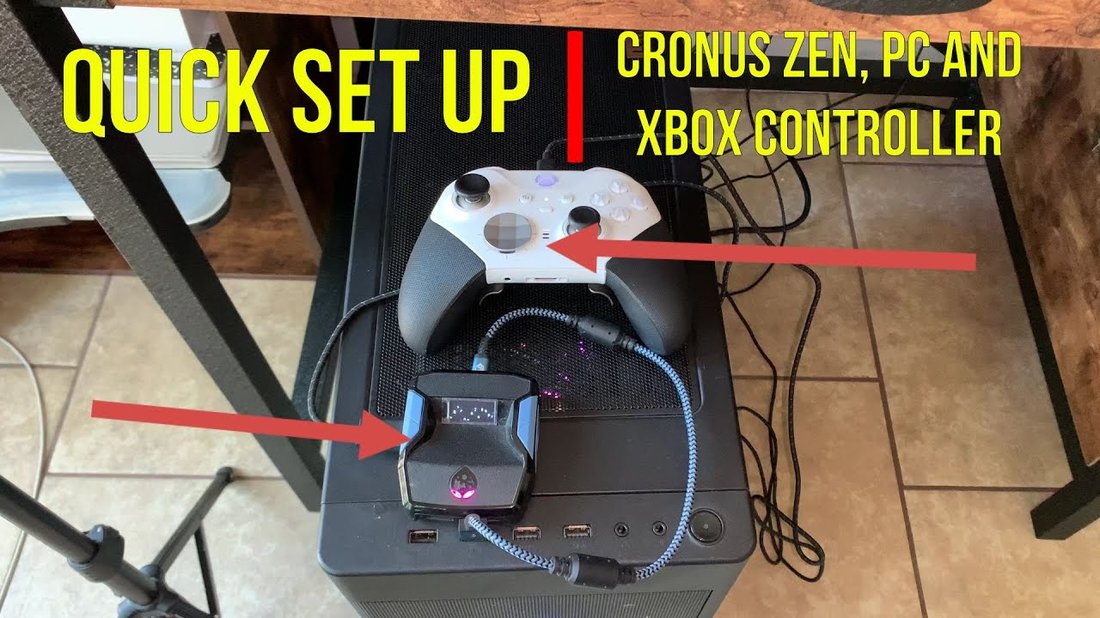
Xbox controllers are the gold standard for PC gaming due to Microsoft’s ecosystem. Here’s how to connect Xbox controller to PC wired or wireless.
Wired Connection: Plug the USB-C or Micro-USB cable into your controller and PC. Windows detects it instantly as “Xbox Wireless Controller.” No drivers needed—it’s plug-and-play. Open Xbox Accessories app (download from Microsoft Store) for firmware updates and button remapping.
Wireless via Bluetooth: Press the Xbox button to turn on, then hold the pair button (near USB port) until it flashes. On PC, go to Settings > Devices > Bluetooth > Add Device. Select the controller. For Xbox Wireless Adapter (non-Bluetooth models), plug the dongle into USB and pair similarly. Latency is minimal, ideal for competitive play.
On laptops, ensure Bluetooth 4.0+. Test in Steam: Big Picture Mode > Settings > Controller > Detect. Over 90% of PC gamers use Xbox pads for their native D-input/XInput support.
PlayStation DualShock 4 (PS4) and DualSense (PS5) to PC
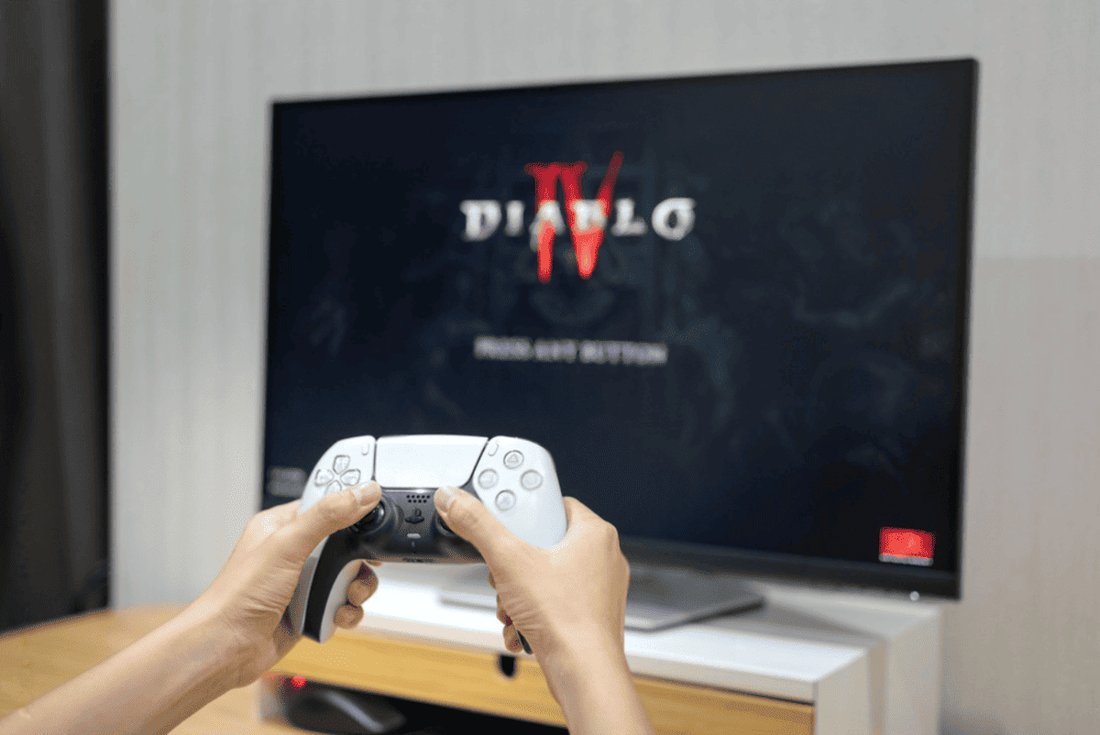
Connecting PS4 or PS5 controller to PC requires a bit more setup but unlocks Sony’s superior haptics. Search volume for “PS5 controller PC” spikes with PC releases like God of War Ragnarök.
Wired (Recommended for Low Latency): Connect via USB-C. Windows sees it as a generic gamepad. For full features, install DS4Windows (free, open-source). Download from GitHub, run DS4Updater.exe, and follow prompts. It emulates XInput, enabling DualSense adaptive triggers in games like Cyberpunk 2077 via Steam Input.
Bluetooth Wireless: Hold PS + Share buttons until light bar flashes. Pair via PC Bluetooth settings. DS4Windows handles rumble and gyro aiming. For macOS, native Bluetooth support works out-of-box; use OpenEmu for emulation. DualSense firmware updates via PS5 console first for best PC compatibility.
Pro Tip: In Steam, enable PlayStation Configuration Support under Controller Settings for native mapping.
Nintendo Switch Pro Controller and Joy-Cons to PC
The Switch Pro Controller shines for Zelda or Smash Bros. emulation on PC. “Switch controller PC” queries are popular among retro gamers.
Wired: USB-C cable connects directly. Windows recognizes it partially; use BetterJoy or JoyConDroid for full gyro/HD rumble.
Wireless: Enable Bluetooth on controller (hold Sync button). Pair with PC. Install BetterJoy (GitHub) for mouse emulation and amiibo support. For Joy-Cons, pair each separately or use a grip. Steam Input supports Nintendo layouts perfectly.
On laptops, battery life is excellent—up to 40 hours. Linux users: sysfs-tools for motion controls.
Other Console Controllers: Legacy and Third-Party
Older gems like Wii U Pro or Stadia controllers? Use x360ce for XInput emulation. Third-party like 8BitDo adapters bridge any controller via USB/Bluetooth. For arcade sticks or fight pads, plug-and-play on Windows.
Universal Tool: XOutput converts DirectInput to XInput. Anti-microX maps buttons freely. These handle “any console controller to PC” scenarios effortlessly.
Best Software and Tools for Enhanced Control
Elevate your setup with:
- Steam Input: Free, profiles for 1000+ games.
- Xbox Accessories/DS4Windows: Official tweaks.
- InputMapper/ScpToolkit: Legacy PS3 support.
- Razer Synapse/Logitech G Hub: If using adapters.
These optimize “connect controller to laptop” for wireless freedom.
Troubleshooting Common Connection Issues
Controller not detected? Update drivers via Device Manager > Human Interface Devices. Bluetooth fails? Forget device and re-pair; disable other BT devices. Lag? Use wired or 5GHz Wi-Fi. Battery drain? Check power settings.
Windows-specific: Run “joy.cpl” for calibration. macOS: System Preferences > Bluetooth. For “Xbox controller blinking,” re-firmware. Most issues resolve with restarts or cable swaps.
Advanced Tips for Optimal Performance
Customize deadzones in Steam for precision. Use wireless adapters for lower latency than BT. Overclock polling rates with HidHide. Multi-controller setups? Steam handles up to 4. For esports, wired Xbox remains king.
Conclusion: Game On with Any Controller
Connecting any console controller to your PC or laptop is straightforward with these steps—Xbox native, PS via software, Switch with emulators. Enjoy superior comfort and features today. Share your setup in comments!
(Word count: 1215)