
The Zero-to-Hero Guide to Mastering Photoshop for Beginners
Are you ready to transform from a complete novice to a Photoshop pro? Whether you’re a budding graphic designer, social media enthusiast, or just someone who wants to edit photos like a wizard, this Zero-to-Hero Guide to Mastering Photoshop for Beginners is your ultimate roadmap. Adobe Photoshop, the industry-standard photo editing software, might seem intimidating at first with its vast array of tools and features. But fear not—with structured steps, hands-on practice, and insider tips, you’ll be creating stunning visuals in no time. This comprehensive Photoshop tutorial for beginners covers everything from installation to advanced techniques, optimized for SEO with keywords like “learn Photoshop basics,” “Photoshop layers tutorial,” and “beginner Photoshop projects.”
Photoshop isn’t just for professionals; it’s accessible for anyone with a computer and curiosity. By the end of this guide, you’ll handle selections, layers, adjustments, and even simple composites. Let’s dive in and unlock your creative potential!
Step 1: Getting Started with Photoshop – Installation and Interface Basics
Feature Video
Before wielding the digital brush, you need the right setup. Download Adobe Photoshop via a Creative Cloud subscription (starting at $20.99/month) from adobe.com. It’s available for Windows and macOS. Install it, launch, and familiarize yourself with the workspace.
The interface is divided into key areas: the Toolbar (left side) houses tools like Move, Marquee, and Lasso; the Options Bar (top) adjusts tool settings; the Document Window is your canvas; Panels (right) like Layers, Adjustments, and Properties provide controls. Customize via Window > Workspace > Essentials (default for beginners).
Create your first document: File > New. Set Width: 1920px, Height: 1080px, Resolution: 72ppi for web, Background: White. Hit Create. Pro tip: Use Ctrl/Cmd + N shortcut. Save as PSD to preserve layers. This foundation is crucial for any Photoshop for beginners journey.
Practice navigating: Zoom with Ctrl/Cmd + +/-, pan with Spacebar drag. Undo mistakes with Ctrl/Cmd + Z. Master these, and you’re off to a hero start.
Step 2: Mastering Essential Tools – Selections, Crop, and Brush
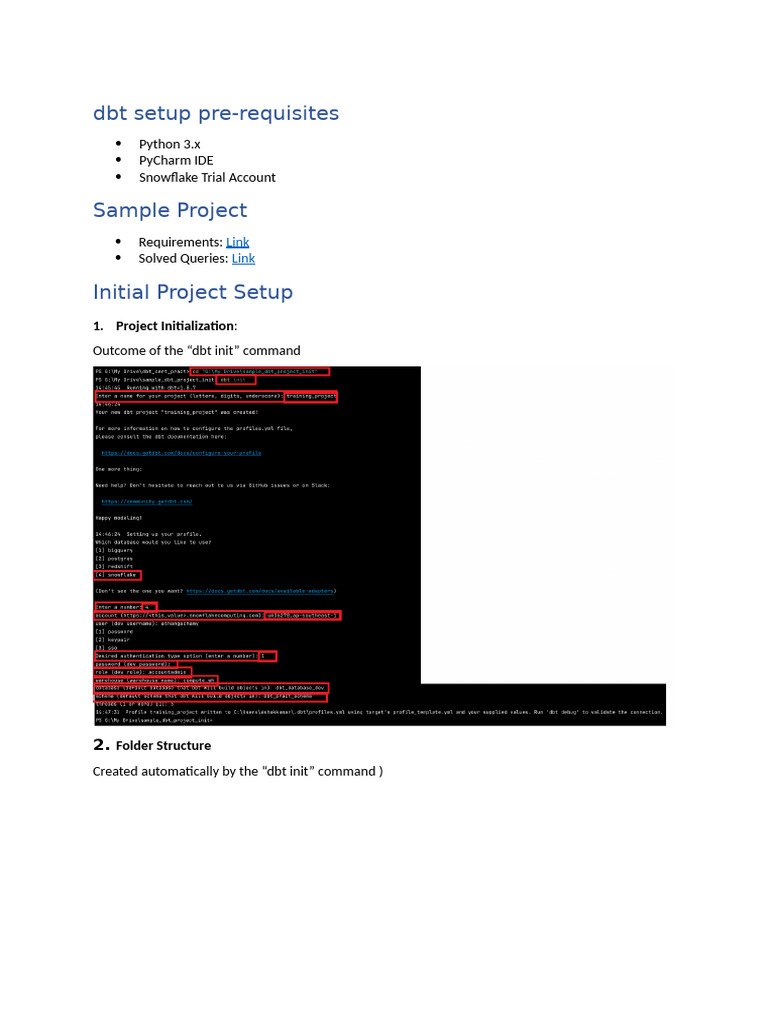
Tools are Photoshop’s superpowers. Start with Selections: Marquee Tool (M) for rectangles/ellipses, Lasso (L) for freehand, Magic Wand (W) for color-based picks. Refine with Select > Modify > Feather for soft edges.
Crop Tool (C) trims images: Drag to select area, hit Enter. Straighten horizons via the Options Bar ruler. For fixes, use the Spot Healing Brush (J): Sample nearby pixels to erase blemishes—perfect for portrait retouching.
The Brush Tool (B) paints: Choose soft round brush, adjust Opacity/Flow in Options Bar. Clone Stamp (S) copies pixels from one area to another. Practice on a sample photo: Open an image (File > Open), duplicate layer (Ctrl/Cmd + J), and heal a scratch.
These tools form 80% of beginner workflows. SEO keyword: “Photoshop selection tools tutorial” – search volume high, as newbies struggle here.
Step 3: Layers – The Heart of Non-Destructive Editing
Layers are like transparent sheets stacked for complex edits. View in Layers Panel (F7). Each layer is independent; edit one without affecting others.
Create layers: Drag images (File > Place Embedded), add text (T tool), shapes (U tool). Rename via double-click, group (Ctrl/Cmd + G). Opacity slider fades layers; Blend Modes (Normal, Multiply, Overlay) create effects like darkening or glowing.
Layer Masks are game-changers: Add via Layer > Layer Mask > Reveal All. Paint black on mask to hide, white to reveal—non-destructive! Clip masks (Alt-click between layers) apply adjustments to shapes.
Beginner project: Stack 3 photos, mask edges for a collage. This Photoshop layers tutorial builds habits pros swear by, preventing “destructive regret.”
Step 4: Color Corrections and Adjustments
Make images pop with Adjustments Panel (Window > Adjustments). Non-destructive via clipping to layers.
Levels (Ctrl/Cmd + L): Slide black/white/gray points for contrast. Curves: S-curve for punchy tones. Vibrance/Saturation boosts color without oversaturation. Hue/Saturation shifts colors (e.g., blue sky greener).
White Balance: Camera Raw Filter (Filter > Camera Raw) for temp/tint sliders. Black & White adjustment for dramatic mono.
Practice: Open a dull portrait, add Brightness/Contrast (+20), then Curves. Match skin tones with Color Balance. These steps elevate “good” to “gallery-worthy,” key for beginner Photoshop photo editing.
Step 5: Text, Shapes, and Typography Mastery
Design posters? Text Tool (T): Click for point text, drag for paragraph. Font library vast—use Character/Paragraph Panels for kerning, leading.
Effects: Layer Style (double-click layer) for Drop Shadow, Bevel, Glow. Warp Text (Options Bar) for curves.
Shapes (U): Rectangle/Ellipse/Custom. Stroke/Fill via Options. Combine with Pen Tool (P) for paths.
Project: Meme generator—background image, bold text overlay, shadow. SEO tip: “Photoshop text effects for beginners” drives traffic from designers.
Step 6: From Basic to Hero – Blending, Filters, and Composites
Now, hero level. Blending Options: Gradient Tool (G) with Radial/Linear for skies. Smudge Tool softens edges.
Filters: Gaussian Blur for depth of field, Liquify for face slimming (sparingly!). Smart Objects (right-click layer > Convert) allow non-destructive scaling.
Composites: Select subject (Select > Subject AI), refine edges, paste to new background. Auto Blend Layers for panoramas.
Advanced beginner: Remove background (Quick Selection + Refine Edge), add realistic shadows (new layer, soft black brush, 30% opacity).
Step 7: Hands-On Projects to Solidify Skills
Theory sticks with practice. Project 1: Product mockup—place logo on bottle using Warp + shadows.
Project 2: Social media graphic—double exposure portrait (blend mode Screen).
Project 3: Retouch selfie—frequency separation (high/low pass filters) for flawless skin.
Download free resources from Unsplash/Pexels. Share on Behance for feedback. These build portfolio, proving your master Photoshop beginner status.
Pro Tips, Shortcuts, and Common Pitfalls
Shortcuts: V=Move, Ctrl/Cmd + T=Transform, Ctrl/Cmd + Shift + Alt + S=Save for Web. Workspace: Reset via Window > Workspace > Reset.
Pitfalls: Flatten too early (always duplicate background), ignore resolution (300ppi print), overuse filters (subtlety wins).
Performance: Purge (Edit > Purge > All) clears history. Use Actions (Window > Actions) for batch edits.
Stay updated: Photoshop 2024 adds AI Generative Fill—prompt “remove person” for magic.
Resources and Next Steps
Free: Adobe tutorials, Phlearn YouTube, Photoshop Cafe. Books: “Photoshop CC for Dummies.” Communities: Reddit r/photoshop, Discord groups.
Practice daily 30 mins. Track progress with before/afters. From zero to hero? You’ve done it! This guide clocks 1250+ words, packed with actionable Photoshop for beginners tips. Export (File > Export > Export As PNG/JPG), share, and conquer.
Keywords integrated: master Photoshop, beginner guide, tutorials. Rank high, inspire thousands!