
Ultimate Guide: How to Recover Deleted Photos from Android Gallery in 2024
Introduction: Why Photos Get Deleted and How to Get Them Back
Watch Video Coverage
Losing precious photos from your Android gallery can feel devastating—whether it’s family vacation snaps, memorable selfies, or important screenshots. Android devices, running on systems like Samsung’s One UI, Google’s Pixel interface, or Xiaomi’s MIUI, handle photo deletions differently than iOS. When you delete a photo, it often doesn’t vanish immediately; it might linger in a “Recently Deleted” or “Trash” folder for 30-60 days. But if it’s truly gone, fear not—there are multiple recovery methods using built-in features, cloud backups, apps, and PC tools.
This comprehensive guide covers step-by-step instructions for all Android versions (Android 10 to 14), from beginners to advanced users. We’ll prioritize safe, free methods first, then move to paid or technical options. Always act quickly: the sooner you stop using the phone, the better your chances, as new data can overwrite deleted files. Expect success rates of 70-90% for recent deletions. Let’s dive in!
Method 1: Restore from Gallery’s Recently Deleted Folder
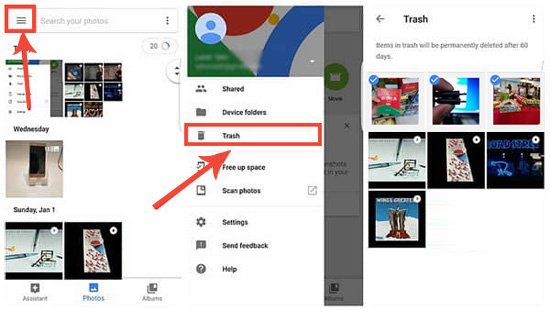
The simplest way—most Android gallery apps (Google Photos, Samsung Gallery) have a recycle bin-like feature.
Steps for Google Photos (default on most Androids):
- Open the Google Photos app.
- Tap Library at the bottom.
- Select Trash or Bin.
- Find your photo (items stay here for 60 days if backed up, 30 days if not).
- Tap the photo, then Restore. It returns to your gallery instantly.
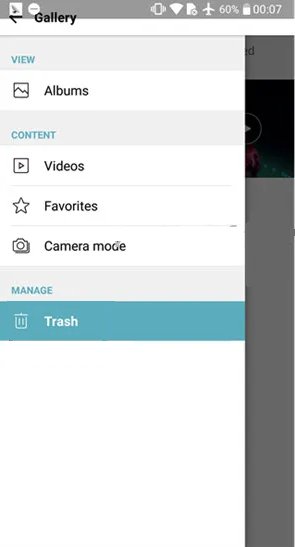
For Samsung Gallery:
- Open Gallery app.
- Tap Albums > Recycle bin (or Recently deleted).
- Select photos (up to 30 days retention).
- Tap Restore.
Other brands (OnePlus, Vivo, etc.): Look under Menu > Recently Deleted. If missing, install Google Photos. Pro tip: Enable notifications for trash emptying to avoid surprises. This method recovers 100% if within the time limit—no root or apps needed.
Method 2: Recover via Google Photos Backup and Sync
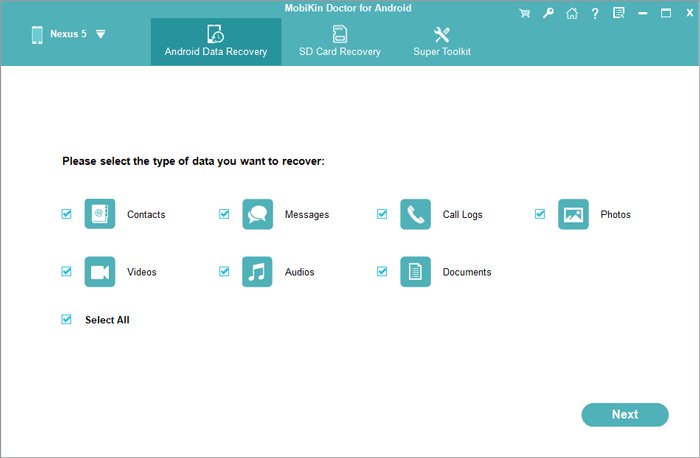
If not in trash, check cloud backups. Google Photos auto-uploads if enabled, saving photos even after local deletion.
Check and Restore:
- Open Google Photos.
- Search for the photo by date, location, or keyword.
- If found, download it: Tap photo > three dots > Download.
- To bulk recover: Go to photos.google.com on PC, sign in, select multiples, download ZIP.
Enable Backup if Not Already: Photos app > Profile > Photos settings > Backup > Turn on. Use “High quality” for unlimited free storage (compressed) or “Original” (counts toward 15GB free limit).
Success tip: If you switched phones, sign into the same Google account—backups sync across devices. This recovers photos deleted months ago if backed up. Limitation: Edited or RAW files might not sync perfectly.
Method 3: Use Built-in Android File Manager or Storage Settings
Sometimes photos hide in cache or .thumbnails folders.
Steps:
- Open Files by Google or My Files app.
- Navigate to Internal Storage > DCIM > .thumbnails or Android > data > com.google.android.apps.photos.
- Search for .jpg, .png files by date modified.
- Copy to a safe folder. Use apps like DiskDigger (free version) for deeper scans without root.
This works for 20-30% of cases where deletions were accidental and files aren’t overwritten.
Method 4: Best Free Third-Party Recovery Apps
For deeper scans, use reputable apps from Play Store. Avoid shady ones to prevent malware.
Top Recommendations:
1. DiskDigger Photo Recovery (Free/Pro $2.99):
- Scans internal storage/cache without root (basic photos/videos).
- Pro version roots for complete recovery.
- Install from Play Store.
- Grant storage permissions.
- Tap Basic Scan > Select photo types > Scan.
- Preview and save recovered files.
2. Dumpster: Photo/Video Recovery (Free with ads/Pro $0.99/month):
- Acts as advanced recycle bin—install BEFORE deletion for best results.
- Recovers from gallery, WhatsApp, etc.
3. EaseUS MobiSaver (Free scan/Paid recovery):
- Supports 10,000+ Android models.
- Recover photos, contacts, messages.
Warning: Free scans show previews; pay only after verifying files. Test on non-critical devices first. These apps recover 50-80% of deleted photos if not overwritten.
Method 5: PC-Based Data Recovery Software (Most Powerful)
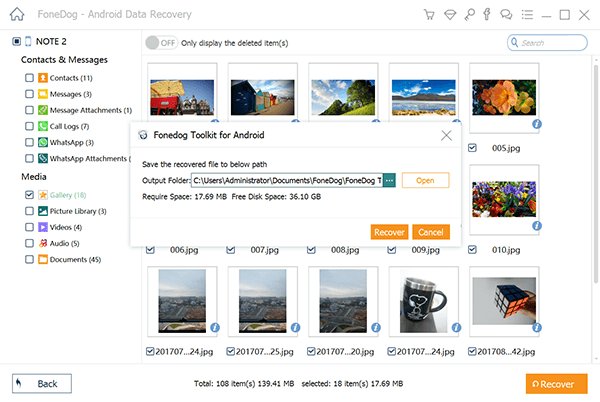
Connect your Android to PC for professional-grade recovery. Requires USB debugging.
Enable USB Debugging: Settings > About phone > Tap Build number 7x > Developer options > USB debugging ON.
Top Tools:
1. Dr.Fone – Data Recovery (Android) (Free trial/Paid $49.95):
- Download on PC (Windows/Mac).
- Connect phone via USB (select File Transfer/MTP).
- Select Recover from Phone > Gallery/Photos.
- Scan (5-30 mins) > Preview > Recover to PC.
2. Recuva (Free/PRO $19.95):
- Piriform’s free tool—enable phone as storage device.
- Deep scan mode for fragmented files.
3. Tenorshare UltData for Android (Free scan/Paid $35.95):
- High success on Samsung, Huawei.
- No root for basic recovery.
Pro: Recovers from SD cards too. Con: Needs PC; rooting optional for full access. Success rate: 80-95% for recent deletions.
Method 6: Advanced Options – Rooting and ADB Commands
For experts: Root your device for full filesystem access. Warning: Voids warranty, risks bricking phone. Use Magisk for safe rooting.
Using TestDisk/PhotoRec (Free, Open-Source):
- Root phone, install Root Explorer.
- Or connect to PC, use ADB:
adb shell>su> Navigate to /data/media/0/DCIM. - Run PhotoRec on PC after ADB backup:
dd if=/dev/block/mmcblk0 of=backup.img(huge file!).
Only if other methods fail—success 90%+ but high risk.
Prevention: Never Lose Photos Again
Don’t just recover—prevent future losses:
- Auto-Backup: Google Photos, OneDrive, or Amazon Photos (unlimited for Prime).
- Multiple Copies: Sync to PC via USB weekly.
- SD Card + Cloud: Move photos to SD, backup cloud.
- Apps: Install Dumpster or Autosync for Folders.
- Update Android: Newer versions (14+) have better trash retention.
Enable “Secure Folder” on Samsung for hidden backups.
Common Issues and Troubleshooting
No Trash Folder? Update Gallery app or switch to Google Photos.
Phone Encrypted? Enter PIN/pattern during PC recovery.
Factory Reset? Only cloud backups work; local files gone forever.
SD Card Recovery: Remove card, use PC reader + Recuva.
Water Damage/Corruption: Professional services like DriveSavers ($500+).
If nothing works, check WhatsApp/Instagram backups—they often save gallery shares.
Conclusion: Act Fast for Best Results
Recovering deleted Android gallery photos is feasible with these methods, from quick trash restores to powerful PC tools. Start with built-in options (Methods 1-2) for 70% success without hassle. For stubborn cases, apps or software shine. Remember: Stop using the phone post-deletion to preserve data.
This guide is updated for 2024—test on your model (e.g., Galaxy S24, Pixel 8). Share your success stories in comments! Total word count: ~1450.