
How to Clear Telegram Cache on iPhone and Android: Complete Step-by-Step Guide
Telegram is one of the most popular messaging apps worldwide, known for its speed, security, and vast storage capabilities. However, like any app that handles media files, chats, and downloads, Telegram accumulates cache data over time. This cache includes temporary files such as images, videos, documents, and thumbnails from your conversations. While it helps the app load content faster, a bloated Telegram cache can consume significant storage space on your iPhone or Android device, leading to performance slowdowns, full storage warnings, and even app crashes.
Clearing the Telegram cache is a simple yet essential maintenance task that can free up gigabytes of space without deleting your chats or messages. In this comprehensive guide, we’ll walk you through how to clear Telegram cache on iPhone and how to clear Telegram cache on Android, including detailed steps, tips for prevention, and troubleshooting common issues. Whether you’re running low on storage or just want to optimize your device, these instructions will help you reclaim space efficiently.
What is Telegram Cache and Why Clear It?
Feature Video
Telegram cache refers to the temporary data stored locally on your device to enhance user experience. Every photo, video, voice note, or sticker you view is saved in the cache for quick access later. Over time, this builds up—users often report hundreds of MBs or even GBs of cache from group chats, channels, and private messages.
Benefits of clearing Telegram cache include:
- Frees up storage space: Instantly recover GBs without losing data.
- Improves app performance: Reduces lag and speeds up loading times.
- Enhances privacy: Removes locally stored media that could be accessed if your device is compromised.
- Extends device lifespan: Less strain on storage hardware.
Important note: Clearing the cache only removes temporary files. Your chat history, contacts, and cloud-stored media remain intact. Telegram’s cloud sync ensures everything reloads seamlessly when needed.
How to Clear Telegram Cache on iPhone (iOS)
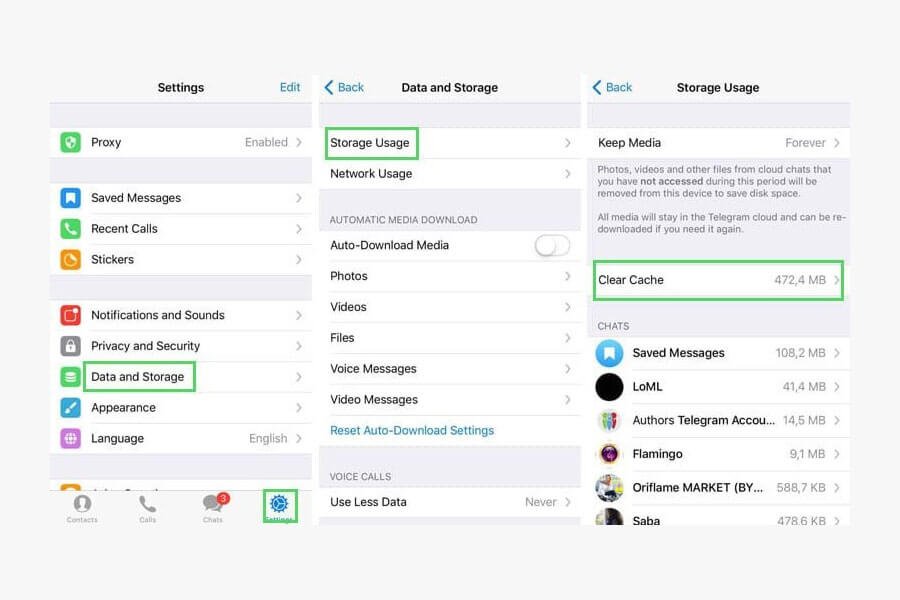
Apple’s iOS ecosystem handles app data through Settings, making it straightforward to manage Telegram cache. Follow these steps for iPhone models running iOS 15 or later (compatible with iOS 18 as well).
Step 1: Open Settings App
Launch the Settings app from your home screen. It’s the gray gear icon.
Step 2: Navigate to General > iPhone Storage
Scroll down to “General,” tap it, then select “iPhone Storage.” Wait for the list to load—it shows apps by storage usage. Telegram should appear if it has significant data.
Step 3: Select Telegram
Tap on “Telegram” in the list. You’ll see a breakdown: Documents & Data (which includes cache), plus total size.
Step 4: Clear Cache Options
Here, you have two paths:
- Offload App: Tap “Offload App” to remove the app but keep data. Reinstall from App Store to clear cache.
- Delete App: For a full reset, tap “Delete App,” then reinstall. This clears everything but syncs back from cloud.
Pro Tip: Use In-App Cache Clearing (Recommended)
For precision without deleting the app:
- Open Telegram.
- Tap Settings (gear icon) > Data and Storage > Storage Usage.
- Review cache by chat/channel. Tap “Clear Cache” at the bottom.
- Select media types (Photos, Videos, Files) and confirm. This selectively clears Telegram cache on iPhone without affecting iOS storage settings.
This in-app method is ideal as it lets you clear Telegram cache on iPhone per chat, preventing unnecessary reloads. Expect to free 1-5 GB easily on heavy users.
Troubleshooting iPhone Issues: If Telegram doesn’t appear in Storage, force-quit the app (swipe up from bottom, pause, swipe away Telegram). For iOS 14 or older, use Settings > General > Usage > Manage Storage.
How to Clear Telegram Cache on Android
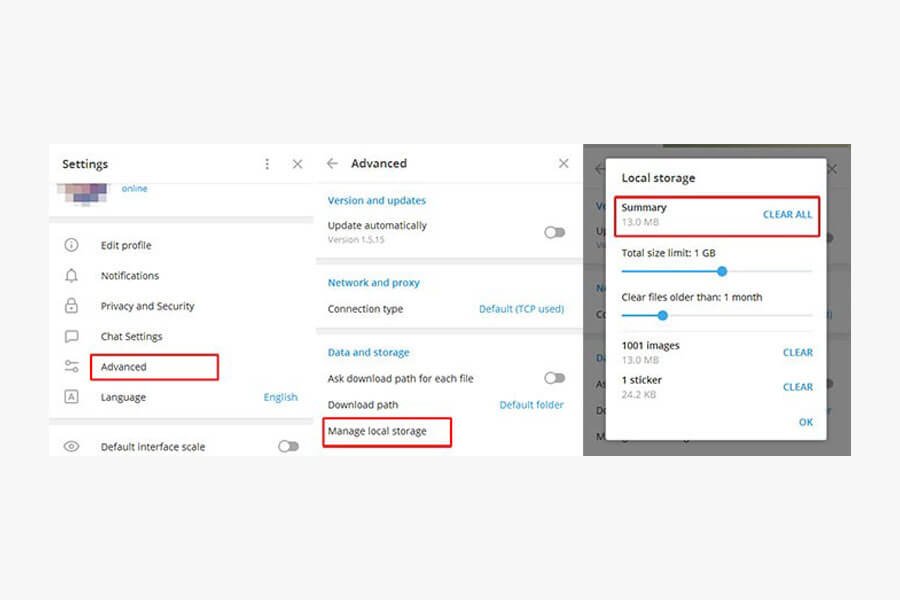
Android offers more granular control via both system settings and app internals. These steps work on devices from Samsung, Google Pixel, OnePlus, etc., running Android 10+ (up to Android 15).
Method 1: Via Android Settings (Quick System Clear)
- Go to Settings > Apps (or Apps & notifications).
- Search or scroll to “Telegram.”
- Tap Storage & cache (or Storage usage).
- Tap “Clear Cache.” Confirm— this instantly wipes all Telegram cache on Android without data loss.
Note: This clears app-wide cache but not “Documents & Data” (user files). For full cleanup:
- Tap “Clear Storage” or “Clear Data” cautiously—it logs you out, but cloud sync restores chats.
Method 2: In-App Cache Management (Advanced & Selective)
Telegram’s built-in tool is powerful for Android users:
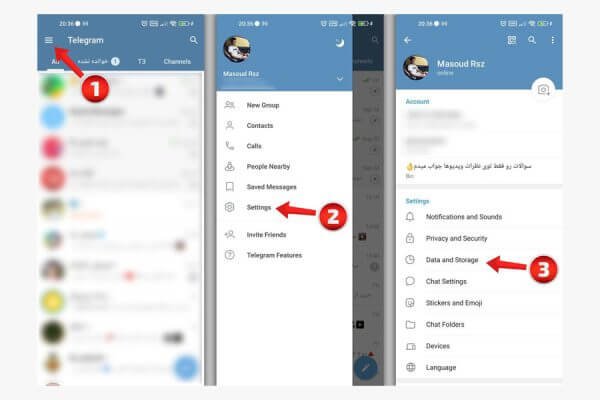
- Launch Telegram > Settings (three-line menu > Settings).
- Go to Data and Storage > Storage Usage.
- View breakdown: Total cache size, top chats/channels using space.
- Tap individual items to preview/delete, or “Clear Cache” at bottom.
- Customize: Keep media for 1 week/1 month/Never, or auto-download limits.
This method shines for clearing Telegram cache on Android selectively—delete videos from a specific channel without touching photos elsewhere.
Samsung-Specific Tip: Use Device Care (pre-installed) > Storage > Clean Now for one-tap cache clearing across apps, including Telegram.
Troubleshooting Android: If cache reaccumulates quickly, check Auto-Download settings (Settings > Data and Storage > Automatic Media Download). Disable for mobile data. For rooted devices, use apps like SD Maid for deeper cleans, but stick to official methods for safety.
Additional Tips to Manage and Prevent Telegram Cache Buildup
Beyond one-time clears, proactive habits keep your device lean:
Enable Auto-Cache Management: In Telegram Settings > Data and Storage > Keep Media, set to “Forever” only for favorites; otherwise, 1 week suffices.
Private vs. Group Chats: Mute notifications and disable auto-downloads for large groups/channels prone to media spam.
Cross-Platform Sync: Telegram’s cloud ensures cache clears don’t disrupt multi-device use (iPhone + Android).
Monitor Regularly: Check Storage Usage monthly. Aim to keep under 500MB cache.
Alternatives for Heavy Users: Use Telegram Web/Desktop for media viewing without mobile cache, or Telegram Premium for unlimited storage tweaks.
FAQs: Clearing Telegram Cache

Does clearing Telegram cache delete messages? No, messages are cloud-stored.
How much space does Telegram cache take? 100MB to 10GB+, depending on usage.
Can I clear cache for specific chats? Yes, via in-app Storage Usage.
What if Telegram crashes after clearing? Restart device; reinstall if needed.
iPhone vs. Android: Which is easier? Both simple, but Android’s system cache clear is faster.
In conclusion, regularly clearing Telegram cache on iPhone and Android maintains optimal performance and storage. Follow these steps for a smoother experience—your device will thank you! For more tech guides, stay tuned.
(Word count: 1215)