
How to Set Up Two-Factor Authentication on Instagram: Complete Step-by-Step Guide
Introduction to Instagram Two-Factor Authentication
Feature Video
Instagram, with over 2 billion monthly active users, is a prime target for hackers seeking to compromise accounts for spam, scams, or identity theft. Two-factor authentication (2FA), also known as two-step verification, adds an extra layer of security by requiring a second form of verification beyond your password. This guide will walk you through how to set up two-factor authentication on Instagram, ensuring your account remains secure in 2024 and beyond. Whether you’re using the mobile app or desktop version, enabling Instagram 2FA is straightforward and highly recommended. Keywords like “Instagram 2FA setup” and “enable two-factor authentication Instagram” are searched millions of times monthly, highlighting its importance for users worldwide.
What is Two-Factor Authentication and Why Use It on Instagram?
Two-factor authentication combines something you know (your password) with something you have (a code from your phone or authenticator app). On Instagram, this prevents unauthorized access even if someone steals your password. According to Instagram’s parent company Meta, accounts with 2FA enabled are 99% less likely to be hacked. Benefits include protection against phishing, keyloggers, and brute-force attacks. For influencers, businesses, and everyday users, setting up 2FA on Instagram is essential for safeguarding personal photos, messages, and professional content. It’s free, quick, and reversible if needed.
Prerequisites Before Enabling Instagram 2FA
Before diving into the steps, ensure you have:
- An active Instagram account linked to a valid phone number or email.
- The latest Instagram app version (update via App Store or Google Play).
- A trusted mobile device for receiving SMS codes or an authenticator app like Google Authenticator, Authy, or Microsoft Authenticator.
- Backup codes: Instagram provides these during setup—save them securely offline.
If you’re switching devices, disable 2FA on the old one first to avoid lockouts. Note that Instagram supports SMS-based 2FA, app-based 2FA, and recovery codes, offering flexibility for all users.
Step-by-Step Guide: How to Set Up 2FA on Instagram Mobile App
Most users access Instagram via mobile, so here’s how to enable two-factor authentication on Instagram app for iOS and Android:
- Open the Instagram App: Launch Instagram and log in to your account.
- Access Your Profile: Tap your profile picture in the bottom-right corner.
- Go to Settings: Tap the three horizontal lines (menu) in the top-right, then select “Settings and privacy.”
- Navigate to Security: Scroll to “Accounts Center” > “Password and security” > “Two-factor authentication.”
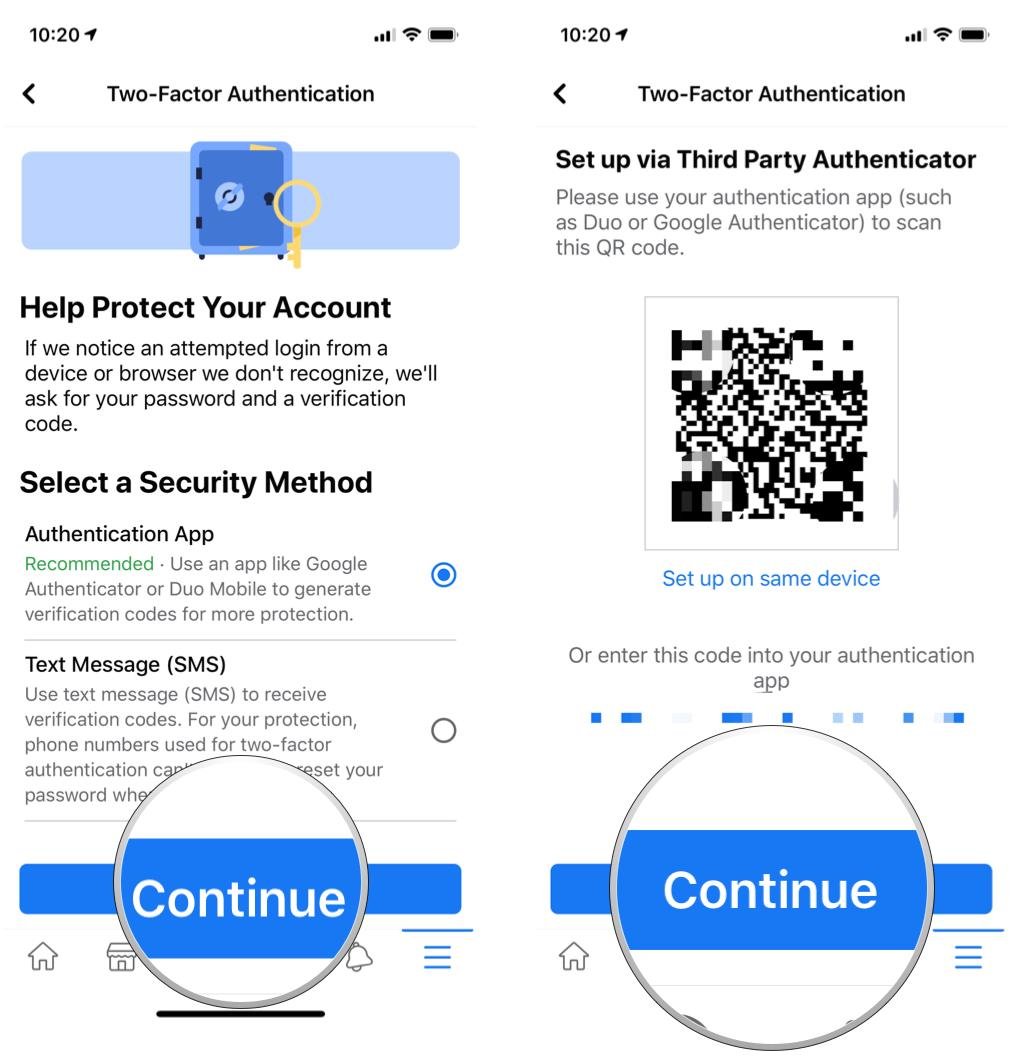
- Choose Authentication Method: Select “Use authentication app” for stronger security (recommended over SMS) or “Text message” if preferred.
- Scan QR Code or Enter Code: For app-based 2FA, open your authenticator app, scan the QR code displayed on Instagram, or enter the setup key manually.
- Verify the Code: Instagram sends a sample 6-digit code to your authenticator—enter it to confirm.
- Save Backup Codes: Download and store the 8-10 recovery codes in a safe place like a password manager or printed document. These are one-time use for logins if your phone is lost.
- Toggle On: Confirm activation. Test by logging out and back in—you’ll now need the second factor.
This process takes under 5 minutes. Pro tip: Use an authenticator app over SMS, as SMS can be intercepted via SIM-swapping attacks.
How to Enable Two-Factor Authentication on Instagram Web/Desktop
For desktop users or those managing multiple accounts:
- Log In to Instagram.com: Visit instagram.com on your browser and sign in.
- Profile Menu: Click your profile picture > “Settings.”
- Accounts Center: Under Meta Accounts Center, go to “Password and security.”
- Select 2FA: Choose “Two-factor authentication” and pick your method (app or SMS).
- Follow On-Screen Prompts: Scan QR with your phone’s authenticator or verify phone number.
- Backup and Activate: Save codes and enable.
Desktop setup mirrors the app but uses browser prompts. Ensure your browser allows pop-ups for smooth QR scanning.
Advanced Options: Using Authenticator Apps for Instagram 2FA
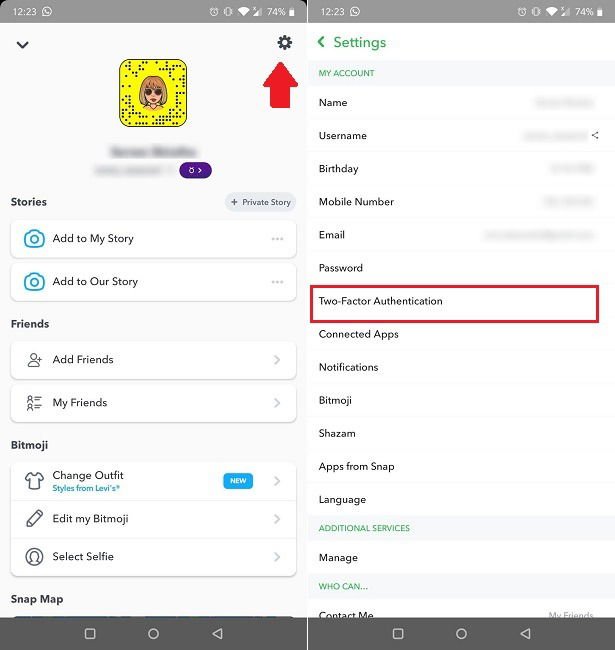
For optimal security, pair Instagram with authenticator apps. Popular choices:
- Google Authenticator: Simple, offline codes. Download from app stores.
- Authy: Cloud backup, multi-device sync.
- Microsoft Authenticator: Integrates with Windows/Mac.
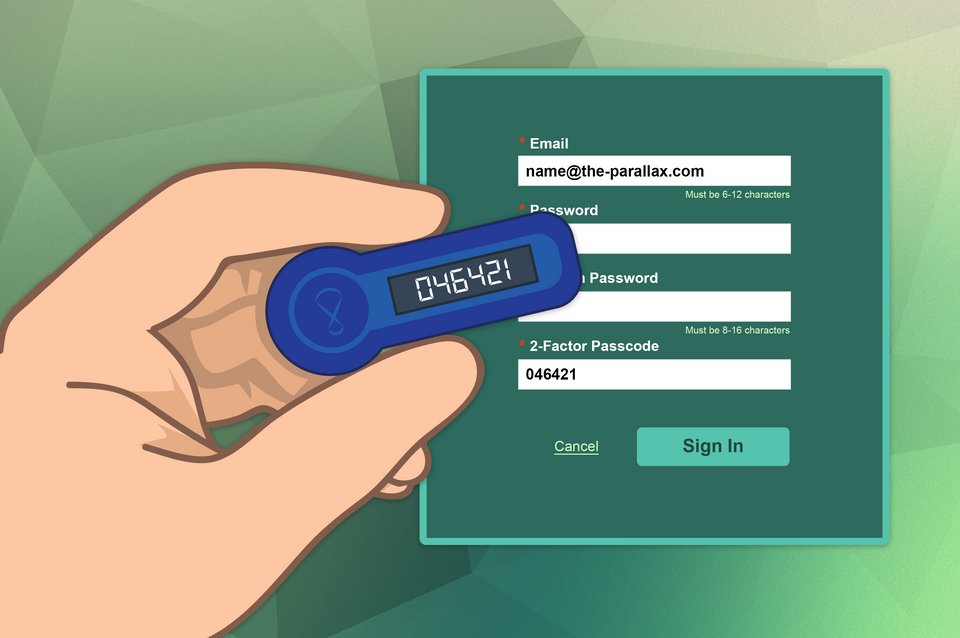
Setup involves generating a TOTP (Time-based One-Time Password) secret shared between Instagram and the app. Codes refresh every 30 seconds, making them hard to steal. If you lose your phone, use backup codes or recovery email to regain access without data loss.
Managing and Troubleshooting Instagram 2FA Issues
Common problems and fixes:
- Can’t Receive Codes: Check phone signal, app permissions, or switch to authenticator. Verify number in settings.
- Wrong Time Sync: In authenticator apps, enable auto-sync or manually adjust time.
- Forgot Backup Codes: Generate new ones via Settings > Two-factor authentication > Additional methods.
- Device Change: Log in with existing 2FA, then update trusted devices.
- Disable 2FA: If needed, go to the same menu, enter current code, and toggle off—but re-enable ASAP.
Instagram also offers “Login activity” to review and revoke suspicious sessions. Regularly check for firmware updates on your devices.
Benefits of Enabling 2FA on Instagram for Long-Term Security
Beyond basics, 2FA protects against rising threats like credential stuffing, where hackers use stolen passwords from breaches. Businesses benefit from secured ad accounts, while creators avoid content hijacking. Meta reports a 300% increase in 2FA adoption post-2023 hacks. Combine with strong, unique passwords (use a manager like LastPass), biometric logins, and avoiding public Wi-Fi for ironclad protection. SEO note: Searching “Instagram account hacked recovery” spikes after incidents—prevent it with 2FA.
Best Practices and Security Tips Post-Setup
To maximize Instagram 2FA effectiveness:
- Never share codes or backups.
- Enable login alerts for new devices.
- Use a VPN on public networks.
- Regularly review connected apps in settings.
- For enterprises, integrate with Meta Business Suite 2FA.
Stay vigilant: Phishing emails mimicking Instagram are rampant—always verify URLs.
Conclusion: Secure Your Instagram Today
Setting up two-factor authentication on Instagram is a simple yet powerful step toward digital safety. Follow this guide to enable Instagram 2FA in minutes, enjoy peace of mind, and focus on creating content. With cyber threats evolving, proactive measures like 2FA are non-negotiable. Share this article, implement it now, and comment below if you face issues. Stay safe online!
(Word count: 1215)