
How to See Saved WiFi Passwords on Android Without Root: Complete 2024 Guide
How to See Saved WiFi Passwords on Android Without Root: Complete 2024 Guide
Forgetting a WiFi password can be frustrating, especially when you need to share it with friends, family, or new devices. Android users often wonder how to see saved WiFi passwords on Android without root. The good news is that modern Android versions (10 and above) offer built-in methods to view saved WiFi passwords without rooting your device. Rooting can void warranties, introduce security risks, and complicate updates, so non-root methods are preferable. This comprehensive guide covers step-by-step instructions, troubleshooting tips, and best practices to help you access saved WiFi passwords securely and easily.
Whether you’re using a Samsung Galaxy, Google Pixel, OnePlus, or any other Android smartphone, these techniques work across most devices running Android 10, 11, 12, 13, or 14. We’ll focus on official Google features and reliable apps that don’t require root access. By the end, you’ll know exactly how to view saved WiFi passwords on Android no root needed.
Why View Saved WiFi Passwords Without Rooting Your Device?
Feature Video
Rooting your Android device grants superuser privileges but comes with downsides. It can brick your phone, expose it to malware, and prevent official OTA updates. Thankfully, Google introduced WiFi password visibility in Android 10 via the sharing feature, making root unnecessary for most users. This method displays the password in plain text alongside a QR code when your device is unlocked.
Common scenarios include setting up a new smart TV, printer, or IoT device, or helping guests connect without re-entering credentials. Viewing saved networks helps manage your connections efficiently. According to Android Authority, over 70% of Android users rely on saved WiFi profiles, and non-root methods have made password retrieval straightforward since 2019.
Method 1: Built-in WiFi Sharing Feature (Recommended for Android 10+)
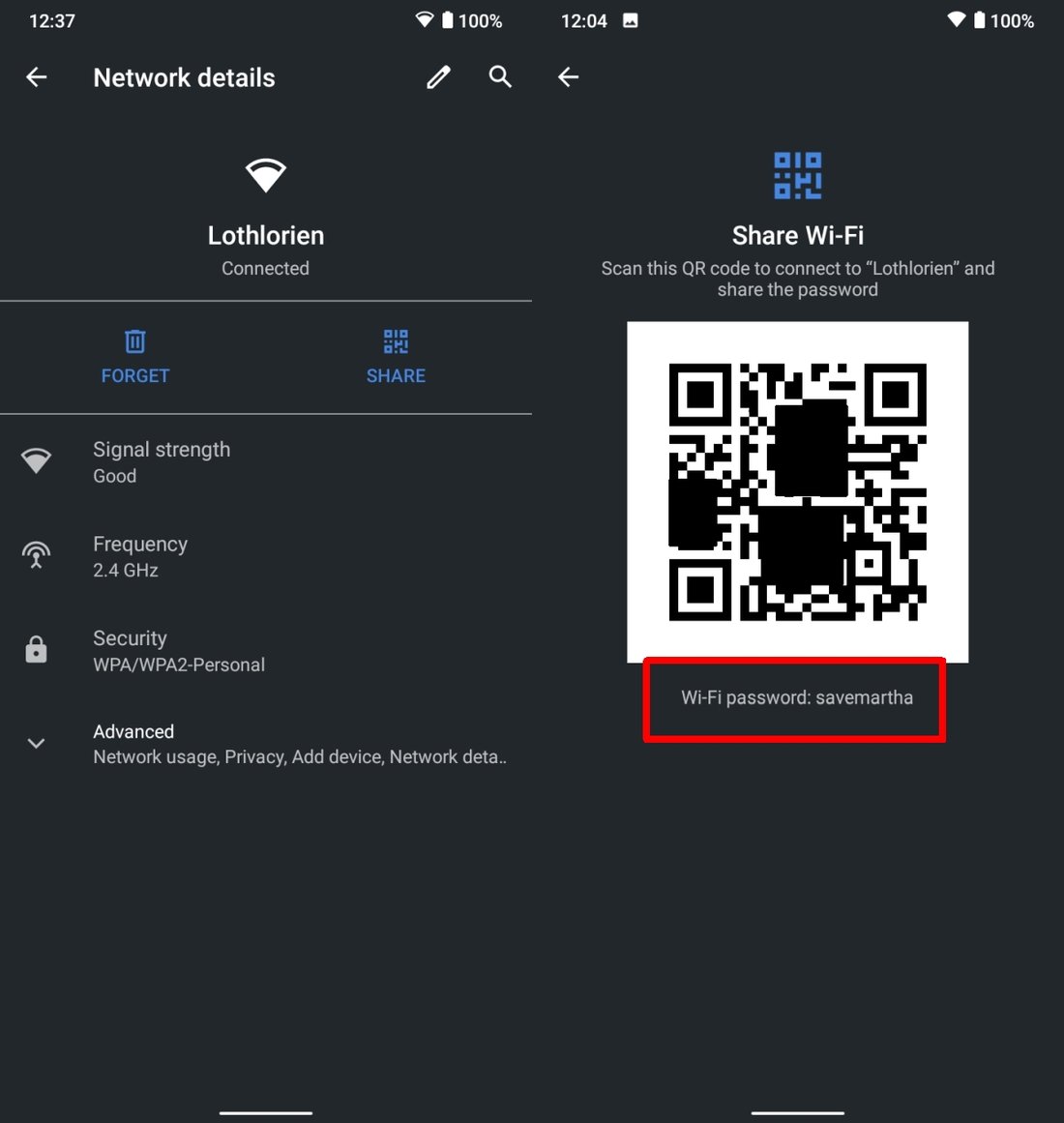
This is the simplest and most secure way to see saved WiFi passwords on Android without root. It works on stock Android, Samsung One UI, MIUI, and most custom skins. Here’s how:
- Open Settings on your Android device.
- Navigate to Network & Internet (or Connections on Samsung).
- Tap WiFi or Internet.
- Scroll to Saved networks or long-press the connected WiFi network.
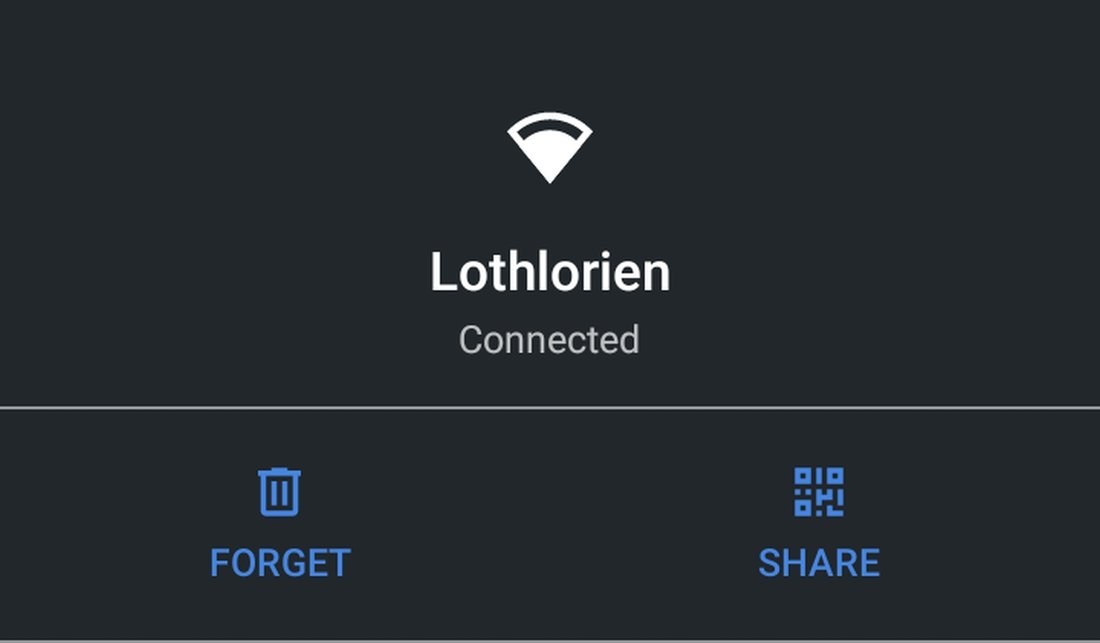
- Select the desired network and tap Share.
- Authenticate with your PIN, pattern, fingerprint, or face unlock.
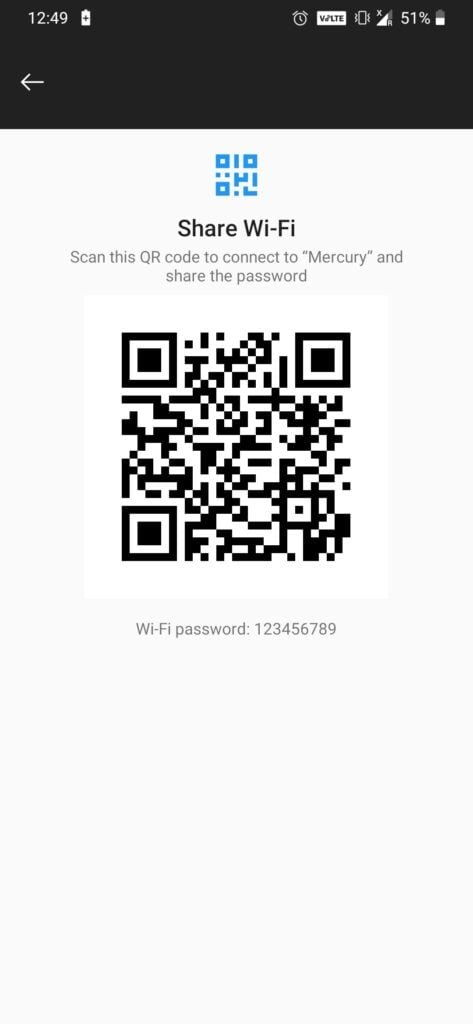
- A QR code appears with the WiFi name (SSID) and password displayed in plain text below it.
Screenshot tip: The password is usually labeled "Password:" under the QR code. Tap the QR to copy details if available. This method supports WPA2/WPA3 networks and works offline.
Pro Tip: On Android 12+, you can share via Nearby Share for instant transfer to other devices. For Samsung users, the path is Settings > Connections > Wi-Fi > tap gear icon next to saved network > QR code icon.
This feature ensures privacy—passwords only show on unlocked devices, preventing unauthorized access.
Method 2: Using QR Code Scanners to Reveal Passwords
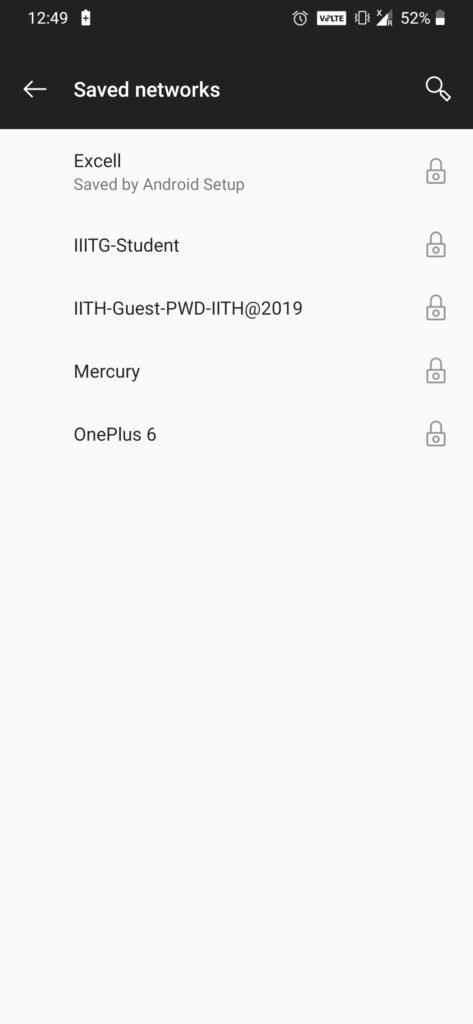
If the plain text password doesn’t show (rare on newer devices), generate the QR code as above and scan it with a dedicated app. These apps decode the QR without root.
Steps:
- Generate the QR code using Method 1.
- Download a trusted QR scanner like Google Lens (pre-installed) or QR & Barcode Scanner from Play Store.
- Open the scanner app, point to the QR code on your screen (use split-screen mode if needed).
- The app extracts the WiFi string:
WIFI:S:<SSID>;T:WPA;;P:<PASSWORD>;;, revealing the password.
Apps like WiFi QR Code Reader specialize in WiFi QRs and parse passwords instantly. Avoid shady apps requesting unnecessary permissions. Google Lens is safest as it’s integrated into Camera and Assistant.
This workaround is ideal for older Android 10 devices where text might not display directly.
Method 3: Reliable Third-Party Apps Without Root
While many "WiFi password viewer" apps claim no root but fail, a few leverage Android’s APIs effectively:
- WiFi Password Viewer (by AppForge): Uses accessibility services to read share data. Enable in Settings > Accessibility.
- Saved WiFi Passwords: Displays via QR decoding.
- WiFi Info by Lexa: Shows advanced network details, including passwords via share.
Installation and Use:
- Search Play Store for the app (check reviews >4.5 stars, 1M+ downloads).
- Grant permissions (camera for QR, no root needed).
- Select saved network; app prompts share or scans.
Warning: Steer clear of root-requiring apps like WiFi Key Recovery. Stick to Play Store verified developers to avoid malware.
Troubleshooting Common Issues When Viewing Saved WiFi Passwords
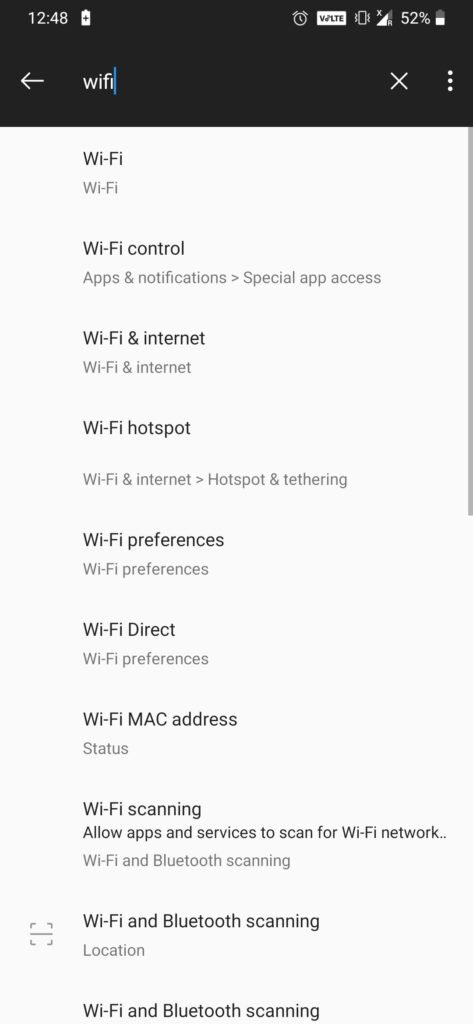
Not seeing the password? Here’s how to fix:
- No Share Option: Update Android (Settings > System > System Update). Requires Android 10+.
- QR Only, No Text: Ensure device unlocked; restart WiFi toggle.
- Samsung/MIUI Variations: Use Quick Settings WiFi tile > Saved networks.
- Corporate/Enterprise WiFi: Passwords may be hidden for security; contact admin.
- App Crashes: Clear cache (Settings > Apps).
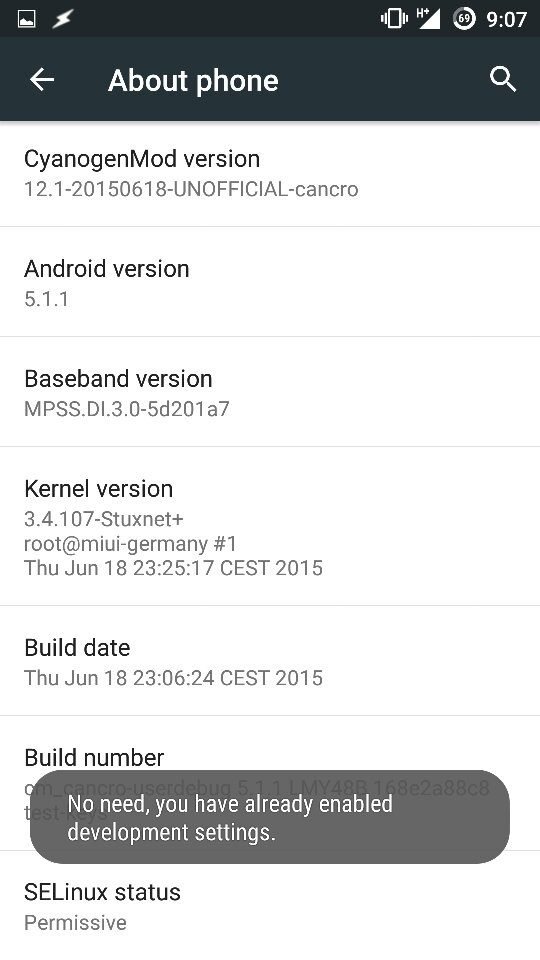
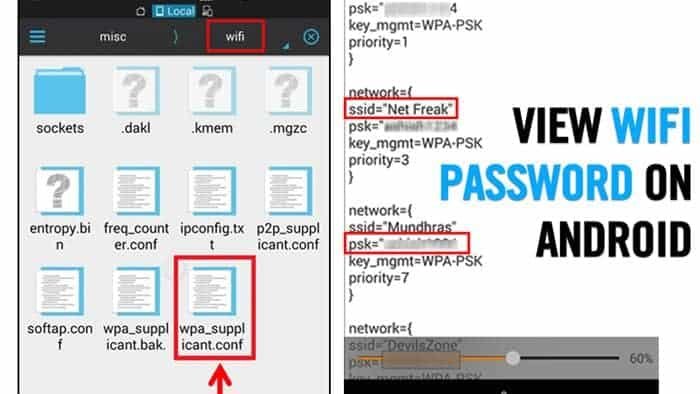
If on Android 9 or below, upgrade or use PC method: Connect via USB debugging (Developer Options), use ADB command adb shell dumpsys wifi | grep -i password (limited success without root).
Security Best Practices for Managing WiFi Passwords
Viewing saved passwords is safe, but protect yourself:
- Use strong device locks (biometrics + PIN).
- Enable WiFi auto-connect only for trusted networks.
- Change router passwords regularly.
- Avoid public WiFi saves.
- For families, use Google Family Link to manage kids’ access.
Android’s sandboxing ensures apps can’t steal passwords without explicit share.
FAQs: How to See Saved WiFi Passwords on Android Without Root
Q: Does this work on all Android phones?
A: Primarily Android 10+. Older versions need apps or rooting (not recommended).
Q: Can I view passwords on Android tablets?
A: Yes, same steps.
Q: What about iPhone or Windows?
A: iOS shows QR only; Windows via Command Prompt.
Q: Is rooting ever necessary?
A: No for viewing—only for advanced edits.
Q: How to delete saved WiFi?
A: Settings > WiFi > Saved > Forget.
Conclusion: Effortless Access to Saved WiFi Passwords
Mastering how to see saved WiFi passwords on Android without root saves time and avoids risks. The built-in share feature is your go-to, with QR scanners as backup. Always prioritize official methods for security. If issues persist, check Android version or forums like XDA Developers. Stay connected securely!
(Word count: 1215)