
Essential Keyboard Shortcuts That Will Save You Hours
Essential Keyboard Shortcuts That Will Save You Hours
In today’s fast-paced digital world, time is money, and productivity is king. Whether you’re a busy professional, a student juggling deadlines, or a power user aiming to streamline workflows, mastering essential keyboard shortcuts can shave hours off your daily tasks. Imagine navigating apps, editing documents, and browsing the web without ever touching your mouse. That’s the power of keyboard shortcuts—they’re faster, more precise, and reduce wear on your hardware.
This comprehensive guide dives into the most game-changing keyboard shortcuts for productivity across operating systems, browsers, office suites, and more. Optimized for SEO with keywords like “best keyboard shortcuts Windows,” “Mac keyboard shortcuts,” and “browser shortcuts,” this article will equip you with actionable tips. By the end, you’ll be a shortcut wizard, saving hours weekly. Let’s jump in!
Windows Keyboard Shortcuts: Boost Your PC Productivity
Feature Video
https://www.youtube.com/watch?v=d_rH4uAm9MY
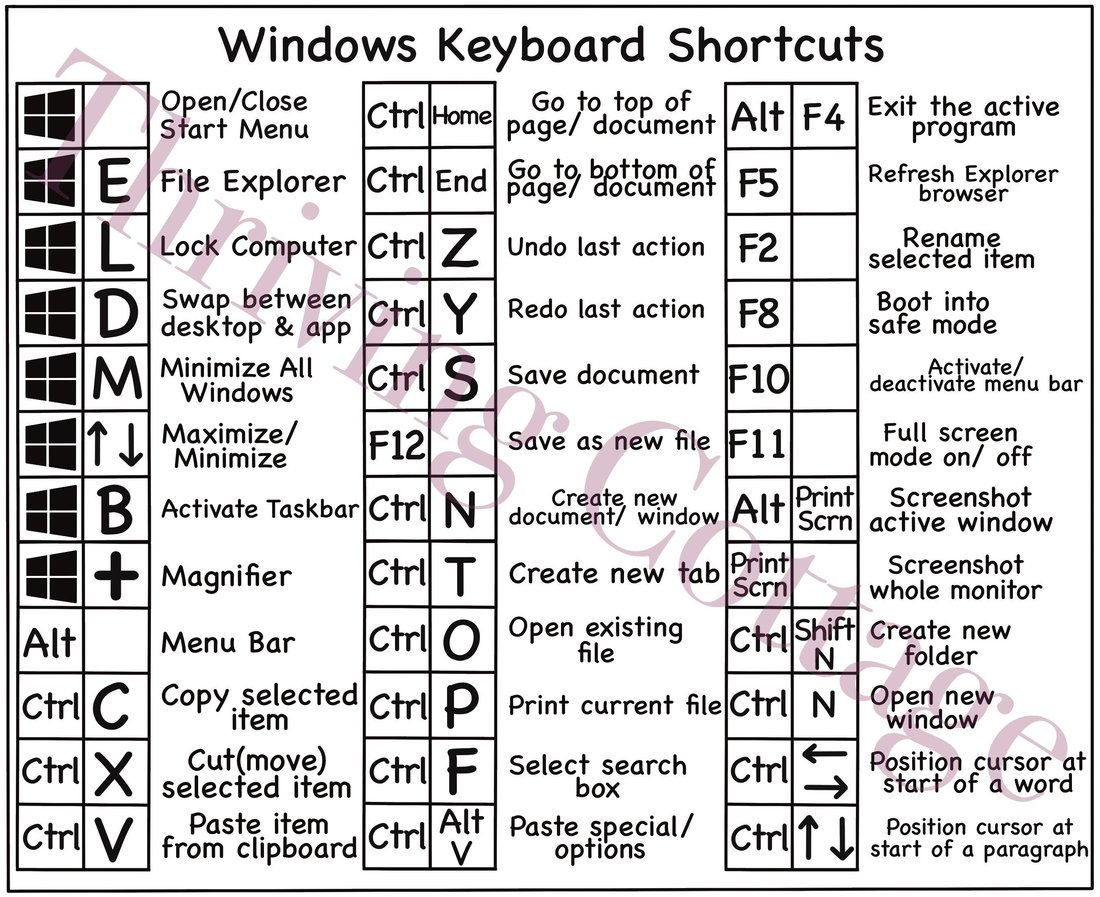
Windows users, rejoice! Microsoft’s OS is packed with Windows keyboard shortcuts that can transform your experience. Start with the basics: Ctrl + C to copy, Ctrl + V to paste, and Ctrl + Z to undo—universal lifesavers used billions of times daily.
For multitasking, Windows Key + Tab opens Task View, letting you preview and switch virtual desktops effortlessly. Need to snap windows? Windows Key + Arrow Keys resizes and positions apps perfectly—no dragging required. Screenshot pros swear by Windows Key + Shift + S for selective snips, saving to clipboard instantly.
File management gets a turbo boost with Windows Key + E to launch Explorer and Alt + Up Arrow to navigate up folders. Power users love Windows Key + L to lock your screen in a flash and Ctrl + Shift + Esc for direct Task Manager access, bypassing Ctrl+Alt+Del.
Customize your setup with Windows Key + I for Settings and Windows Key + Period to emoji-pick. In Command Prompt or PowerShell, Ctrl + Shift + C/V handles copy-paste sans mouse. These essential Windows shortcuts alone can cut navigation time by 50%. Practice them daily, and watch your efficiency soar—studies show shortcut mastery boosts speed by up to 30%.
macOS Keyboard Shortcuts: Apple’s Hidden Gems
Mac enthusiasts, your Spotlight is Command + Space—the ultimate search tool for apps, files, and calculations. Pair it with Command + Tab for app switching and Command + ` (backtick) for windows within the same app.
Screenshots? Command + Shift + 3 captures full screen, Command + Shift + 4 for selection, and add Space for windows. Mission Control via F3 or Control + Up Arrow overviews desktops like magic.
Text editing shines with Command + A select all, Option + Delete for whole words, and Command + Shift + V for paste without formatting. Finder fans use Command + Up Arrow for parent folders and Command + Shift + G to “Go to Folder.”
Advanced: Command + Option + Esc Force Quit, Command + Shift + Power sleep. These Mac keyboard shortcuts leverage Apple’s ecosystem for seamless workflows. Integrate them into muscle memory, and you’ll navigate macOS like a pro, reclaiming precious hours from mouse dependency.
Browser Keyboard Shortcuts: Supercharge Your Surfing
Browsers like Chrome, Firefox, and Edge share core browser keyboard shortcuts that slash tab chaos. Ctrl + T (Cmd + T on Mac) opens new tabs; Ctrl + W closes them. Jump tabs with Ctrl + Tab next, Ctrl + Shift + Tab previous.
Navigation: Ctrl + L selects address bar for instant typing; Alt + Left/Right Arrow back/forwards. Reload with Ctrl + R, hard refresh Ctrl + Shift + R. Find on page? Ctrl + F—essential for research.
Zoom: Ctrl + +/- in/out, Ctrl + 0 reset. Chrome-specific: Ctrl + Shift + N incognito. Bookmark stars with Ctrl + D. History via Ctrl + H. These shortcuts optimize sessions, reducing clicks by 40% per browsing study. Perfect for SEO pros auditing sites or marketers tracking campaigns.
Microsoft Office and Google Workspace Shortcuts: Document Domination

Excel warriors: Ctrl + ; inserts date, Ctrl + Shift + : time. AutoSum Alt + =. Word: F12 Save As, Ctrl + Enter page break. PowerPoint: F5 slideshow start.
Google Docs/Sheets mirror: Ctrl + / menu access, Alt + / help. Sheets pivot: Alt + Shift + X. These Office keyboard shortcuts accelerate formatting, formulas, and collaboration, ideal for remote teams saving collaborative hours.
Developer and Coding Shortcuts: For Programmers
VS Code: Ctrl + P quick open, Ctrl + Shift + P command palette. Git in terminal: aliases save keystrokes. IntelliJ: Ctrl + Space autocomplete. These boost code velocity, cutting debug time dramatically for devs.
Tips for Mastering Keyboard Shortcuts

1. Print cheat sheets. 2. Use apps like KeyCue (Mac) or SharpKeys (Windows). 3. Practice in low-stakes tasks. 4. Customize via OS settings. Consistency turns novices into experts in weeks.
In conclusion, adopting these essential keyboard shortcuts across platforms will undeniably save you hours. From Windows multitasking to browser blitzing, integrate them today. Track your time savings—your future self will thank you. Share your favorites in comments!
(Word count: 1215)