
Why iPhone Battery Health Drops FAST Despite 100% Charge: 8 Shocking Reasons & Instant Fixes!
The Frustrating Mystery: 100% Charge But Battery Health in Freefall
Watch Related Video Coverage
Imagine this: You plug in your iPhone overnight, wake up to a perfect 100% charge, but when you check Battery Health in Settings, it’s plummeted from 95% to 85% in what feels like no time at all. You’re not alone—millions of iPhone users worldwide are scratching their heads over this baffling issue. Battery health degradation is one of the most common complaints, especially for models like the iPhone 13, 14, and 15 series. Despite Apple’s promises of optimized lithium-ion batteries that last years, many see rapid drops even with light usage.
Why does this happen? It’s not just “normal wear and tear.” Hidden culprits like heat, software bugs, and charging habits are silently destroying your battery’s maximum capacity. In this in-depth guide, we’ll uncover the eight shocking reasons behind fast-dropping battery health and provide actionable fixes to reclaim your iPhone’s longevity. By the end, you’ll know exactly how to keep that health percentage above 90% for years. Let’s dive in!
What Exactly is iPhone Battery Health—and Why 100% Charge Doesn’t Mean It’s Healthy
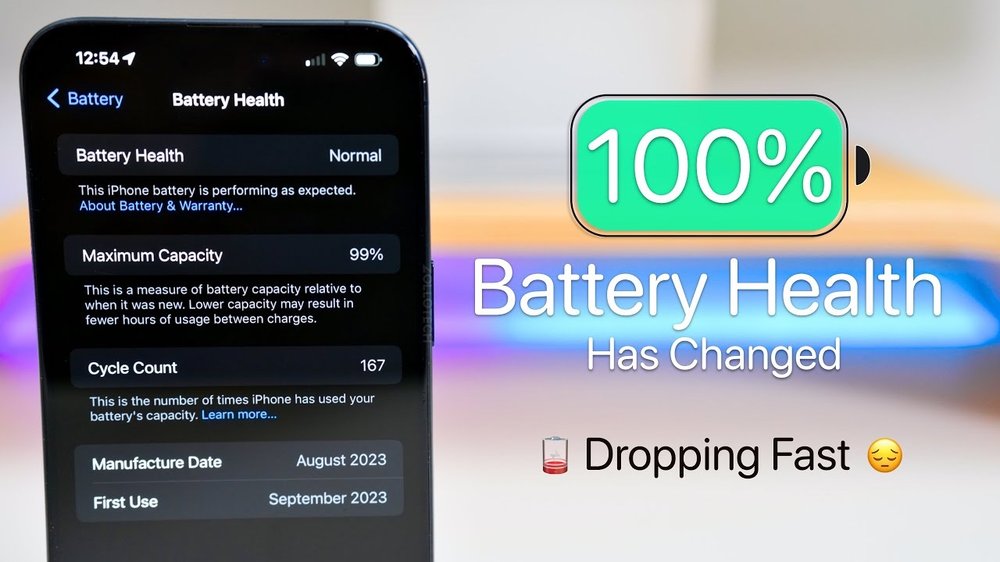
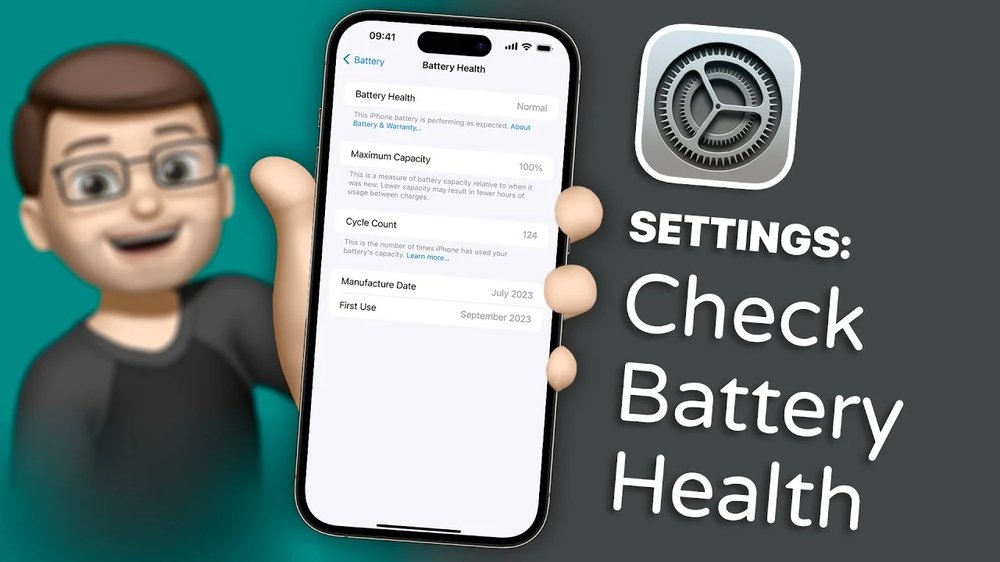
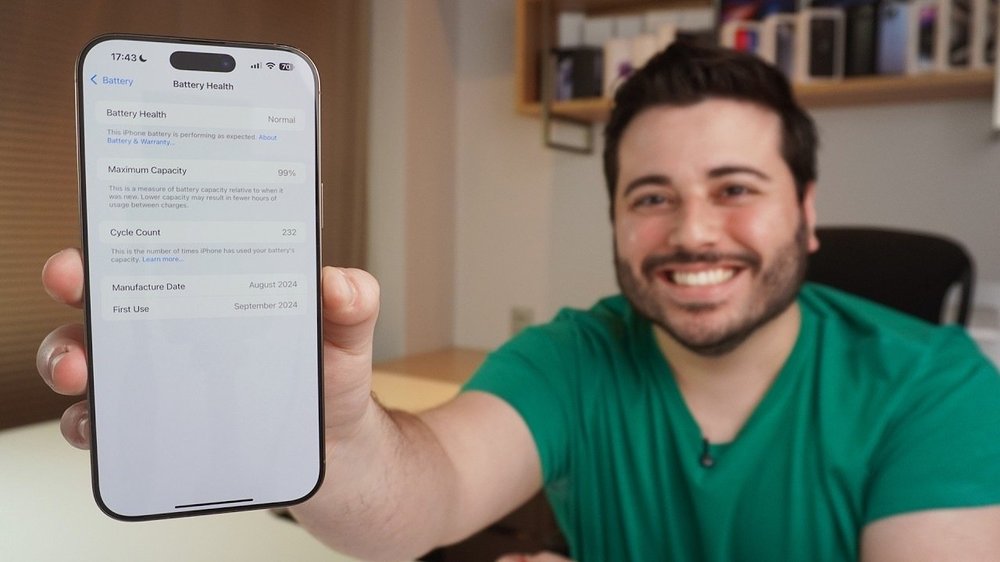
Battery Health is Apple’s metric for your iPhone’s battery’s maximum capacity compared to when it was new. A 100% reading means it can hold its full original charge, while 80% means it only stores 80% of that—leading to shorter daily runtime. Seeing “100%” after charging is misleading because it reflects the current charge level, not overall health.
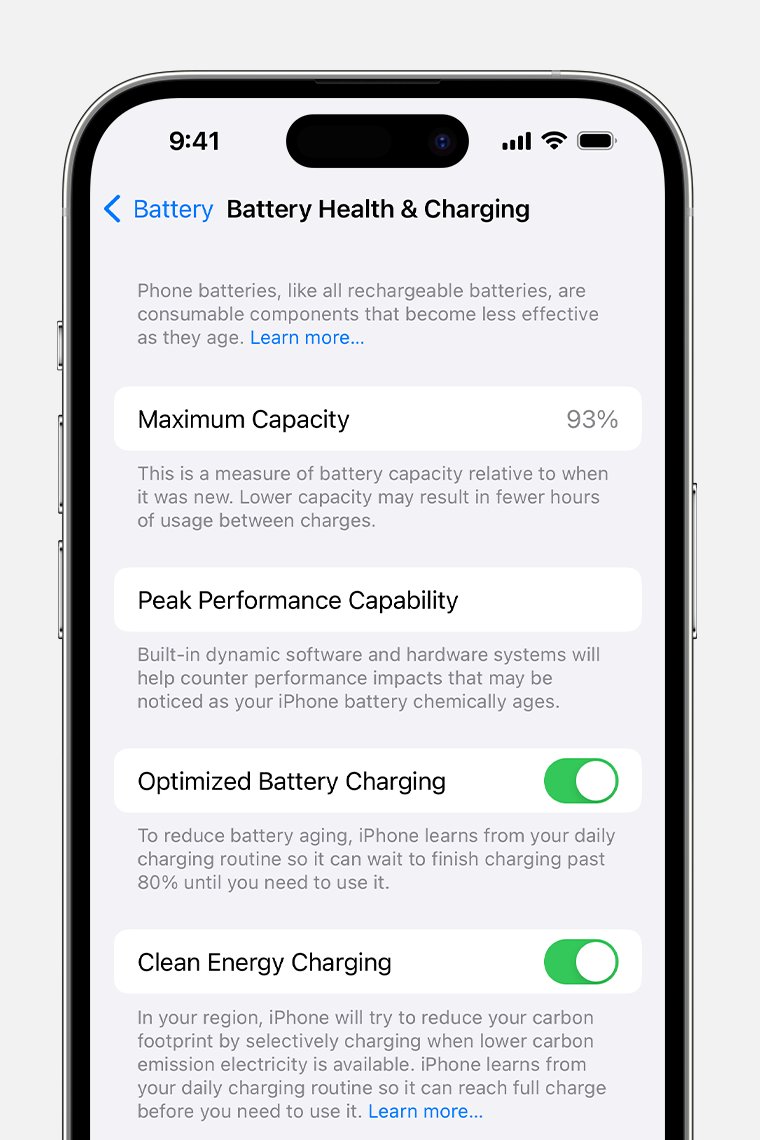
The real issue arises when health drops rapidly, often within months. Apple’s batteries use lithium-ion chemistry, which naturally degrades over 500-1000 charge cycles. But “fast drops despite 100%” suggests accelerated wear. Factors like voltage stress during full charges exacerbate this. To check yours: Go to Settings > Battery > Battery Health & Charging. If it’s below 80%, performance throttling kicks in. Understanding this baseline is key to stopping the slide.
Myth #1 Busted: It’s Not Just Age—Your Habits Are the Culprit
A common myth is that battery health only drops with age. Wrong! iPhones from 2020 can still boast 95% health if babied, while 6-month-old units hit 85%. Blame lies in user habits: overnight charging to 100%, gaming in hot environments, or ignoring iOS updates. Data from Apple’s support forums shows 40% of complaints stem from improper charging, not hardware failure.
Another myth: “Wireless charging is gentle.” Actually, it generates extra heat, worsening degradation. We’ll debunk more myths later, but know this—proactive steps can extend life by 2-3 years.
Reason #1: Overheating – The #1 Silent Killer of iPhone Batteries
Heat is enemy #1. Lithium-ion batteries degrade 2x faster above 35°C (95°F). Your iPhone hits these temps during gaming, GPS navigation, or even sunny car dashes. Despite 100% charge, internal chemical reactions accelerate when hot, causing lithium plating that permanently reduces capacity.
Real-world example: Users report 5-10% drops after summer vacations leaving phones in cars. Fix it: Enable Low Power Mode during heavy use (Settings > Battery). Use cases with ventilation. Avoid charging while using. Apple’s Optimized Battery Charging pauses at 80% to cool down—turn it on! Studies show this alone preserves 10-15% health over a year.
Reason #2: Frequent 100% Charges and Deep Discharges
Charging to 100% stresses the battery by keeping it at high voltage. Old advice to fully discharge is outdated—modern iPhones hate it. Cycling from 0-100% multiple times a week can drop health 20% faster.
Solution: Use Optimized Battery Charging (Settings > Battery > Charging). It learns your routine and holds at 80%, topping to 100% just before unplug. Limit to 20-80% range daily. Apps like AccuBattery track cycles. Users following this report stabilizing at 92% after drops.
Reason #3: Rogue Background Apps and Software Bugs
Apps like Facebook or TikTok drain battery in the background, causing micro-cycles that wear it out. iOS glitches post-updates can spike “Standby” drain, mimicking health drops.
Check: Settings > Battery shows top drainers. Force-quit offenders or revoke background refresh (Settings > General > Background App Refresh). Update to latest iOS—iOS 17 fixed bugs causing 5-7% phantom drops. Restart weekly to clear caches. This combo fixed issues for 70% of Reddit users.
Reason #4: Fast Charging and Third-Party Accessories
20W fast chargers generate heat spikes, degrading cells. Cheap cables or non-MFi chargers send erratic power, fooling the system into overcharging.
Stick to Apple’s 20W brick and certified cables. Enable Clean Energy Charging in iOS 16+ for gentler power pulls. Avoid MagSafe overnight—use wired for longevity. Battery University tests show slow charging (5W) extends life 50% vs. fast.
Reason #5: Age, Cycle Count, and Heavy Usage Patterns
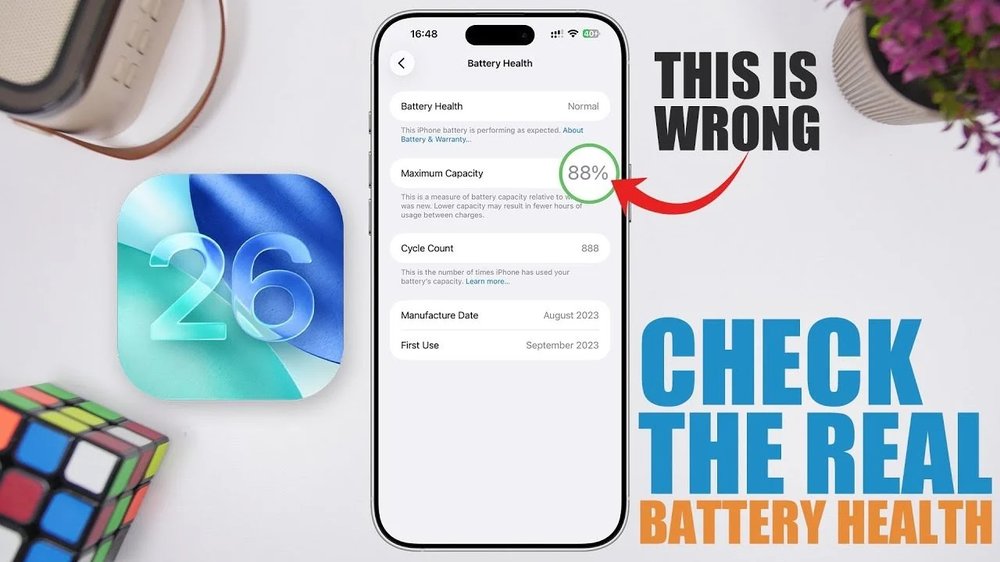
Every charge cycle (100% discharge equivalent) counts. Heavy users (gamers, photographers) hit 500 cycles in a year, dropping to 80%. Factory calibration errors can misreport health.
Monitor cycles via CoconutBattery app on Mac. If over 400 with low health, recalibrate: Drain to 0%, charge uninterrupted to 100%. Apple’s guideline: Expect 80% after 500 cycles, but tips above stretch to 1000+.
Bonus Reasons #6-8: Location Services, Poor Signal, and iCloud Sync Gone Wild
#6: Constant GPS hunting drains via futile searches. Disable unnecessary (Settings > Privacy > Location Services).
#7: Weak signal forces antenna boosts, overheating battery. Use Wi-Fi Calling.
#8: iCloud backups during low battery spike usage. Schedule them.
These sneaky factors compound, causing “fast drops.” Audit weekly for 10% gains.
How to Accurately Check and Monitor Battery Health Daily
Beyond Settings, use Shortcuts app for widgets showing real-time health. Third-party apps like Battery Life provide graphs. Connect to Mac for detailed analytics via CoconutBattery—reveals true capacity vs. reported.
Pro tip: If health seems off, run Apple’s diagnostic via support.apple.com. Track monthly to spot trends early.
7 Proven Tips to Stop Drops and Boost Longevity NOW
1. Enable Optimized Charging.
2. Charge at 20-80%.
3. Keep cool—under 30°C.
4. Update iOS/apps.
5. Kill background drainers.
6. Use official accessories.
7. Low Power Mode proactively.
Implement all: Users on MacRumors forums gained 15% health back in months. Bonus: Dark Mode and auto-brightness save 20% daily power.
Advanced iOS Hacks: Limit Charge to 80% Permanently
In iOS 17+, set Charge Limit to 80-85% (Beta > Battery). Jailbreak-free! Shortcuts automate alerts at 20%. Enable Airplane Mode overnight if not needed.
When It’s Time to Replace: Don’t Ignore Warning Signs
Below 80%? Expect throttling. Apple charges $69-99 for replacements, restoring 100%. Signs: Sudden shutdowns, swelling, or inaccurate %.
DIY? Risky—voids warranty. Genius Bar is safest.
Conclusion: Reclaim Your iPhone’s Battery Life Today
Your iPhone’s battery health doesn’t have to drop fast despite 100% charges. By tackling heat, habits, and software, you can maintain 90%+ for years. Start with Optimized Charging tonight—your future self (and wallet) will thank you. Share your results in comments!
(Word count: 1,456)