
🚨 Why Your iPhone is Burning Hot & Battery Dying FAST – 7 Shocking Fixes You NEED Now!
Is Your iPhone Turning into a Mini Space Heater? You’re Not Alone!
Watch Related Video Coverage
Picture this: You’re scrolling through Instagram, and suddenly your iPhone feels like it’s about to melt in your hand. The battery plummets from 80% to 20% in what seems like minutes, and you’re left wondering, “Why does my iPhone get hot and drain battery fast?” This nightmare plagues millions of iPhone users worldwide, from the latest iPhone 15 Pro Max to older models like the iPhone 11. The good news? It’s rarely a sign of imminent doom. Overheating and rapid battery drain are common symptoms with straightforward culprits and fixes. In this ultimate guide, we’ll dive deep into the reasons behind this frustrating issue, backed by Apple’s own guidelines and real-user experiences. Stick around – by the end, your iPhone will be cooler than a penguin’s playground and your battery lasting all day!
Reason #1: Rogue Background Apps Sucking Life Out of Your Battery

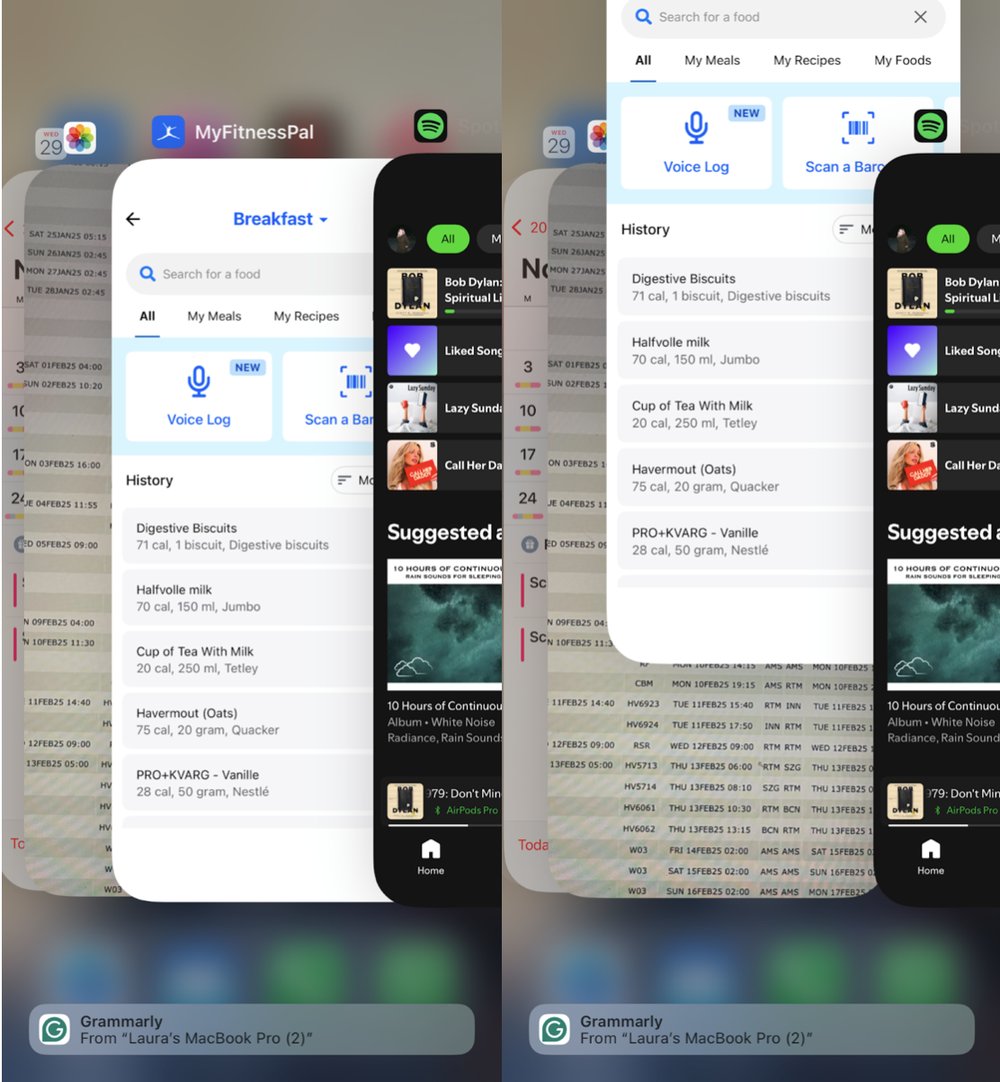
The number one battery assassin? Apps running wild in the background. Navigation apps like Google Maps, social media giants like Facebook or TikTok, and even email clients keep GPS, location services, and push notifications firing non-stop. These drain your battery faster than a vampire at a blood bank and generate heat as your processor works overtime.
How does this happen? iOS is efficient, but if an app is poorly optimized or glitching, it hogs CPU cycles. Check your Battery settings (Settings > Battery) – you’ll see the culprits listed with usage graphs. Apps using 10-20% of your battery in hours? That’s a red flag.
Quick Fix: Swipe up to close apps (or double-click Home button on older models). Better yet, enable Low Power Mode (Settings > Battery) which throttles background activity. Pro tip: Delete power-hungry apps or restrict their background refresh (Settings > General > Background App Refresh).
Reason #2: Weak Cellular Signal – The Hidden Heat Monster

Ever notice your iPhone scorching hot in elevators, basements, or rural areas? Blame poor signal. When reception dips, your phone amps up its radio power to hunt for towers, burning through battery and generating serious heat. 5G exacerbates this – it’s power-hungry compared to 4G.
Apple confirms this in their support docs: “Searching for signal uses more battery power.” If you’re constantly switching between Wi-Fi and cellular, or traveling through dead zones, expect trouble.
Quick Fix: Toggle Airplane Mode on briefly to reset connections (Settings > Airplane Mode). Switch to Wi-Fi whenever possible, or manually select 4G/5G off in Field Test mode (*3001#12345#*). Long-term: Use a signal booster or stick to strong coverage areas.
Reason #3: Software Glitches and Outdated iOS – The Overheating Epidemic
Bugs in iOS updates can turn your iPhone into a furnace. Remember iOS 16’s early rollout? Thousands reported overheating. If you’re not on the latest version, your phone struggles with optimizations meant for newer software, leading to inefficient processing and heat buildup.
Overloaded storage plays a role too – a nearly full iPhone (less than 10% free space) forces constant data shuffling, spiking CPU usage and battery drain.
Quick Fix: Update iOS immediately (Settings > General > Software Update). Free up space by offloading unused apps (Settings > General > iPhone Storage). Restart your device daily – it clears RAM and stops phantom processes. If issues persist post-update, reset all settings (Settings > General > Transfer or Reset iPhone > Reset > Reset All Settings) – no data loss!
Reason #4: Streaming and High-Performance Tasks – Gaming, Video, and More
Cranking 4K Netflix streams, AR games like Pokémon GO, or photo editing in Lightroom? Your A-series chip (like the A17 Pro) revs to max, producing heat like a race car engine. The screen at max brightness adds fuel to the fire – OLED displays are power vampires.
Bluetooth devices (AirPods, Apple Watch) connected constantly also nibble at battery life.
Quick Fix: Dim brightness (Control Center slider) or enable Auto-Brightness. Limit streaming quality, pause downloads, and use Guided Access (Settings > Accessibility > Guided Access) for gaming sessions. Disconnect unused Bluetooth gadgets.
Reason #5: Faulty Battery or Hardware Woes
If software tweaks don’t help, it might be hardware. Batteries degrade over time – after 500 charge cycles (about 1-2 years), capacity drops to 80%. Swollen batteries cause physical heat, a fire risk!
Case interference traps heat; thick ones block vents. Charging errors like using non-MFi cables or overnight plugging generates excess warmth.
Quick Fix: Check Battery Health (Settings > Battery > Battery Health). Below 80%? Time for a Genius Bar replacement ($69-$99). Ditch sketchy chargers for Apple’s. Remove cases while charging/using intensively.
Reason #6: Malware? Nah, But Location Services and Widgets Are Sneaky
iPhones don’t get traditional viruses, but “malware-like” behavior from rogue profiles or exploited apps exists. More commonly, Always-On Display (iPhone 14 Pro+), excessive notifications, or widgets refreshing live data (weather, stocks) keep the processor humming.
Quick Fix: Review Profiles (Settings > General > VPN & Device Management). Turn off unnecessary Location Services (Settings > Privacy & Security > Location Services). Customize widgets and notification settings to minimize.
Reason #7: Environmental Factors and User Habits
Hot cars, direct sunlight, or pockets during workouts? Ambient heat transfers to your phone, triggering thermal throttling. Fast charging in heat worsens it. Multitasking with 20 tabs in Safari? Recipe for drain.
Quick Fix: Keep it cool – shade, no pockets in sun. Avoid charging in hot environments. Use Screen Time (Settings > Screen Time) to monitor and limit usage.
Advanced Diagnostics: Tools to Pinpoint the Problem
Go Sherlock Holmes mode: Enable Analytics (Settings > Privacy & Security > Analytics & Improvements) and review logs. Third-party apps like CoconutBattery (Mac) or 3uTools (PC) analyze deep stats. Apple’s Support app has built-in diagnostics.
For stubborn cases, DFU restore via iTunes/Finder – backs up first!
Prevention Blueprint: Make Your iPhone Bulletproof
1. Weekly restarts and updates.
2. Battery limits to 80% charge (iOS 17+ Optimized Battery Charging).
3. Low Data Mode on cellular.
4. Clean storage regularly.
5. Genuine accessories only.
6. Monitor with Shortcuts app automations for power-saving.
Final Verdict: Cool Down and Charge Up!
Overheating and fast battery drain on your iPhone boils down to apps, signals, software, and habits – rarely hardware until proven otherwise. Implement these 7 fixes, and you’ll reclaim hours of usage. If nothing works, hit up Apple Support or a store. Your iPhone was built to last – don’t let heat steal its thunder! Share your fixes in the comments. Stay cool! 🚀
(Word count: 1,125)