
How to Use Canva to Create Professional Designs in Minutes
Introduction to Canva: Revolutionizing Graphic Design
Feature Video
In today’s fast-paced digital world, creating professional designs doesn’t require advanced software skills or expensive tools. Canva, a user-friendly online design platform, empowers anyone—from small business owners to social media influencers—to produce stunning visuals in minutes. Whether you’re crafting social media posts, presentations, flyers, or logos, Canva’s intuitive interface and vast library of templates make it possible to achieve pro-level results effortlessly. This comprehensive Canva tutorial will guide you step-by-step on how to use Canva to create professional designs quickly, optimizing your workflow for maximum efficiency and impact.
With over 85 million monthly users, Canva has democratized design. Its drag-and-drop functionality, free stock photos, icons, and animations eliminate the learning curve associated with tools like Adobe Photoshop. Keywords like “Canva tutorial for beginners,” “professional Canva designs,” and “quick Canva graphics” dominate searches because users crave speed without sacrificing quality. By the end of this guide, you’ll master Canva’s core features, saving hours on design tasks.
Signing Up and Navigating the Canva Dashboard
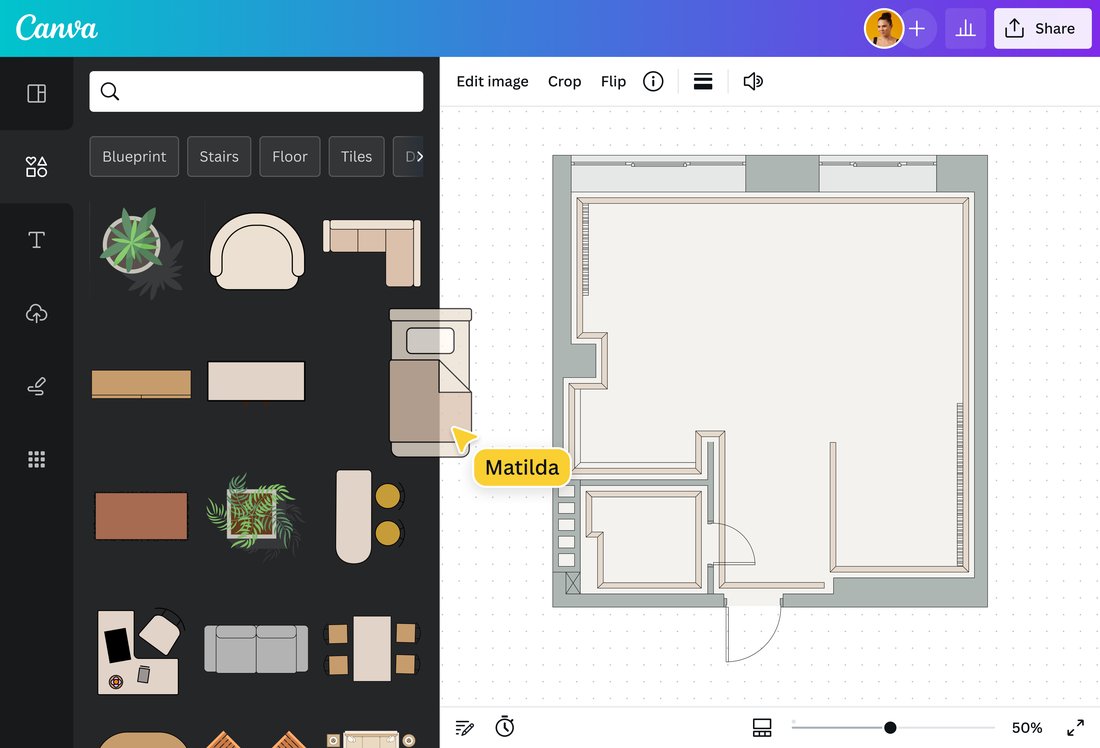
Getting started with Canva is as simple as visiting www.canva.com and signing up for a free account using your email, Google, or Facebook credentials. The free version offers ample resources, but Canva Pro (starting at $12.99/month) unlocks premium elements, background remover, and resizing tools—ideal for professional use.
Upon logging in, you’re greeted by the dashboard. On the left sidebar, find categories like Templates, Elements, Uploads, and Apps. The search bar at the top lets you type “Instagram post” or “business card” to instantly access relevant templates. Pro tip: Use the “Create a design” button for custom sizes. Canva’s responsive design ensures seamless use on desktop, mobile, or tablet, making it perfect for on-the-go creators.
Customization begins here. Click “Create a design” > “Custom size” to input dimensions (e.g., 1080x1080px for Instagram squares). This flexibility is key for tailoring designs to platforms like LinkedIn (1200x627px) or YouTube thumbnails (1280x720px).
Choosing and Customizing Templates for Instant Professionalism
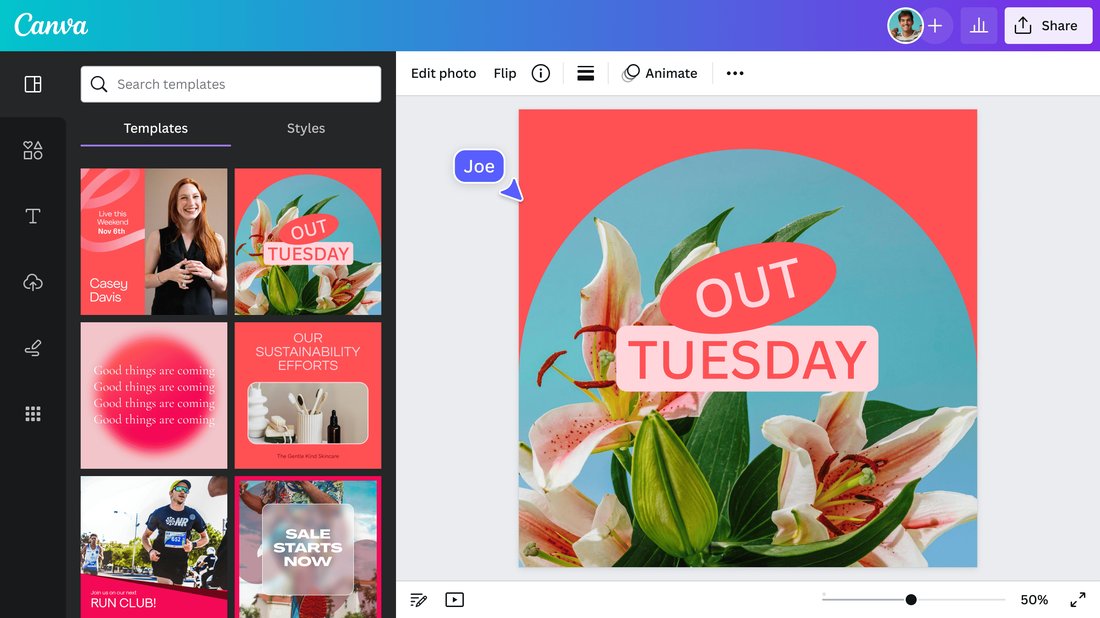
Canva’s strength lies in its 250,000+ free templates across categories like marketing, social media, presentations, and print. Search for “professional flyer template” to find polished options. Select one, and it loads into the editor—ready for tweaks.
Customization is drag-and-drop magic. Replace text by double-clicking placeholders; Canva suggests fonts like Montserrat or Playfair Display for a modern vibe. Adjust colors via the top toolbar—use the color picker or input hex codes for brand consistency. For professionalism, stick to 2-3 complementary colors from tools like Coolors.co, integrated via Canva Apps.
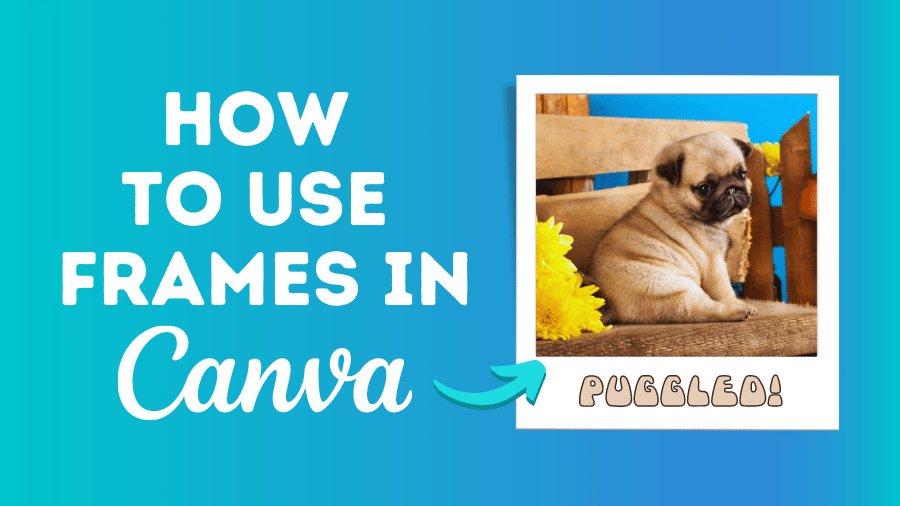
Enhance with Elements: Access 100 million+ stock photos, illustrations, and icons under the “Elements” tab. Filter by “Photos” or “Graphics,” and drag to layer. Resize effortlessly by pulling corners; group elements (select multiple + Ctrl+G) for organized editing. A beginner Canva hack: Use “Frames” under Elements to create Instagram-worthy photo collages in seconds.
Mastering Text, Fonts, and Typography for Polished Looks
Typography elevates amateur designs to professional. Canva offers 700+ fonts—pair sans-serif (e.g., Roboto) for headers with serif (e.g., Lora) for body text. Animate text via the “Animate” button: Choose “Rise” for subtle entrances or “Pan” for dynamic effects.
Pro techniques include text effects: Right-click text > “Spacing” for kerning adjustments, or “Curve” for arched text in logos. Use “Background Remover” (Pro feature) on uploaded images, then overlay bold headings. For multi-page designs like ebooks, duplicate pages via the page toolbar to maintain consistency.
SEO tip: Incorporate keywords into headings, e.g., “How to Design with Canva Pro,” boosting readability and search visibility.
Designing for Social Media: Quick Wins with Canva

Social media demands eye-catching graphics. For Instagram Stories (1080x1920px), start with a template, add gradients (Elements > Backgrounds), and layer user-generated content. Canva’s “Magic Studio” AI tools auto-generate images from text prompts like “vibrant coffee shop promo”—saving minutes.
Facebook posts? Opt for 1200x630px canvases. Pinterest pins (1000x1500px) shine with vertical layouts and bold typography. Use “Resize” (top toolbar) to adapt one design across platforms instantly—a game-changer for marketers.
Schedule posts directly via Canva’s Content Planner (Pro), integrating with Buffer or Hootsuite for streamlined workflows.
Creating Presentations and Infographics Effortlessly
Presentations rival PowerPoint with Canva’s 1,000+ slide templates. Add charts (Elements > Charts) that update dynamically—input data, and visuals adjust. Transitions between slides? Apply “Magic Animate” for cohesive flow.
Infographics distill data beautifully. Drag timelines, pie charts, and icons; use grids (File > Show rulers/grid) for alignment. Export as PDF or interactive HTML for web embedding. Users searching “Canva infographic tutorial” love these features for reports and blogs.
Advanced Features: Branding Kits and Collaborations

Canva Pro’s Brand Kit centralizes logos, colors, and fonts—apply with one click across designs. Invite collaborators via share links for real-time editing, perfect for teams.
Animations and videos: Trim clips (Uploads > Videos), add text overlays, and export MP4s. Beat Sync (Pro) matches edits to music rhythm. For print, use “Print” specs like bleed margins for flyers or posters.
Exporting, Sharing, and Optimizing Your Designs

Finalize with “Share” > “Download.” Choose PNG for web (transparent backgrounds), PDF for print, or MP4 for videos. High-res options ensure crisp quality. Embed codes for websites boost SEO.
Track performance: Canva’s analytics (Pro) show design views. Integrate with Google Drive or Dropbox for backups.
Tips and Tricks for Pro-Level Canva Designs in Minutes
1. Keyboard shortcuts: Ctrl+Z (undo), Ctrl+D (duplicate). 2. Bulk Create: Generate variations from one design. 3. Apps: Integrate Unsplash or Giphy. 4. Mobile app for quick edits. Avoid clutter—white space is key to professionalism.
Common pitfalls: Overusing effects; test on mobile previews. Practice with 5-minute challenges: Design a post from scratch.
Conclusion: Elevate Your Brand with Canva Today
Canva transforms design from hours to minutes, delivering professional results without expertise. From templates to AI magic, it’s the ultimate tool for entrepreneurs, educators, and creators. Start your free trial, experiment, and watch engagement soar. Search no more for “easy Canva designs”—you now have the blueprint.
(Word count: 1215)