
How to Create Stunning Instagram Highlight Covers with Canva: Step-by-Step Guide
Introduction to Instagram Highlight Covers
Feature Video
Instagram has evolved into a powerful platform for personal branding, businesses, and influencers, with Story Highlights playing a pivotal role in organizing and showcasing evergreen content. These circular icons, known as Instagram highlight covers, appear below your bio and give visitors a quick glimpse into your profile’s key themes. Customizing these covers isn’t just aesthetic—it’s essential for engagement and professionalism. Enter Canva, the free drag-and-drop design tool that’s revolutionizing how creators make Instagram highlight covers with Canva.
Whether you’re a small business owner curating product demos, a fitness coach highlighting workout routines, or a lifestyle blogger organizing travel tips, professional highlight covers boost click-through rates by up to 30%, according to social media analytics. Canva simplifies this process with thousands of templates, icons, and fonts tailored for Instagram’s 1080×1920 pixel Story format. In this comprehensive guide, we’ll walk you through how to make Instagram highlight covers with Canva, from setup to upload. No design skills required—just follow these steps for eye-catching results that elevate your profile.
Keywords like “Instagram highlight covers Canva” are surging in searches, making this tutorial timely for SEO-driven growth. By the end, you’ll have a cohesive set of covers ready to impress. Let’s dive in!
Understanding Instagram Story Highlights and Covers
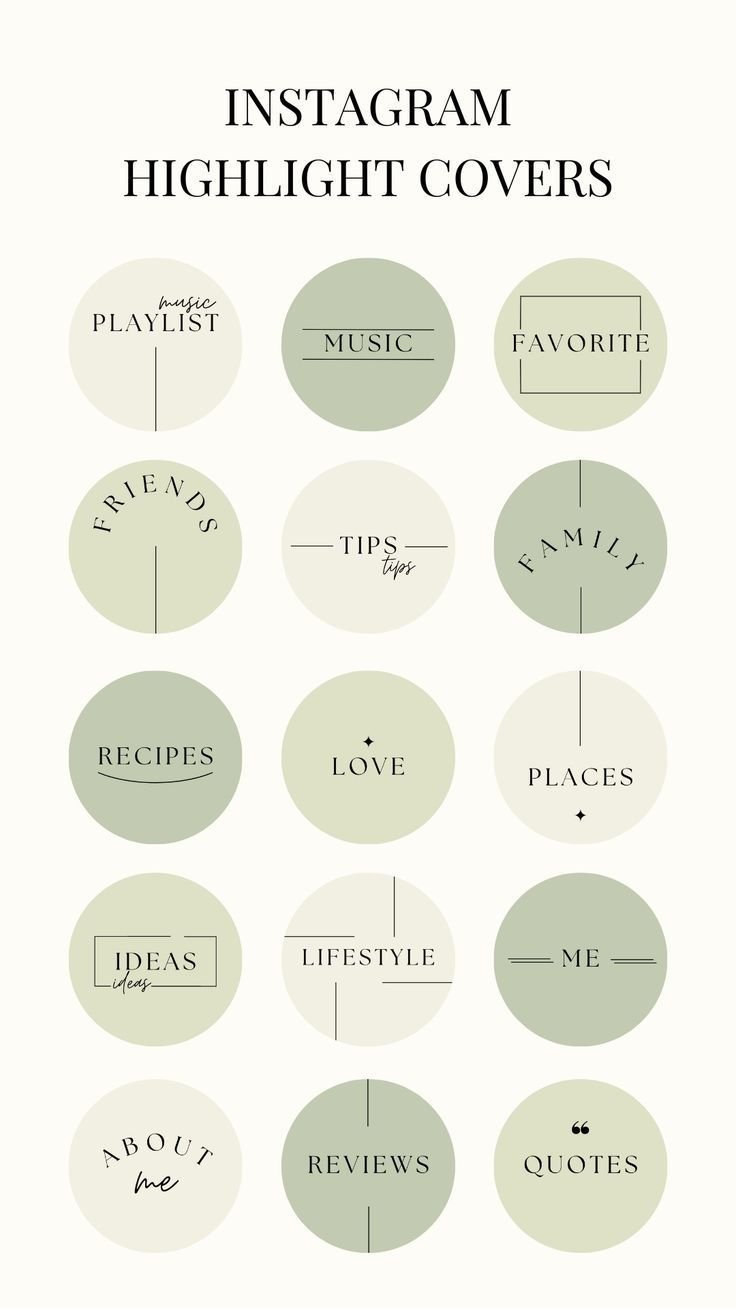
Instagram Story Highlights are archived Stories pinned to your profile, categorized by topics like “About Me,” “Tutorials,” or “FAQs.” Each highlight is represented by a cover image—a thumbnail that users tap to view the collection. Default covers use the first Story frame, which often looks inconsistent or low-quality.
Custom Instagram highlight covers with Canva allow uniformity: matching colors, fonts, and icons that reflect your brand. Ideal dimensions are 1080×1920 pixels for crisp display on the circular highlight view (cropped to about 400×400 pixels in preview). Canva’s templates ensure perfect sizing, preventing pixelation. Popular sets include 10-15 covers for niches like beauty (e.g., “Skincare,” “Makeup”), food (“Recipes,” “Reviews”), or travel (“Adventures,” “Tips”).
Pro tip: Use highlights to drive traffic—link them strategically to boost saves and shares, key Instagram algorithm signals.
Why Choose Canva for Your Instagram Highlight Covers?
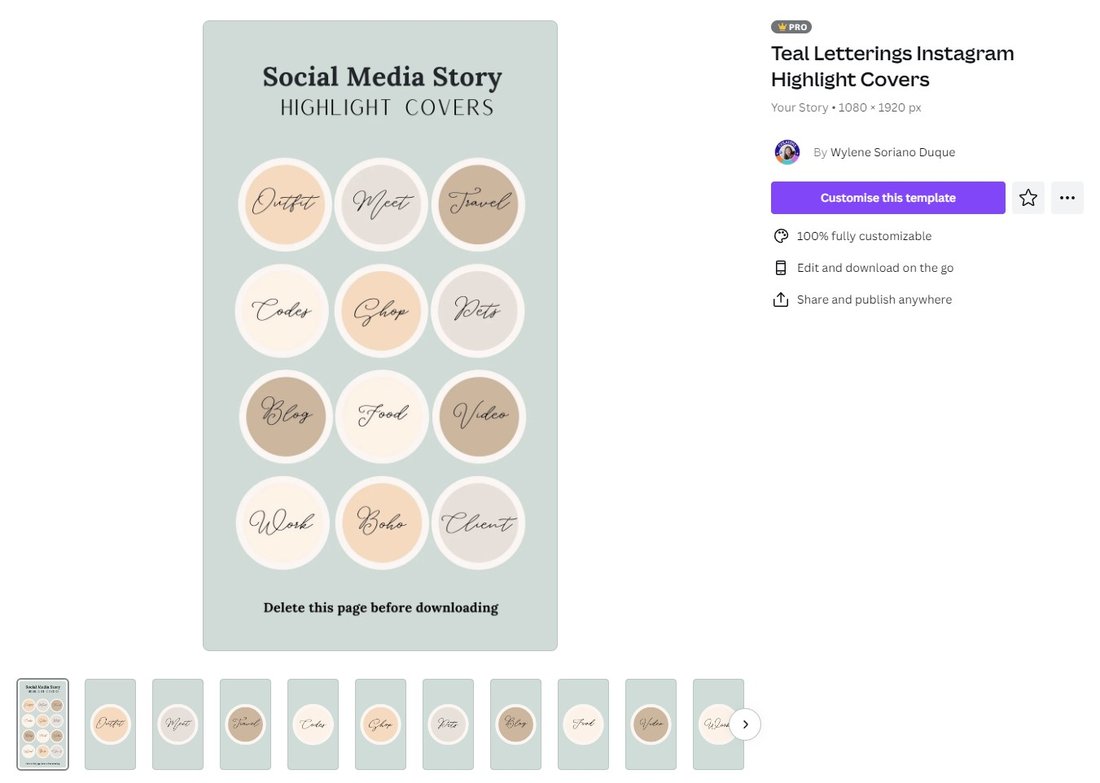
Canva stands out for making Instagram highlight covers effortlessly. Free access to premium elements (via Canva Pro trial), mobile app compatibility, and Instagram-specific templates make it superior to Photoshop or generic editors. Collaborate in real-time, save designs to folders, and export in PNG for transparency—crucial for clean circles.
SEO benefits extend to your profile: Branded covers increase dwell time, signaling quality to Instagram’s algorithm. Businesses report 20% higher engagement post-customization. Plus, Canva’s AI Magic Studio generates icons from text prompts, speeding up creation.
Step 1: Setting Up Your Canva Account
Head to canva.com or download the app. Sign up with your email or Google—it’s free. Search “Instagram highlight covers” in the template library for instant inspiration. Pro users unlock unlimited downloads; start with the 30-day trial. Create a new folder named “IG Highlights” to organize your designs.
Step 2: Selecting and Customizing Templates
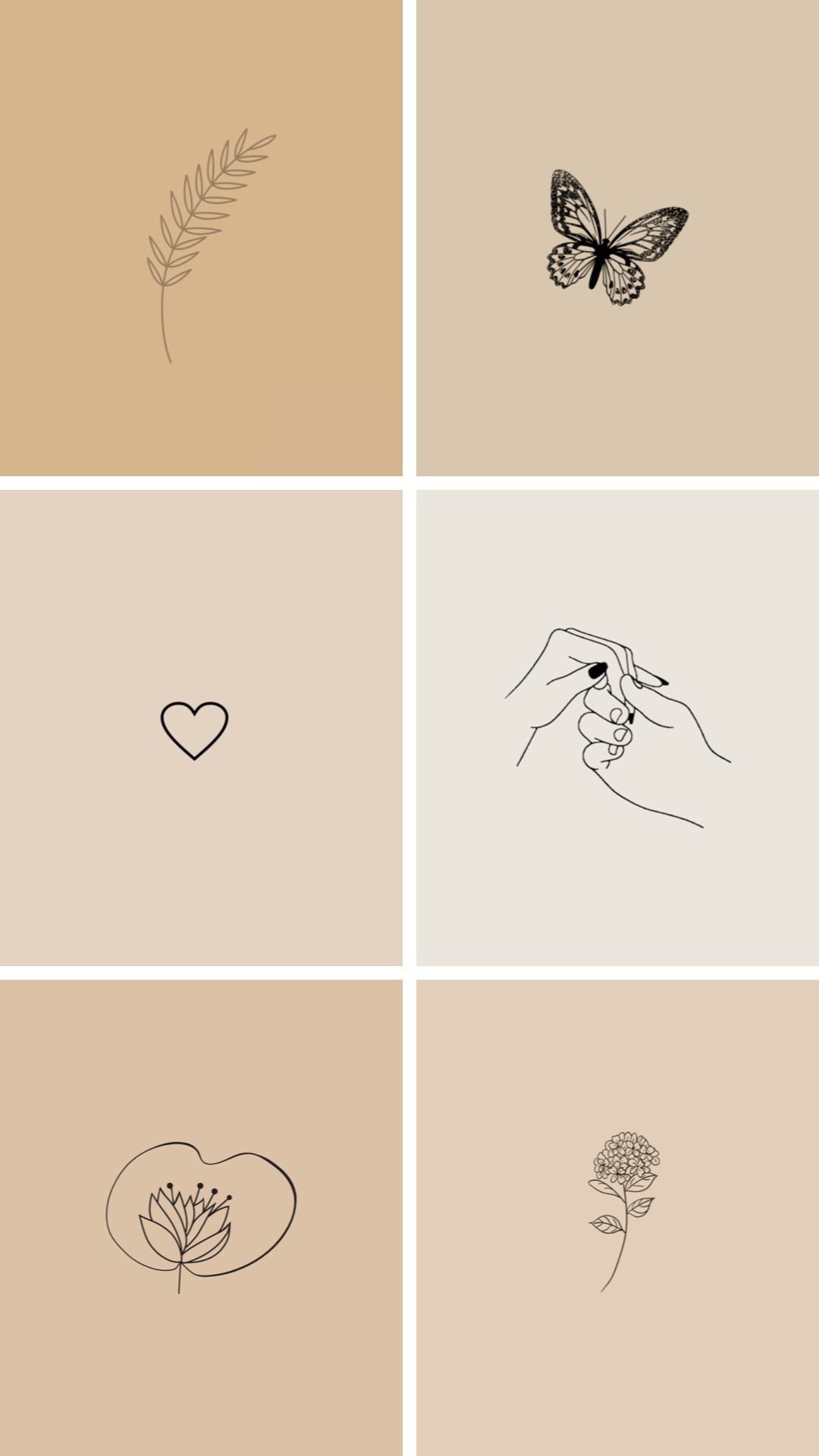
Click “Create a design” > “Instagram Story” (1080×1920). Or search templates: Filter by “free” and “highlight covers.” Choose minimalist, boho, or neon styles matching your aesthetic. Drag icons (e.g., heart for “Love,” camera for “Behind the Scenes”) from Elements > Icons.
Edit text: Use bold sans-serif fonts like Montserrat for readability. Match your brand colors via the color picker—upload your palette for consistency. Add subtle backgrounds: gradients, patterns, or photos cropped circularly. Duplicate the design 10-15 times for your set, tweaking icons and labels each time.
Step 3: Advanced Design Techniques in Canva
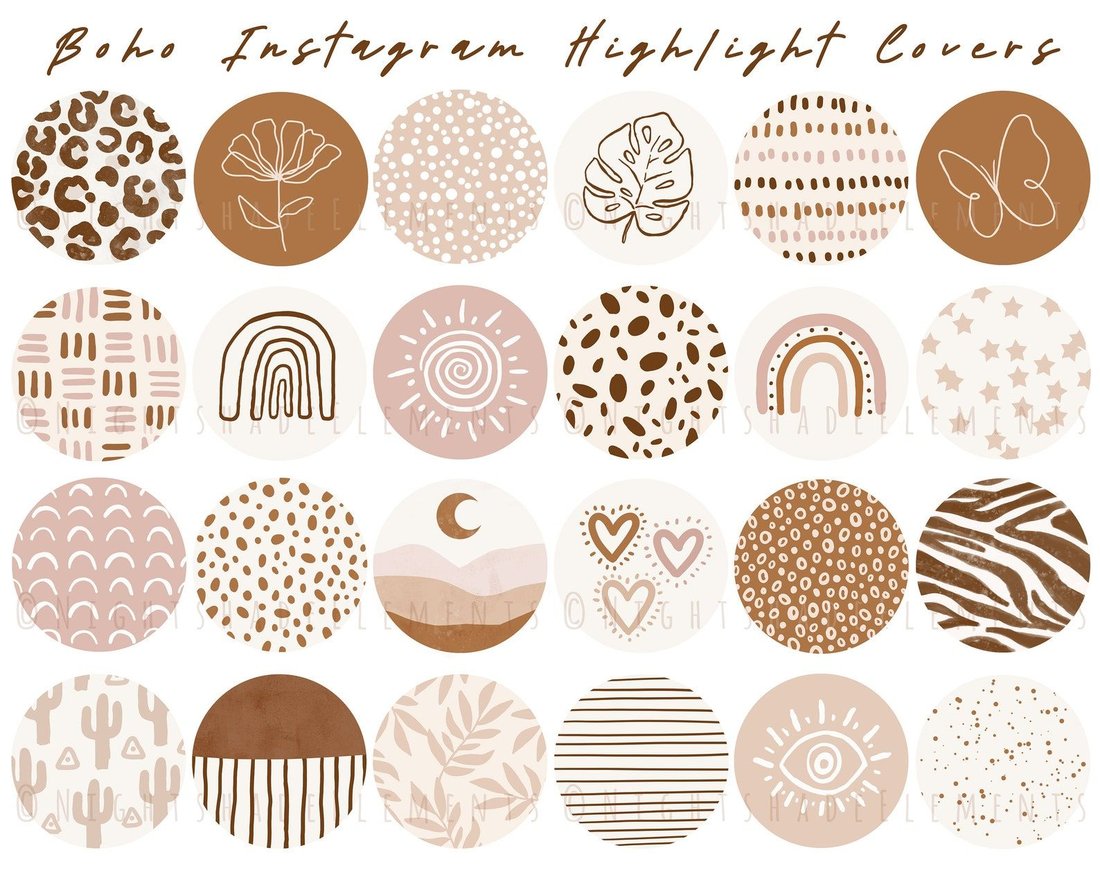
Elevate your covers with frames: Elements > Frames > Circle for perfect Instagram cropping. Layer icons over blurred photos for depth. Use animations if uploading as GIFs (Instagram supports them). Transparency: Download as PNG to remove backgrounds seamlessly.
For cohesion, apply a uniform filter (Edit Image > Filters). Add your logo subtly in the corner. Test on mobile preview in Canva to ensure scalability.
Design Tips for Professional Instagram Highlight Covers
1. Consistency is Key: Same size, font, color scheme across all covers.
2. Simplicity Wins: One icon, 1-3 words max—viewers scan quickly.
3. High Contrast: White text on dark backgrounds for legibility.
4. Trendy Icons: Use line art or duotone for modern vibes.
5. Mobile-First: Ensure icons pop in 1080p circle crop.
6. Seasonal Twists: Refresh for holidays without overhauling.
Incorporate keywords in labels like “Canva Tips” to attract design-savvy followers. Aim for 14 covers: profile essentials plus niche-specific ones.
Customizing for Different Niches
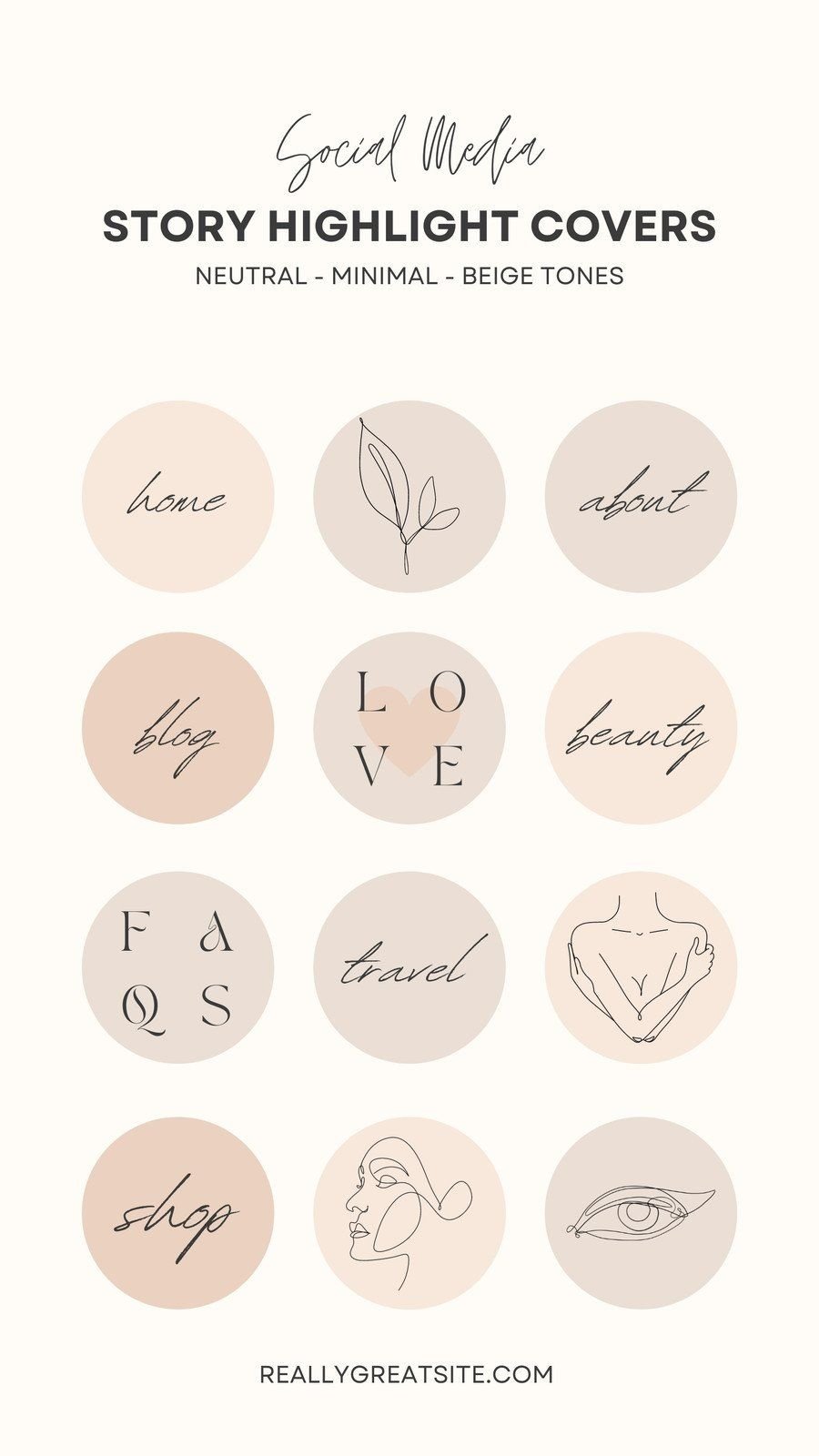
Fitness pros: Dumbbell icons for “Workouts,” apple for “Nutrition.” Beauty influencers: Lipstick for “Makeup,” leaf for “Skincare.” Businesses: Cart for “Shop,” chat bubble for “Q&A.” Canva’s 1M+ elements cover every industry—search “highlight icon pack” for bundles.
Personalize with user-generated content: Screenshot fan Stories as backgrounds (with permission).
Step 4: Downloading and Uploading to Instagram
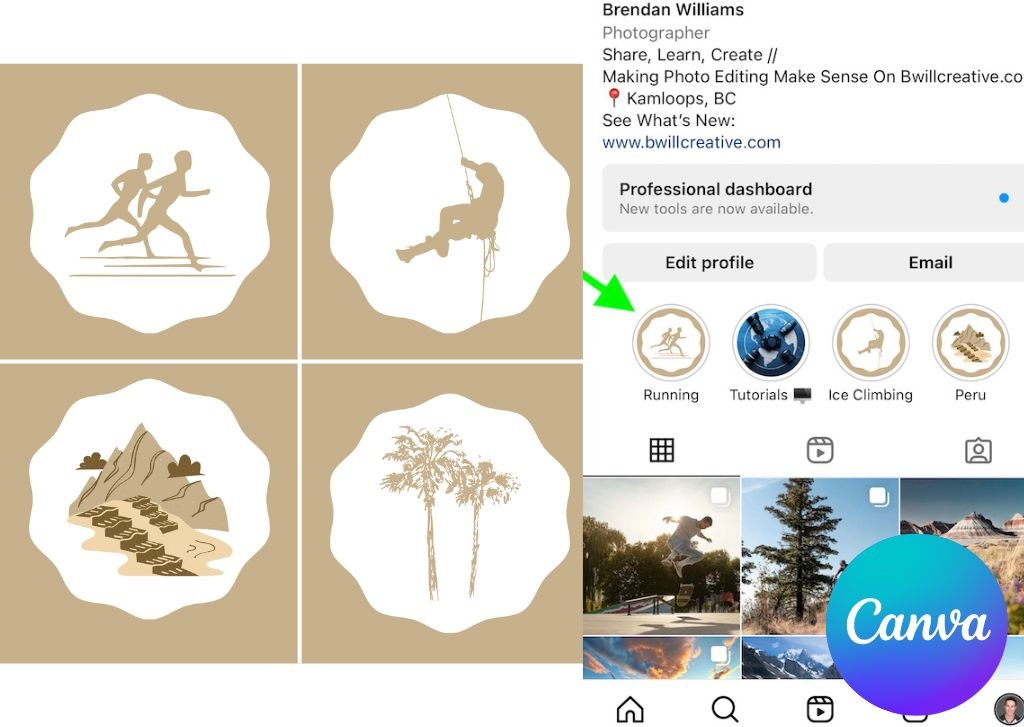
Download each as PNG (transparent background). Save to your phone’s camera roll in order. Open Instagram > Profile > Edit Profile > Create Highlight. Select Stories, then tap the cover icon > “Edit Cover” > Choose your Canva PNG. Repeat for each.
Reorder via long-press. For new highlights, add covers post-creation. Bulk upload via desktop Instagram web if managing multiple profiles.
Common Mistakes to Avoid When Making Highlight Covers
Avoid clutter—overloaded designs deter clicks. Skip low-res exports; always 1080×1920. Don’t ignore aspect ratio; squares distort on circles. Test visibility on dark/light modes. Refresh quarterly to keep content relevant—stale highlights hurt credibility.
Measuring Success and Next Steps
Track via Instagram Insights: Monitor highlight views and profile visits. A/B test sets (e.g., minimalist vs. colorful). Share your Canva process in Stories for meta-engagement.
Expand with Canva: Design Reels thumbnails or posts matching your highlights for full brand synergy.
Conclusion: Transform Your Profile Today
Mastering how to make Instagram highlight covers with Canva is a game-changer for visibility and professionalism. This free tool empowers anyone to create polished, on-brand icons that captivate audiences. Follow this guide, experiment with templates, and watch your engagement soar. Start designing now—your dream profile awaits!
(Word count: 1215)