
How to Increase WiFi Speed at Home: Master Router Settings for Faster Internet
In today’s connected world, a fast and reliable WiFi connection is essential for streaming, gaming, working from home, and staying in touch. However, many homeowners experience frustratingly slow WiFi speeds despite paying for high-speed internet plans. The good news? You can often boost your WiFi performance significantly by tweaking your home router settings. This comprehensive guide explores proven methods to increase WiFi speed at home through router configurations, helping you optimize bandwidth, reduce interference, and maximize your internet potential. Whether you’re dealing with laggy video calls or buffering Netflix, these router settings adjustments can make a world of difference.
Before diving into router tweaks, understand that WiFi speed is influenced by factors like your ISP plan, device capabilities, network congestion, and physical obstacles. We’ll focus on actionable router settings that anyone can implement without needing advanced technical skills. Expect improvements of 20-50% or more in many cases, depending on your setup. Let’s get started with the basics and progress to advanced optimizations.
Verify Your Internet Plan and Wired Speeds First
Feature Video
The foundation of fast WiFi starts with your actual internet service. Run a speed test using tools like Ookla’s Speedtest.net on a wired Ethernet connection directly to your modem. This isolates your ISP-provided speed from WiFi issues. If wired speeds match your plan (e.g., 100Mbps download), the problem lies in your router or WiFi setup. If not, contact your ISP.
Common ISP plans range from 50Mbps to 1Gbps. Ensure your router supports your plan’s speed—older models cap at 100Mbps. Upgrading to a gigabit router is step one if needed. Once confirmed, proceed to router settings for WiFi-specific boosts.
Optimal Router Placement for Maximum Signal Strength
Placement is a simple yet overlooked router setting hack. Position your router centrally, elevated (like on a shelf), away from walls, microwaves, cordless phones, and thick furniture. These cause signal interference and attenuation.
Aim for line-of-sight to devices whenever possible. Use apps like WiFi Analyzer (Android) or Acrylic Wi-Fi (Windows) to map signal strength. In multi-story homes, place it high on the main floor. This alone can increase WiFi speed by 30% by reducing path loss. Avoid basements or cabinets that trap heat and degrade performance.
Update Your Router Firmware for Performance Gains
Outdated firmware is a speed killer, harboring bugs and missing optimizations. Access your router’s admin panel (usually 192.168.1.1 or 192.168.0.1) via a browser. Log in with default credentials (often admin/admin—change these later for security).
Navigate to the firmware or maintenance section and check for updates. Manufacturers like TP-Link, Netgear, and Asus release regular patches improving WiFi efficiency, security, and speed. Auto-update if available. Post-update, restart the router. Users report 10-25% speed uplifts from fresh firmware, plus better stability on modern standards like WiFi 6.
Select the Best WiFi Channel to Minimize Interference
WiFi channels are like radio frequencies; crowded ones cause slowdowns. The 2.4GHz band has only 3 non-overlapping channels (1, 6, 11), while 5GHz offers more (up to 24). Interference from neighbors’ networks, baby monitors, and Bluetooth devices plagues urban areas.
In your router settings, go to Wireless > Advanced > Channel Selection. Set to “Auto” first, but manually scan using WiFi Analyzer to pick the least congested channel. For 5GHz, channels 36-48 or 149-165 are often clear. Save and reboot. This tweak can double your WiFi speed in dense environments by slashing interference by up to 70%.
Switch to 5GHz Band for Superior Speeds
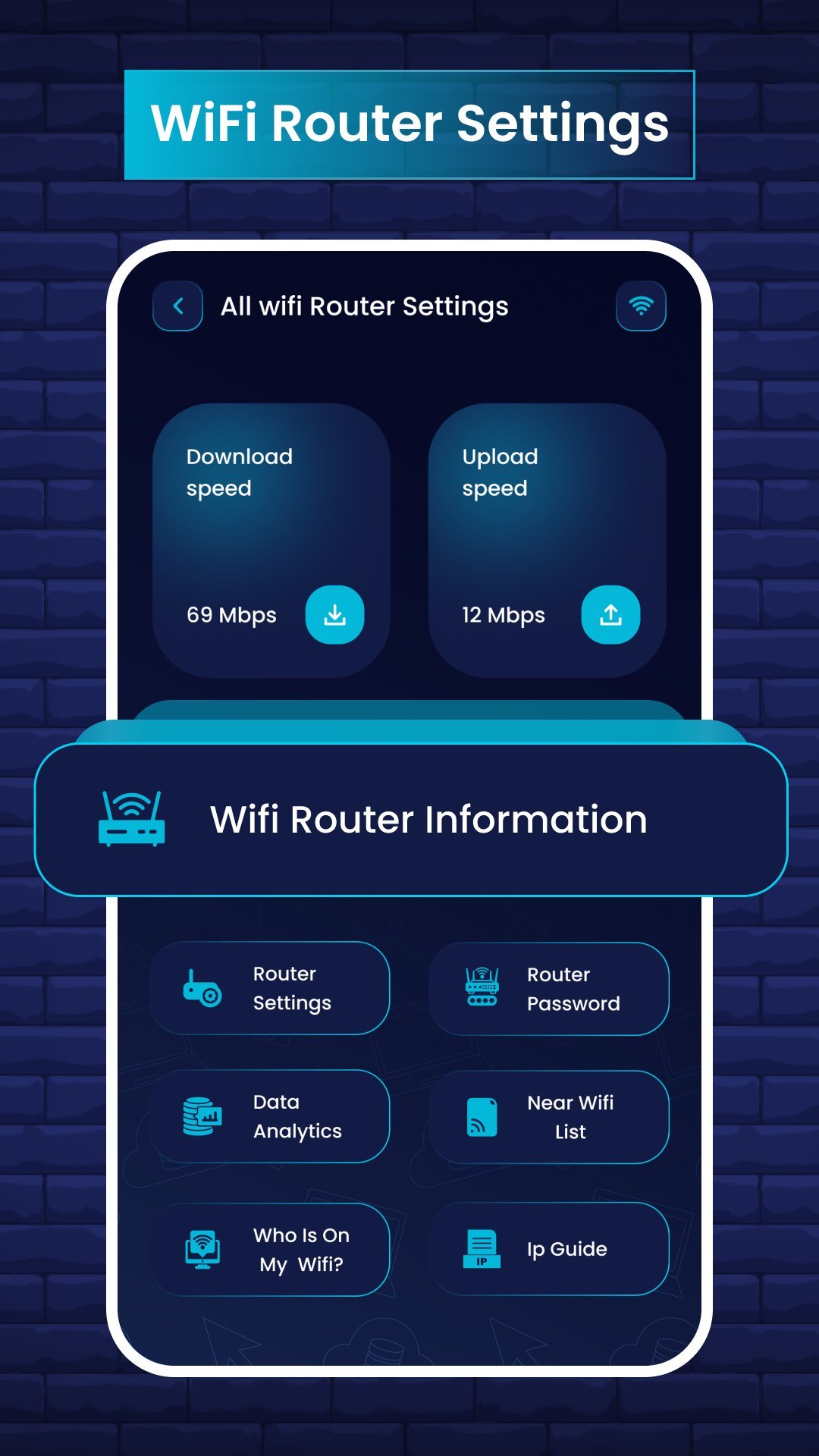
Most routers are dual-band, broadcasting 2.4GHz (longer range, slower, crowded) and 5GHz (shorter range, faster, cleaner). Enable both but prioritize 5GHz for speed-hungry devices like laptops and smart TVs.
In settings, rename SSIDs (e.g., “HomeWiFi_2.4” and “HomeWiFi_5”) so devices connect appropriately. 5GHz supports up to 1Gbps+ with less interference. Drawback: weaker walls penetration, so use for nearby rooms. WiFi 6 routers add 6GHz for even faster speeds. Switching bands often yields 2-3x speed increases.
Enable Quality of Service (QoS) for Bandwidth Prioritization
QoS settings let you allocate bandwidth to critical apps. In router admin, find QoS or Traffic Control. Enable it, then prioritize gaming, streaming, or VoIP over downloads.
Set rules: e.g., 50% bandwidth to video calls, 30% to streaming. Device-based QoS targets specific gadgets like your work PC. This prevents one bandwidth hog (like a firmware update) from tanking everyone else’s WiFi speed. Ideal for households with multiple users, ensuring smooth 4K streaming without lags.
Secure Your Network to Prevent Bandwidth Theft
Open or weakly secured networks invite freeloaders draining your speed. Use WPA3 (or WPA2 if unavailable) encryption. In Wireless Security settings, select WPA3-Personal, set a strong passphrase (12+ characters, mix of letters/numbers/symbols).
Disable WPS—it’s vulnerable. Enable MAC filtering for whitelisting trusted devices. Check connected devices list regularly and kick unknowns. A secure network can reclaim 20-50% lost bandwidth from parasites, directly boosting your WiFi speed.
Activate Guest Network for Visitors
Separate guest WiFi isolates visitors, preventing them from accessing your main network and slowing it down. Enable in settings, set a simple password, and limit bandwidth if possible (e.g., 10Mbps cap).
Schedule auto-disable when unused. This maintains peak speeds on your primary network for family devices.
Disable Unused Features to Free Up Resources
Features like UPnP, SIP ALG, or remote management consume CPU. Disable in Advanced settings unless needed. Turn off IPv6 if your ISP doesn’t support it fully— it can cause overhead.
Reduce transmit power if overkill for your space, focusing energy efficiently. These tweaks lighten router load, enhancing WiFi throughput by 10-15%.
Leverage Advanced Features: MU-MIMO and Beamforming
Modern routers support MU-MIMO (multi-user MIMO) for simultaneous device streaming, unlike older SU-MIMO. Enable in Wireless Advanced. Beamforming directs signals to devices, not broadcasting blindly.
Both shine on WiFi 5/6 routers, improving speeds in multi-device homes by 30-40%. Check compatibility in device specs.
Regular Restarts and Monitoring Tools
Schedule weekly reboots via settings timer. Use router apps (e.g., Netgear Nighthawk) for real-time monitoring, traffic graphs, and alerts. Tools like GlassWire track bandwidth hogs.
Test speeds post-changes with multiple apps for averages.
When Router Settings Aren’t Enough: Upgrade Time
If tweaks yield marginal gains, upgrade to WiFi 6/6E mesh systems like Google Nest or Eero. They handle 100+ devices seamlessly. Ensure gigabit ports and OFDMA support.
Budget $100-300 for solid improvements matching multi-gig plans.
Conclusion: Fast WiFi Awaits with These Router Tweaks
By methodically adjusting router settings—from firmware updates and channel selection to QoS and security—you can dramatically increase WiFi speed at home. Start with basics like placement and bands, then fine-tune advanced options. Track changes with speed tests for quantifiable wins. These steps not only boost performance but enhance reliability, future-proofing your network.
Implement one change at a time, rebooting after each, and enjoy lag-free internet. For persistent issues, consult your router manual or ISP. Optimized WiFi transforms your home into a high-speed haven—get tweaking today!
(Word count: 1218)