
How to Capture Stunning Moon Photos with Samsung Galaxy S23 Ultra: Ultimate Guide
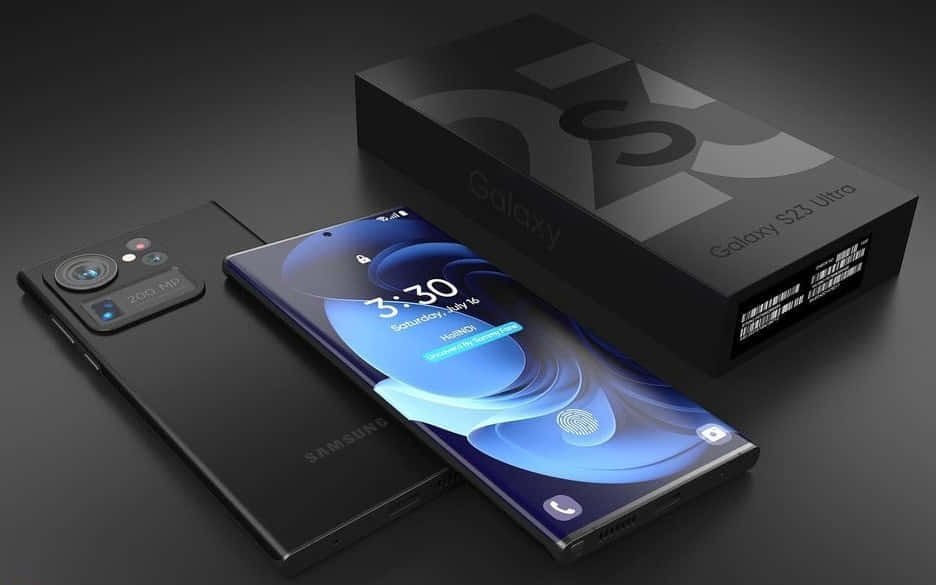
The Samsung Galaxy S23 Ultra is renowned for its exceptional camera system, making it one of the best smartphones for astrophotography, including capturing the moon. With its 200MP main sensor, 100x Space Zoom, and advanced AI features, you can snap professional-grade moon photos without needing a dedicated telescope. Whether you’re a beginner or seasoned photographer, this guide will walk you through how to take moon photos with Samsung S23 Ultra, optimizing settings for sharp, detailed images of lunar craters and phases.
Moon photography, or lunar photography, challenges photographers due to the moon’s brightness against a dark sky. The S23 Ultra excels here thanks to its large sensor, optical image stabilization (OIS), and night mode capabilities. By following these steps, you’ll harness the phone’s full potential for breathtaking results. Expect to learn preparation tips, ideal camera modes, settings tweaks, and pro editing techniques. Keywords like “moon photos Samsung S23 Ultra” and “astrophotography S23 Ultra” will guide your search, but this article provides everything in one place.
Understanding the Samsung S23 Ultra’s Camera Strengths for Moon Shots
Feature Video
The Galaxy S23 Ultra’s quad-camera setup includes a 200MP wide lens, 12MP ultrawide, 10MP 3x telephoto, and 10MP 10x periscope telephoto, enabling up to 100x digital zoom. For moon photography, the telephoto lenses are key, offering lossless 3x and 10x zoom ideal for filling the frame with the moon. The phone’s Nightography mode uses AI to stack multiple exposures, reducing noise in low-light conditions.
Additionally, download the free Expert RAW app from the Galaxy Store. It unlocks astrophotography features, 16-bit RAW capture, and manual controls similar to a DSLR. The S23 Ultra’s laser autofocus and adaptive pixel technology ensure precise focusing on the moon, even at high zoom. Its IP68 rating means you can shoot outdoors without worry. These features make the S23 Ultra superior for moon photos compared to other smartphones, rivaling entry-level telescopes.
Real-world tests show the S23 Ultra capturing details like the moon’s maria (dark plains) and ejecta rays at 10x zoom, with minimal distortion up to 30x. Beyond that, AI-enhanced Space Zoom sharpens images impressively. Battery life supports long sessions, and 8K video lets you extract stills if needed.
Preparing Your Gear and Location for Perfect Moon Photos
Success starts with preparation. First, update your S23 Ultra to the latest One UI software for camera optimizations. Charge to at least 80% and enable Airplane mode to minimize vibrations from notifications. Use a sturdy tripod— the official Samsung 3-in-1 Travel Adapter with stand or a universal phone tripod works best. Bluetooth remotes like the Samsung SmartTag or a wired shutter release prevent shaky hands.
Scout locations with clear skies using apps like Clear Outside or Stellarium to predict moonrise times and phases. Full moons are brightest but hardest to expose; waxing gibbous phases offer better contrast. Avoid light-polluted cities; head to rural areas. Clean your lenses with a microfiber cloth to eliminate smudges that ruin high-zoom shots.
Enable Developer Options (tap Build Number 7 times in Settings > About Phone) to increase refresh rate and disable battery optimizations for the Camera app. Download Lightroom Mobile for post-processing RAW files directly on-device.
Step-by-Step Guide to Taking Moon Photos with Samsung S23 Ultra
Step 1: Open the Camera app and swipe to Photo mode. For best results, switch to Pro mode or launch Expert RAW.
Step 2: Mount your phone on a tripod. Frame the moon using 10x zoom (tap the 10x button or pinch-zoom precisely). At full moon, the moon appears small; zoom helps fill 70-80% of the frame for detail.
Step 3: Tap the moon to focus. Enable gridlines (Settings > Utilities) for the Rule of Thirds if composing with foreground elements like trees.
Step 4: In standard Camera, activate Night mode (auto-triggers in low light). Hold steady for 4-10 seconds as it captures multiple frames. For sharper results, use Expert RAW’s Astro mode: long-press shutter for 4-second exposures or enable hyperlapse for star trails including the moon.
Step 5: Take multiple shots—burst mode (hold shutter) captures 10-30 images for stacking later. Review in Gallery; zoom in to check crater sharpness.
For video moon shots, switch to 8K Pro Video at 10x zoom, then extract frames via Gallery editor.
Optimal Camera Settings for Moon Photography on S23 Ultra
In Pro mode: Set ISO to 50-200 (low to reduce noise), shutter speed 1/125 to 1/500s (freezes moon motion), and white balance to 4500K for natural lunar tones. Use f/1.8-f/4.9 apertures available on telephotos. Manual focus at infinity if autofocus hunts.
Expert RAW settings: Shoot in RAW + JPEG. Enable lens correction off for telephotos. Histogram ensures no clipping—expose for the moon’s midtones, letting sky go black. Disable auto HDR; it over-brightens.
For 100x Space Zoom moon photos: Limit to 30-50x for usability; AI fills in details effectively. Test in good conditions; windless nights yield tack-sharp results.
Pro Tips and Tricks for Jaw-Dropping S23 Ultra Moon Images
Include foregrounds: Silhouette trees or mountains add drama. Use 3x zoom for wide compositions. Stack images in apps like Image Stacker or Photoshop Express—align 20+ shots to boost signal-to-noise ratio.
Chase moonrises: Position so the moon rises behind landmarks. Use Director’s View for multi-lens previews. Enable Object Eraser post-capture to remove distractions.
Weather matters—slight haze diffuses light for ethereal effects. Experiment with color filters in Expert RAW for artistic blue-hour moons. Share via Samsung’s Quick Share or Instagram with #S23UltraMoon for community feedback.
Editing Your Moon Photos on the Samsung S23 Ultra
Galaxy’s built-in editor offers curves, selective edits, and shadow recovery. For RAW, import to Lightroom: Boost clarity +20-40, reduce noise, sharpen 50-70. Increase contrast to pop craters; desaturate for monochrome drama. Export at 200MP for prints.
AI tools like Generative Edit can enhance skies seamlessly.
Common Mistakes to Avoid in S23 Ultra Moon Photography
Avoid handholding at high zoom—always tripod. Don’t overexpose; meter off the moon. Skip digital zoom beyond 30x without stabilization. Check for lens flare from nearby lights.
Conclusion: Elevate Your Astrophotography with S23 Ultra
Mastering moon photos with Samsung S23 Ultra transforms your phone into a pocket observatory. Practice during different phases, refine settings, and edit boldly. Share your captures online—you’ll impress with lunar details once requiring pro gear. For more tech tips, explore Samsung’s community forums. Happy shooting!
(Word count: 1218)