
The Complete Guide to Migrating from Android to iPhone Seamlessly
Introduction to Switching from Android to iPhone
Feature Video
Migrating from Android to iPhone can feel daunting, but with the right steps, it’s a seamless process that preserves your data and enhances your user experience. Apple’s “Move to iOS” app simplifies transferring contacts, photos, messages, and more from your Android device to your new iPhone. This complete guide covers everything you need to know about how to migrate from Android to iPhone, including preparation, execution, troubleshooting, and optimization tips. Whether you’re upgrading to the latest iPhone 15 series or switching for iOS ecosystem benefits, follow these instructions to ensure a smooth transition without losing precious data.
Why Consider Migrating from Android to iPhone?
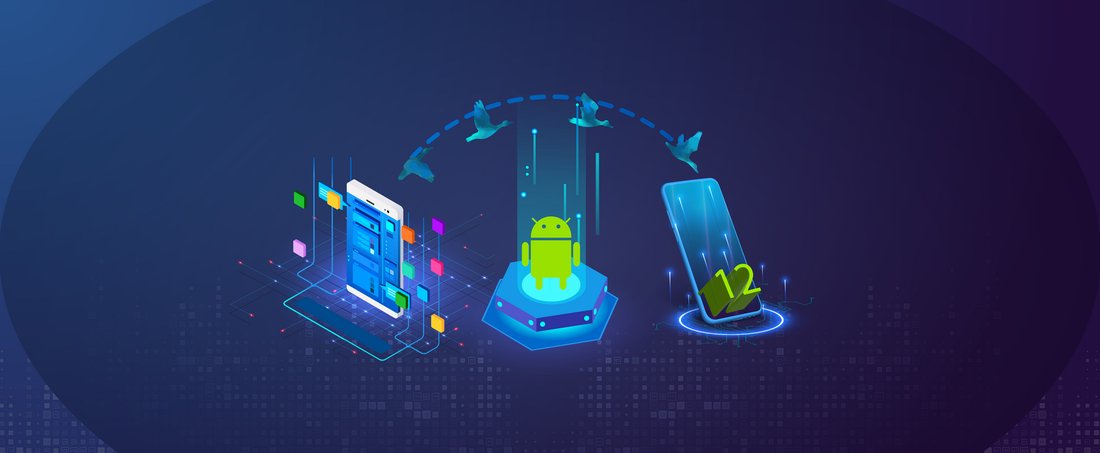
Before diving into the how-to, understand the motivations. iPhones offer superior build quality, longer software support (up to 7 years of updates), and tight integration with Apple services like iCloud, Apple Music, and FaceTime. Privacy features such as App Tracking Transparency and seamless ecosystem connectivity with MacBooks or Apple Watches appeal to many users. Battery life, camera performance, and the intuitive iOS interface often sway Android loyalists. According to recent surveys, over 20% of Android users switch to iPhone annually, citing reliability and resale value as key factors. If you’re tired of fragmented updates or bloatware, migrating to iPhone could be transformative.
Preparation: Back Up Your Android Device

The first step in any data transfer from Android to iPhone is backing up your Android phone. Use Google Drive for a comprehensive cloud backup. Go to Settings > System > Backup, and enable backing up to Google Account. This secures apps, call history, device settings, and SMS messages. For photos and videos, utilize Google Photos with unlimited high-quality storage (though original quality requires paid plans). Contacts sync via Google Contacts app—ensure they’re exported or synced. Download essential apps like WhatsApp and back up chats via its settings. Charge both devices fully and connect to stable Wi-Fi. Disable two-factor authentication temporarily on your Google account if issues arise during transfer. Preparation takes 15-30 minutes but prevents data loss.
Using the Official Move to iOS App for Seamless Transfer
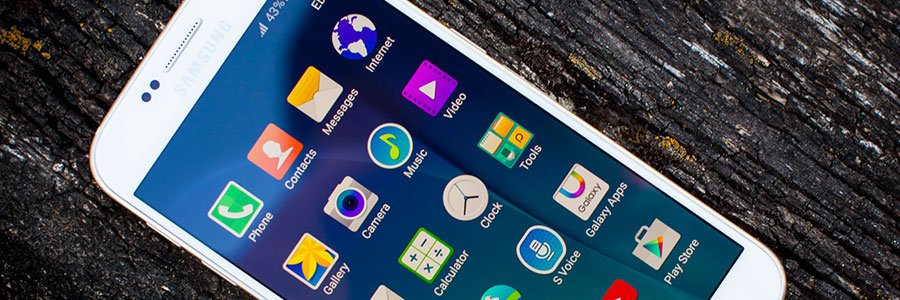
Apple’s free Move to iOS app is the cornerstone of migrating from Android to iPhone. Available on Google Play Store, it handles wireless transfer of contacts, message history, camera photos/videos, photo albums, files/folders, accessibility settings, display settings, and web bookmarks. Even some free apps from Google Play are suggested in the App Store post-transfer. Here’s the step-by-step process:
- Turn on your new iPhone and proceed to the Apps & Data screen during setup.
- Select “Move Data from Android.”
- Download Move to iOS on your Android phone and open it.
- Agree to terms, connect both devices to the same Wi-Fi (create a private network if needed).
- Enter the code displayed on iPhone into Android app.
- Select data to transfer and wait—transfer time varies (30 minutes to hours based on data size).
For best results, use devices on the latest software: Android 4.0+ and iOS 9+. Transfer up to 200GB works smoothly, but larger datasets may require wired options.
Transferring Specific Data Types Manually
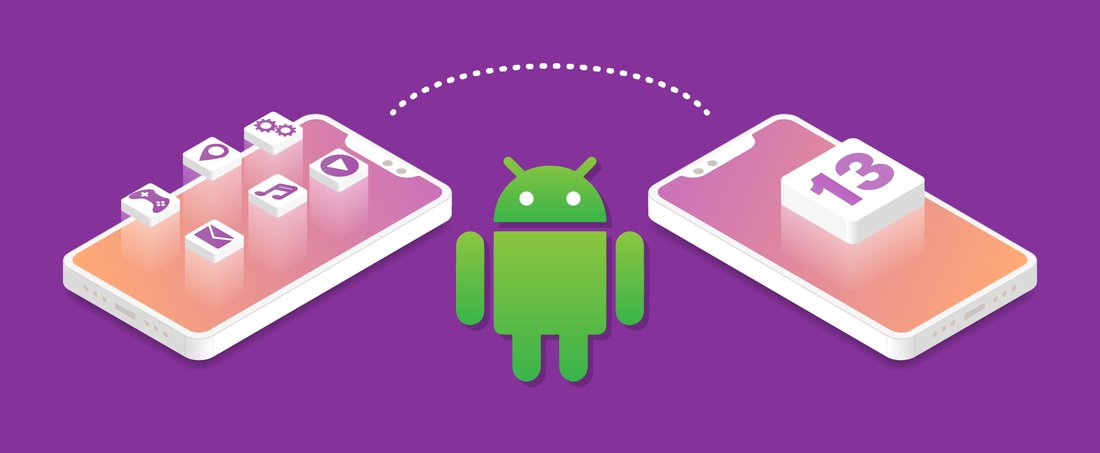
If Move to iOS doesn’t cover everything or fails, manual methods ensure complete migration. Contacts: Sync with Google, then sign into iCloud on iPhone to import. Photos and Videos: Use Google Photos web uploader or connect Android to a computer via USB, then AirDrop or iTunes to iPhone. Messages: Export SMS via third-party apps like SMS Backup & Restore, then import via iTunes backup restore (limited). WhatsApp transfers directly via its built-in switch feature—back up on Android, restore on iPhone during setup. Music: Apple Music or iTunes Match syncs purchases; upload non-iTunes files to iCloud Drive. Apps: Re-download from App Store; data migrates if cloud-synced. For emails, add Gmail/IMAP accounts in iPhone Settings.
Setting Up iCloud and Apple Services Post-Migration
After data transfer, activate iCloud for automatic backups and syncing. Go to Settings > [Your Name] > iCloud, toggle on Photos, Contacts, Notes, etc. Enable iCloud Keychain for passwords. Create or sign into an Apple ID—it’s essential for App Store, iMessage, and Face ID setup. Customize Siri, Face ID, and widgets to match your Android habits. Install essential apps like Google apps (Drive, Maps) for familiarity. Update to the latest iOS via Settings > General > Software Update for security and features.
Common Issues and Troubleshooting When Switching
Challenges arise, but solutions exist. Slow Transfer: Use 5GHz Wi-Fi or restart devices. Incomplete Data: Verify Android backups pre-transfer; retry Move to iOS. App Compatibility: Not all Android apps have iOS equivalents—alternatives like Signal for SMS or Lightroom for photo editing work well. Bluetooth/Storage Errors: Free up 10GB+ space on both; disable VPNs. If Move to iOS fails, use third-party tools like Dr.Fone or AnyTrans (paid, but reliable for bulk transfers). Factory reset Android post-transfer to wipe data securely. Apple Support chats resolve 90% of issues quickly.
Advanced Tips for a Flawless Android to iPhone Migration
Optimize with these pro tips: Use a Lightning to USB-C adapter for wired transfer if wireless lags. Transfer during off-peak hours for better network stability. Map Android shortcuts to iOS gestures—e.g., back swipe mirrors Android navigation. Enable Handoff for cross-device continuity. For power users, migrate email calendars via iCloud.com import. Test everything: Send test messages, check photo albums, and verify payments in Wallet. Resell your old Android via trade-in programs like Apple’s for credits. Long-term, embrace ecosystem perks like Universal Clipboard.
Benefits and Long-Term Advantages of iPhone Ownership
Post-migration, enjoy fluid animations, consistent performance, and MagSafe accessories. iOS 17 introduces StandBy mode and improved widgets, rivaling Android customization. Security shines with no sideloading risks and rapid patch rollouts. Battery health tools predict longevity accurately. The App Store’s curation ensures quality apps. Users report 25% higher satisfaction scores after switching, per Statista data.
Conclusion: Your Seamless Switch Awaits
Migrating from Android to iPhone seamlessly is achievable with preparation and Apple’s tools. From Move to iOS for core data to manual tweaks for edge cases, this guide equips you fully. Expect initial adjustment but reap rewards in privacy, integration, and polish. Start today—your new iPhone adventure promises innovation and reliability. For more tech guides, explore our Tech & Gadgets section.
(Word count: 1218)