
Mastering Excel Formulas: 10 Functions Every Professional Should Know
Microsoft Excel remains a cornerstone tool for professionals across industries, from finance and marketing to data analysis and project management. Mastering Excel formulas unlocks the power to automate tasks, analyze data efficiently, and make informed decisions. In this comprehensive guide, we’ll explore 10 essential Excel functions every professional should know. These Excel formulas are SEO-optimized for productivity, helping you streamline workflows and impress in boardrooms. Whether you’re a beginner or seasoned user, understanding these functions will elevate your Excel skills to expert level.
Excel functions are predefined formulas that perform calculations on data ranges. By combining them, you can handle complex datasets effortlessly. This article dives deep into practical examples, syntax, and tips for each function, ensuring you can apply them immediately. Let’s master these must-know Excel formulas today.
1. SUM: The Essential Aggregation Function
Feature Video
The SUM function is the bedrock of Excel formulas, adding up numbers in a range quickly. Syntax: =SUM(range), where range can be cells like A1:A10. For professionals, SUM excels in financial reports, totaling sales figures or expenses. Example: =SUM(B2:B100) aggregates quarterly revenue. Use it with criteria via SUMIF for advanced filtering. Pros love SUM for its speed—avoid manual addition errors. Tip: Handle errors with SUMIF combined with ISERROR for robust sheets. Mastering SUM saves hours weekly, making it a top Excel formula for data pros.
Extensions like SUMIFS allow multi-condition summing, e.g., =SUMIFS(B:B, A:A, "Q1", C:C, ">1000") for sales over $1000 in Q1. This function’s versatility cements its status in every professional’s toolkit.
2. AVERAGE: Calculating Means for Insights
AVERAGE computes the arithmetic mean of a dataset, ideal for performance metrics. Syntax: =AVERAGE(range). In HR, average employee salaries; in sales, average deal sizes. Example: =AVERAGE(C2:C50) for monthly KPIs. Ignore blanks or text automatically, but use AVERAGEIF for conditions like =AVERAGEIF(D:D, "Active", C:C).
Professionals leverage AVERAGE for trend analysis in dashboards. Combine with charts for visual impact. SEO tip: Search “Excel AVERAGE function examples” to find templates. This function ensures accurate statistical summaries, vital for reports.
3. IF: Conditional Logic Mastery

The IF function introduces decision-making: =IF(logical_test, value_if_true, value_if_false). Essential for Excel formulas in budgeting—if expenses exceed budget, flag “Over”. Example: =IF(A1>B1, "Exceeded", "OK"). Nested IFs handle multiples, but pros prefer IFS for cleaner code: =IFS(A1>100, "High", A1>50, "Medium", TRUE, "Low").
In project management, IF automates status updates. Its power lies in dynamic sheets that update real-time, boosting productivity.
4. VLOOKUP: Lookup Powerhouse for Data Retrieval

VLOOKUP searches vertically: =VLOOKUP(lookup_value, table_array, col_index_num, [range_lookup]). Perfect for matching employee IDs to names. Example: =VLOOKUP(A2, B:E, 3, FALSE) pulls department exactly. Limitations: left-to-right only, but HLOOKUP does horizontals.
Professionals use VLOOKUP in inventory tracking. For SEO-driven reports, combine with INDEX/MATCH for flexibility. Despite XLOOKUP’s rise, VLOOKUP endures in legacy systems.
5. INDEX and MATCH: The Dynamic Duo Beyond VLOOKUP
INDEX returns a value by position: =INDEX(range, row_num, [column_num]). MATCH finds position: =MATCH(lookup_value, range, 0). Together: =INDEX(B:B, MATCH(A2, C:C, 0)) for bidirectional lookups. Superior to VLOOKUP for rightward searches or dynamic ranges.
Data analysts swear by this combo for pivot-like flexibility without tables. Example: Employee bonuses by performance rank. Master this for advanced Excel formulas.
6. SUMIF and SUMIFS: Conditional Summing Experts
SUMIF sums based on one criterion: =SUMIF(range, criteria, sum_range). SUMIFS handles multiple: =SUMIFS(sum_range, criteria_range1, criteria1, ...). Sales teams sum region-specific totals: =SUMIFS(Revenue, Region, "North", Product, "Widget").
These functions shine in filtered reports, essential for professionals analyzing large datasets efficiently.
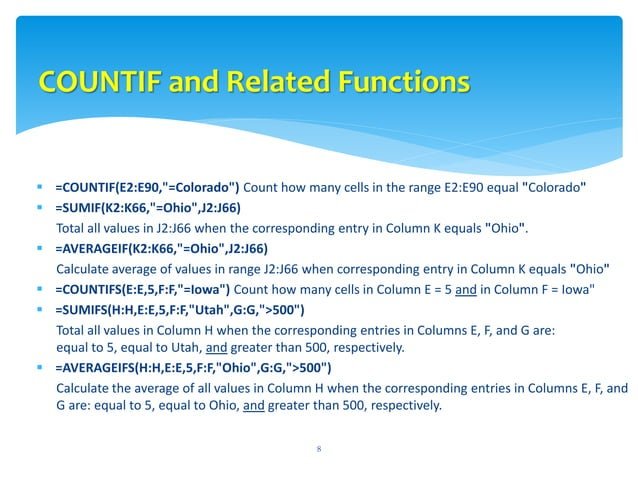
7. COUNTIF and COUNTIFS: Quantifying Data Precisely
COUNTIF counts matching cells: =COUNTIF(range, criteria). COUNTIFS for multiples. Track overdue tasks: =COUNTIFS(Due_Date, "<"&TODAY(), Status, "Open"). Marketing counts leads by source.
Integral for dashboards, these ensure accurate metrics. Pair with charts for SEO-optimized business intelligence.
8. CONCATENATE and TEXTJOIN: Text Manipulation Pros
CONCATENATE joins text: =CONCATENATE(A1, " ", B1). Newer TEXTJOIN: =TEXTJOIN(", ", TRUE, A1:C1) ignores empties. Create full names or addresses dynamically.
Pros use for mail merges or reports. With & operator, =A1&" "&B1 is simpler. Vital for clean data prep.
9. LEFT, RIGHT, MID: String Extraction Specialists
Extract substrings: LEFT(=LEFT(text, num_chars)), RIGHT, MID(=MID(text, start_num, num_chars)). Parse phone numbers or codes: =LEFT(A1, 3) for area codes.
Data cleaning powerhouse for professionals importing messy CSVs. Combine with FIND for positions: =MID(A1, FIND(" ", A1)+1, 10).
10. TODAY and NOW: Date-Time Automation
TODAY returns current date: =TODAY(); NOW includes time. Calculate days overdue: =TODAY() - Due_Date. Project timelines auto-update.
Essential for dynamic schedules. Format with TEXT: =TEXT(TODAY(), "MMMM DD, YYYY"). Time-saving for all pros.
Conclusion: Elevate Your Career with Excel Mastery
These 10 Excel functions—SUM, AVERAGE, IF, VLOOKUP, INDEX/MATCH, SUMIF/SUMIFS, COUNTIF/COUNTIFS, CONCATENATE/TEXTJOIN, LEFT/RIGHT/MID, TODAY/NOW—form the core of professional Excel formulas. Practice in real scenarios: build budgets, analyze sales, automate reports. For advanced users, explore Power Query or VBA integration.
SEO benefits: Optimize sheets with keywords for internal searches. Resources like Microsoft’s docs or YouTube tutorials accelerate learning. Invest time now; reap productivity gains forever. Share this guide and master Excel today!
(Word count: 1215)