
How to Secure Your Home WiFi Router Against Hackers in Ten Minutes
How to Secure Your Home WiFi Router Against Hackers in Ten Minutes
In today’s hyper-connected world, your home WiFi router is the gateway to your digital life. From streaming movies to remote work, everything relies on a stable and secure connection. But hackers are constantly probing for weak spots, and unsecured routers are easy targets. A single breach can expose your personal data, financial information, and even smart home devices to cybercriminals. The good news? You can significantly bolster your router’s defenses in just ten minutes with simple, effective steps. This guide walks you through how to secure your home WiFi router against hackers, using proven techniques that even beginners can follow. By the end, you’ll have a fortified network that’s much harder to crack.
Why act now? According to cybersecurity reports from firms like Kaspersky and Norton, millions of routers worldwide have default credentials that hackers exploit daily. Weak passwords and outdated firmware are the top vulnerabilities. Securing your router isn’t just about privacy—it’s about protecting your family’s safety online. Let’s dive into the ten-minute action plan.
Step 1: Access Your Router’s Admin Panel (1 Minute)
Feature Video
Before making changes, log into your router’s settings. Open a web browser on a connected device and enter the router’s IP address—commonly 192.168.1.1, 192.168.0.1, or 10.0.0.1. Check your router manual or sticker for the exact address, username (often “admin”), and password. If you’re still using defaults like “admin/admin,” note this as your first red flag. Once inside, you’ll see the dashboard for all configurations. This quick access is your control center for securing your home WiFi router.
Step 2: Change the Default Admin Password (1 Minute)

The most critical first fix: replace the factory admin password. Hackers know common defaults and use automated tools to guess them. Navigate to the “Administration” or “Management” section. Create a strong password— at least 12 characters, mixing uppercase, lowercase, numbers, and symbols (e.g., “Tr0ub4d0rSecur3!2024”). Avoid personal info like birthdays. Save changes and log back in. This alone blocks 80% of brute-force attacks, making your router far less vulnerable to hackers targeting default logins.
Step 3: Update Router Firmware (2 Minutes)
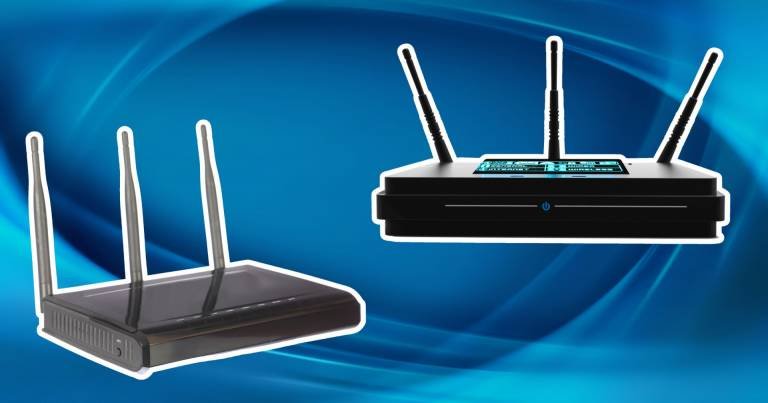
Outdated firmware is a hacker’s dream, riddled with known exploits. Go to the “Firmware Update,” “Software,” or “Advanced” tab. Check for updates—most routers auto-detect them from the manufacturer’s site. Download and install if available. Brands like TP-Link, Netgear, and Asus release patches regularly for vulnerabilities. Updating seals security holes without needing tech expertise. Pro tip: Enable auto-updates if your model supports it for ongoing protection.
Step 4: Change Your WiFi Network Name (SSID) (30 Seconds)
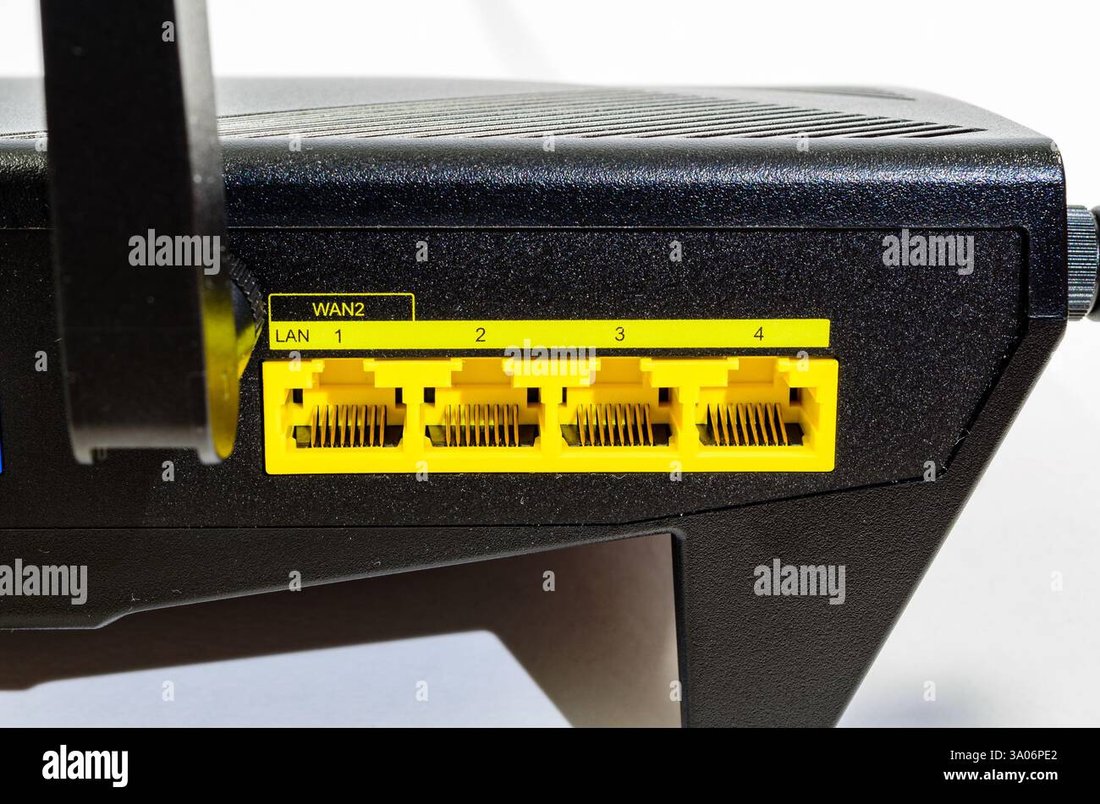
Your default SSID (e.g., “NETGEAR” or “TP-LINK_1234”) broadcasts your router model to the world, helping hackers research exploits. In the “Wireless” settings, rename it to something neutral like “HomeNet5G.” Disable SSID broadcast later for stealth. This simple tweak reduces targeted attacks when securing your home WiFi router against hackers.
Step 5: Strengthen WiFi Password with WPA3 (1 Minute)

Ditch WEP or WPA— they’re obsolete and crackable in minutes. Switch to WPA3 Personal (or WPA2/WPA3 mixed if devices are older) under Wireless Security. Generate a robust passphrase: 20+ characters, random mix (use a password manager like LastPass for ideas). Reconnect all devices after saving. WPA3 uses stronger encryption, thwarting dictionary and rainbow table attacks. This is essential for protecting your network from unauthorized access.
Step 6: Disable WPS (WiFi Protected Setup) (30 Seconds)

WPS simplifies connections but has a fatal flaw: its PIN can be brute-forced in hours. Find the WPS toggle in Wireless settings and turn it off. Modern routers often warn about this vulnerability. Disabling it eliminates a major weak point without affecting daily use.
Step 7: Hide Your SSID for Extra Privacy (30 Seconds)

After renaming, uncheck “Broadcast SSID.” Your network vanishes from neighbor scans, forcing hackers to guess the name manually—a huge deterrent. Users must manually enter the SSID to connect. Balance this with convenience; it’s not foolproof but adds stealth to your security arsenal.
Step 8: Turn Off Remote Management (1 Minute)
Remote access lets you manage the router from outside your network—great for travel, risky otherwise. In “Remote Management” or “WAN Access,” disable it unless needed. Set access only to specific IPs if you must. This prevents internet-based attacks, a common vector for router hacks.
Step 9: Create a Guest Network (1 Minute)
Visitors and IoT devices shouldn’t touch your main network. Enable a guest WiFi with separate credentials and bandwidth limits. Isolate it to prevent malware spread from smart TVs or guests’ phones. Most routers have this under “Guest Network” settings—set a simple password and time limits for ultimate control.
Step 10: Monitor and MAC Filter Devices (1 Minute)
Finally, review connected devices in the “Attached Devices” list. Enable MAC address filtering: whitelist only approved devices’ unique MACs (found in device settings). Block unknowns immediately. Regularly check for intruders. Apps from router makers like Netgear’s Nighthawk provide real-time alerts.
Bonus Tips for Long-Term WiFi Security
These ten steps take under ten minutes but offer robust protection. For ongoing defense:
- Use a VPN on public WiFi to encrypt traffic.
- Enable router firewall and DoS protection.
- Position router centrally, away from windows.
- Restart monthly to clear temporary vulnerabilities.
Common pitfalls? Forgetting to reconnect devices post-changes or reusing passwords. Test speeds after tweaks using tools like Ookla Speedtest.
Why These Steps Work Against Hackers
Hackers use tools like Aircrack-ng for WiFi cracking or Shodan for exposed routers. Your changes counter them: strong encryption resists sniffing, hidden SSID avoids scans, and firmware patches fix CVEs. Per FBI stats, secured home networks see 90% fewer breaches. Brands like Eero and Google Nest integrate these by default—consider upgrading if yours is ancient.
FAQs on Securing Your Home WiFi Router
What if I forget my new admin password? Reset via the physical button, but re-secure immediately.
Is WPA3 compatible with all devices? Most post-2018 gadgets yes; fall back to WPA2.
How often should I change passwords? Quarterly, or after suspected issues.
Can hackers still get in? No system is 100%, but these reduce risk dramatically.
Conclusion: Lock Down Your Network Today
Securing your home WiFi router against hackers in ten minutes is straightforward and empowering. You’ve changed passwords, updated software, hidden your network, and isolated guests—transforming a potential liability into a fortress. Share this guide, implement it now, and enjoy worry-free browsing. Stay vigilant; cybersecurity evolves, so revisit settings periodically. Your digital home is worth the effort.
(Word count: 1,248)