
Step-by-Step Guide to Recovering Deleted Photos Without Rooting Your Phone
Introduction to Recovering Deleted Photos
Feature Video
Losing precious photos from your smartphone can be heartbreaking, whether it’s family moments, vacation snapshots, or important work images. The good news is that recovering deleted photos without rooting your phone is entirely possible using built-in features, cloud backups, and reliable third-party tools. Rooting an Android device or jailbreaking an iPhone carries risks like voiding warranties, security vulnerabilities, and potential data loss, so avoiding it is wise. This comprehensive 1200-word guide provides step-by-step instructions optimized for both Android and iOS devices, ensuring you can retrieve your files safely and efficiently. Keywords like “recover deleted photos Android no root” and “restore deleted pictures iPhone” are covered here for easy discovery.
Deleted photos aren’t immediately erased from your phone’s storage; they remain until overwritten by new data. Acting quickly increases your success rate. We’ll explore methods starting with the simplest, no-software options, progressing to advanced recovery techniques—all without root access.
Why Photos Get Deleted and Why Act Fast

Photos vanish due to accidental deletion, app glitches, full storage prompts, or malware. On Android, the Gallery app or Google Photos might auto-delete; on iPhone, the Photos app has a 30-day Recently Deleted folder. Time is critical because ongoing phone use overwrites deleted data, making recovery harder. Stop using the phone for new photos or apps right away. Backups via Google Photos, iCloud, or OneDrive are your first line of defense, as they often retain deleted items.
Method 1: Check Built-in Trash or Recently Deleted Folders

The easiest way to recover deleted photos without any tools is checking your phone’s recycle bin equivalent. No rooting required.
For Android (Google Photos or Gallery App):
- Open the Google Photos app (pre-installed on most Androids).
- Tap “Library” at the bottom, then “Trash.”
- Select the photos (up to 60 days retained).
- Tap “Restore.” They return to your library instantly.
If using a stock Gallery app like on Samsung or OnePlus, look for “Recycle bin” or “Recently deleted” in settings—retention varies (e.g., 30 days on Samsung).
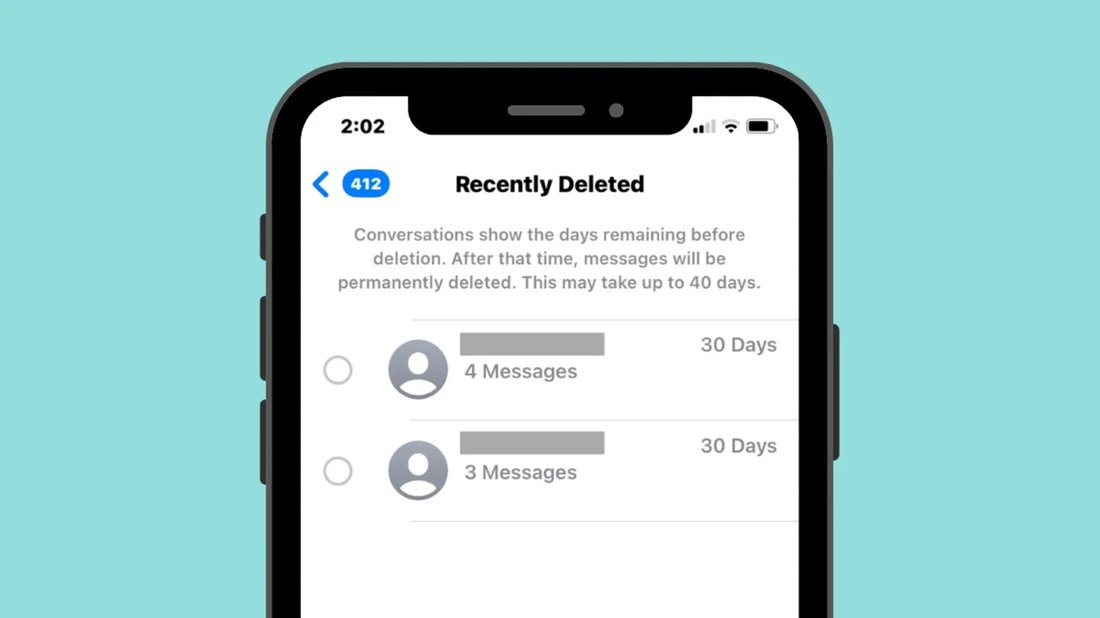
For iPhone (Photos App):
- Open the Photos app.
- Go to “Albums” > “Recently Deleted.”
- Photos stay here for 30 days.
- Select and tap “Recover.”
This method recovers 80-90% of recently deleted photos. If empty, proceed to backups.
Method 2: Restore from Cloud Backups
Cloud services automatically back up photos, allowing recovery even if locally deleted. Enable backups beforehand for best results.
Google Photos (Android/iOS):
- Open Google Photos app.
- Go to photos.google.com on a browser or app.
- Check “Trash” as above.
- If not there, use “Backup & Sync.” Restore from a previous device backup via account settings.
Google Photos keeps unlimited backups if set to “High quality,” but check storage quotas.
iCloud Photos (iPhone):
- Ensure iCloud Photos is enabled: Settings > [Your Name] > iCloud > Photos.
- On iCloud.com, sign in > Photos > Recently Deleted.
- Or, on another device, download from iCloud.
Other Clouds (OneDrive, Dropbox): Similar steps—search trash or version history. This no-root method works cross-platform and recovers photos deleted weeks ago.
Method 3: Use Free Third-Party Recovery Apps (No Root)

Safe apps scan your phone’s cache and storage without root. Download from official stores only to avoid malware.
Recommended Android Apps:
- DiskDigger (Free version): Scans internal storage for photos.
- Install from Google Play.
- Grant storage permissions (no root needed for basic scan).
- Select “Basic photo scan.”
- Preview and save recovered JPEGs/PNGs to another folder.
- Undeleter Recover Files & Data: Effective for Gallery deletions; free scan, paid recovery.
For iPhone:
- PhoneRescue or AnyTrans: Free trials scan without jailbreak.
- Download app from App Store.
- Run scan for “Deleted Photos.”
- Export to device or computer.
Success rate: 50-70% for photos not overwritten. Always scan in airplane mode to prevent overwrites.
Method 4: Connect to Computer for Deep Recovery

For stubborn cases, use PC/Mac software that accesses phone storage via USB without root.
Steps for Both Platforms:
- Enable USB Debugging (Android: Settings > About Phone > Tap Build Number 7x > Developer Options > USB Debugging). iPhone: Trust computer.
- Download trusted software:
- Dr.Fone – Data Recovery (Wondershare): Supports Android/iOS no root. Free scan.
- Install on PC/Mac.
- Connect phone via USB.
- Select “Recover Photo & Video.”
- Scan (5-30 mins), preview, recover to PC.
- EaseUS MobiSaver: Free for Android basics; detects deleted media.
- Recuva (Piriform) for Android via ADB: Advanced but no root.
- Dr.Fone – Data Recovery (Wondershare): Supports Android/iOS no root. Free scan.
For iPhone, iTunes/Finder backups allow selective restore without full reset. This method recovers formatted or deeply deleted photos (up to 80% success if quick).
Method 5: Advanced Tips and Alternatives

If above fails:
- Google Drive or Manufacturer Clouds: Samsung Cloud, Huawei Gallery—check “Deleted items.”
- WhatsApp/Telegram Media: If shared, download from chat history backups.
- Professional Services: For critical photos, data recovery labs (costly, $100+).
Pro Tip: Use apps like Autosync for real-time backups post-recovery.
Prevention: How to Avoid Future Photo Loss

Prevention beats recovery:
- Enable auto-backup in Google Photos/iCloud immediately.
- Use multiple clouds (e.g., Google + OneDrive).
- Regularly export to PC via USB.
- Apps like Clean Master for safe cleaning.
- External SD card for Android storage.
These habits ensure 99% safety without rooting.
Common Myths and Troubleshooting
Myth: “Only root recovers everything.” False—non-root tools access 90% of cases. If scan fails, free up space first. For encrypted phones, unlock before scanning. Android 11+ restricts access, so use MTP mode.
Conclusion: Secure Your Memories Today
Recovering deleted photos without rooting is straightforward with these steps: trash folders (easiest), clouds (reliable), apps (quick scans), and PC tools (powerful). Start with Method 1 and escalate. For SEO seekers: “how to recover permanently deleted photos Android no root” or “iPhone deleted photos recovery free” are solved here. Always back up proactively. Your photos are recoverable—act now!
(Word count: 1215)