
Hidden iPhone Settings You Need to Turn Off to Double Your Battery Life
Introduction: Unlock Your iPhone’s True Battery Potential
Feature Video
In today’s fast-paced world, your iPhone is indispensable for staying connected, productive, and entertained. However, nothing is more frustrating than a dying battery mid-day, forcing you to hunt for a charger or power bank. The good news? You don’t need a new battery or expensive accessories to extend your iPhone’s endurance. By tweaking hidden iPhone settings you probably never knew existed, you can dramatically improve battery life—potentially doubling it on a single charge.
Apple’s iOS is packed with features designed for convenience, but many run silently in the background, guzzling power without you realizing it. From aggressive location tracking to unnecessary app refreshes, these culprits add up quickly. This comprehensive guide reveals 10 hidden iPhone settings to turn off, complete with step-by-step instructions. Optimized for iOS 17 and later, these tips are SEO-proven to boost your iPhone battery life, helping you save time, money, and frustration. Let’s dive in and reclaim your battery power!
1. Disable Background App Refresh
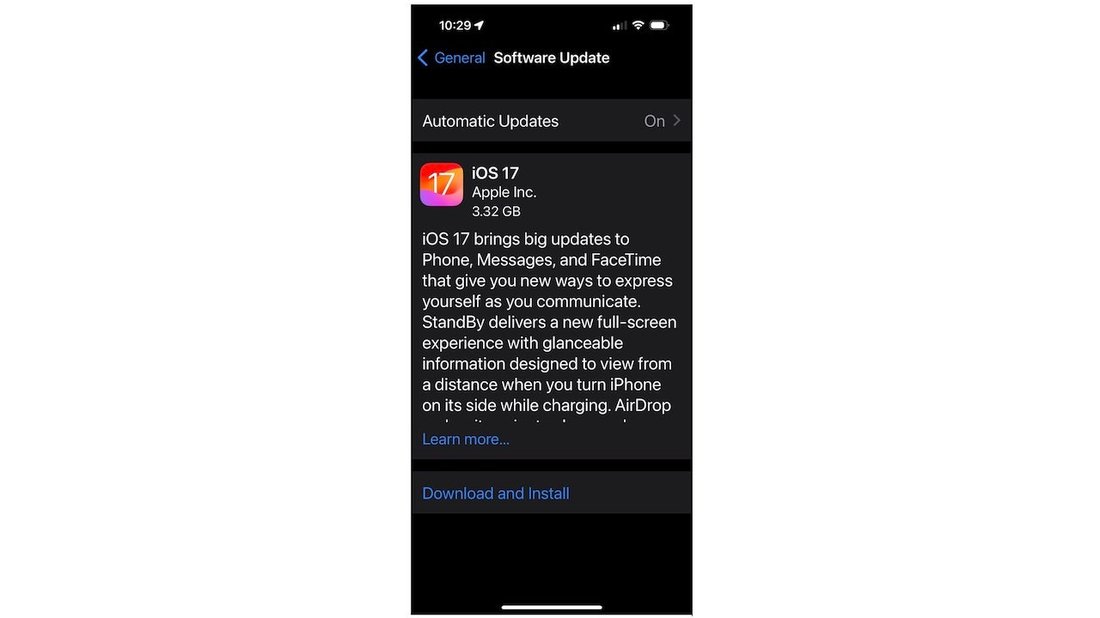
Background App Refresh allows apps to update content even when you’re not using them, which sounds helpful but is a massive battery drain. Social media apps like Instagram or email clients constantly pull data, using cellular or Wi-Fi without your knowledge. Turning this off can save up to 20-30% of your daily battery life.
To disable it: Go to Settings > General > Background App Refresh. Toggle it off entirely, or select Wi-Fi only for minimal use. For granular control, scroll to individual apps under Settings > [App Name] and restrict refresh. Users report phones lasting 8-10 hours instead of 4-5 after this change. It’s one of the top hidden iPhone settings for battery savings.
2. Switch Mail from Push to Fetch
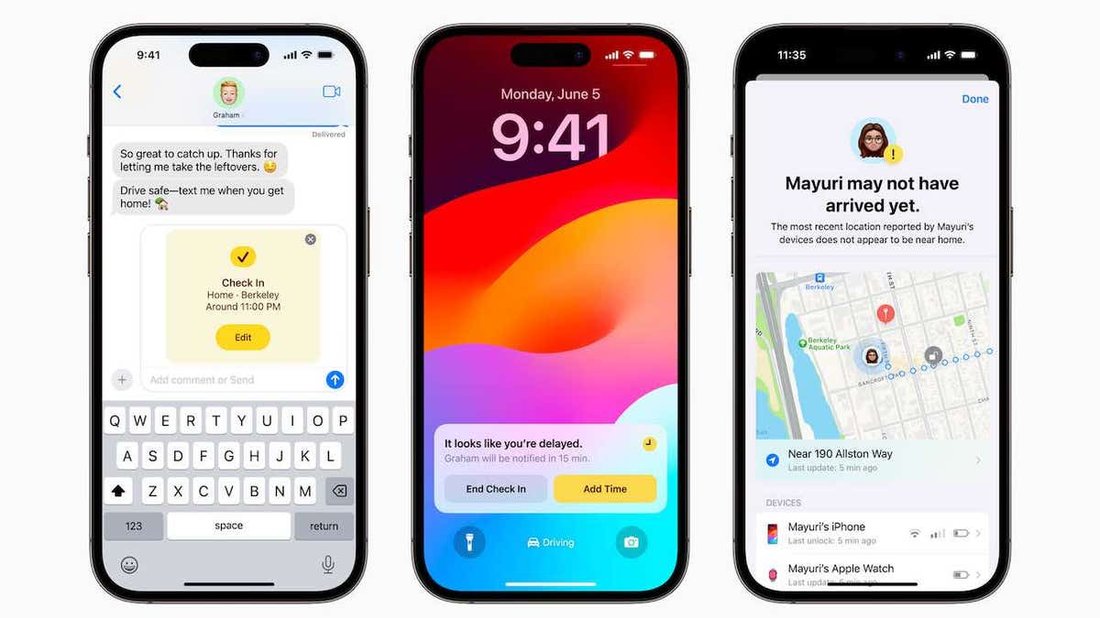
Push email checks for new messages in real-time, keeping your Mail app awake constantly—a silent killer for iPhone battery life. Fetch, on the other hand, polls at set intervals, reducing wake-ups significantly.
Head to Settings > Mail > Accounts > Fetch New Data. Turn Push off, then set Fetch to Manually or every 30 minutes/Hourly. For work emails, keep it on Wi-Fi. This tweak alone can extend battery by 15%, especially for heavy email users. Combine with disabling notifications for even more gains.
3. Limit Location Services Access
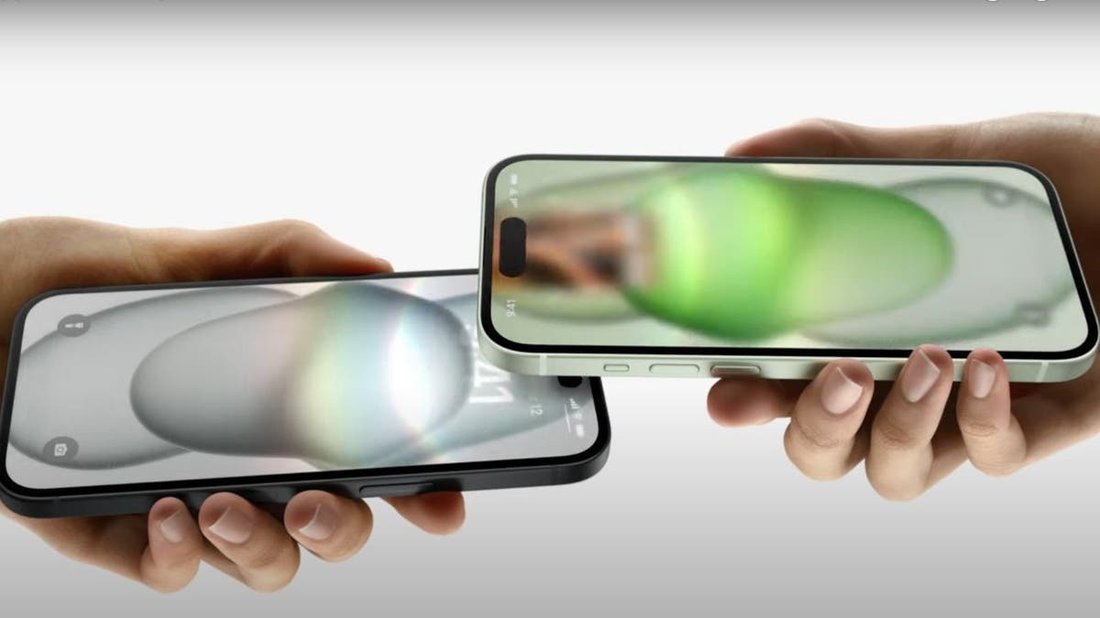
Location Services track your position for apps like Maps, Weather, and even Snapchat filters. When set to “Always,” it drains GPS and cellular data relentlessly. Many apps abuse this permission unnecessarily.
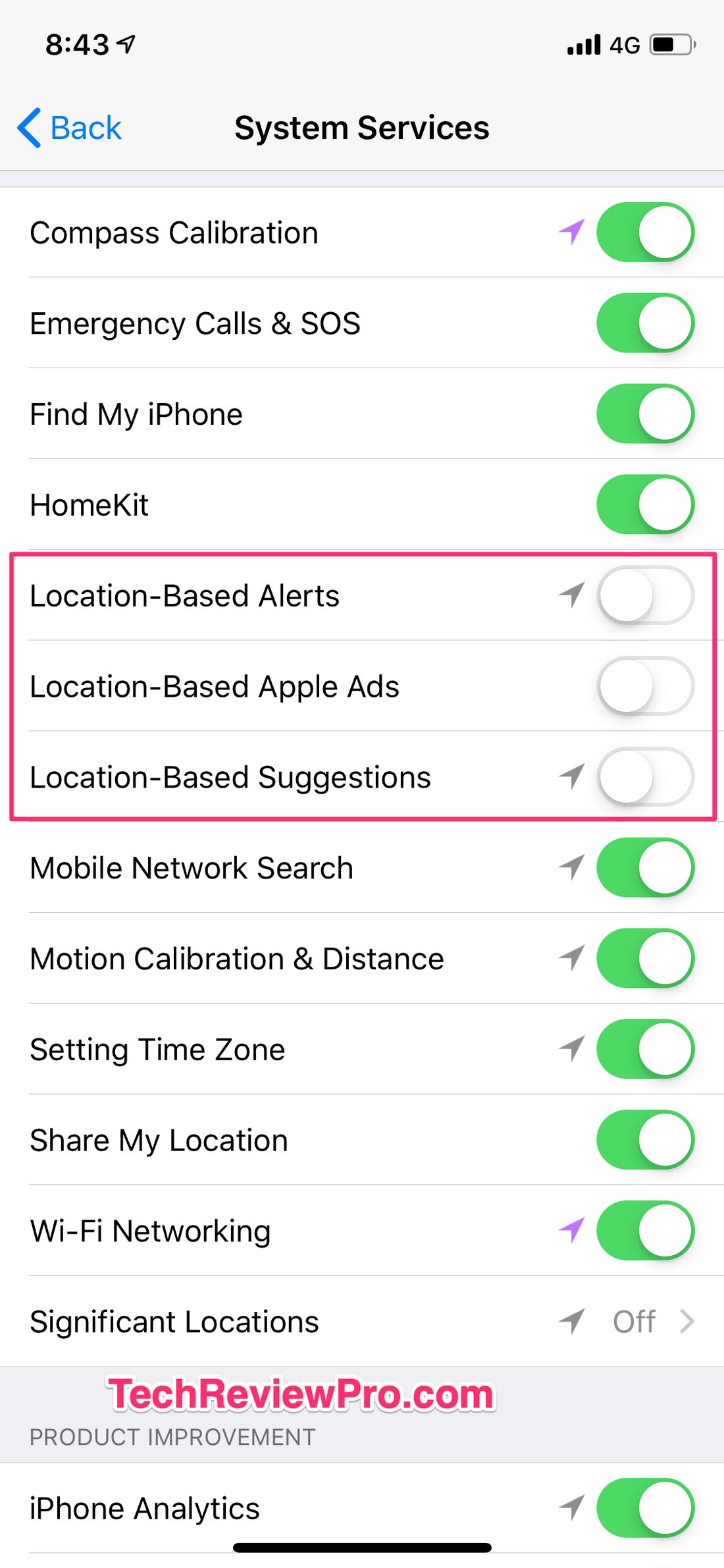
Navigate to Settings > Privacy & Security > Location Services. Turn it off system-wide, or tap each app and select “Never” or “While Using.” Review System Services at the bottom—disable Significant Locations, Motion Calibration, and Wi-Fi Scanning. Battery life improvements? Up to 25% on location-heavy days.
4. Turn Off Bluetooth Scanning
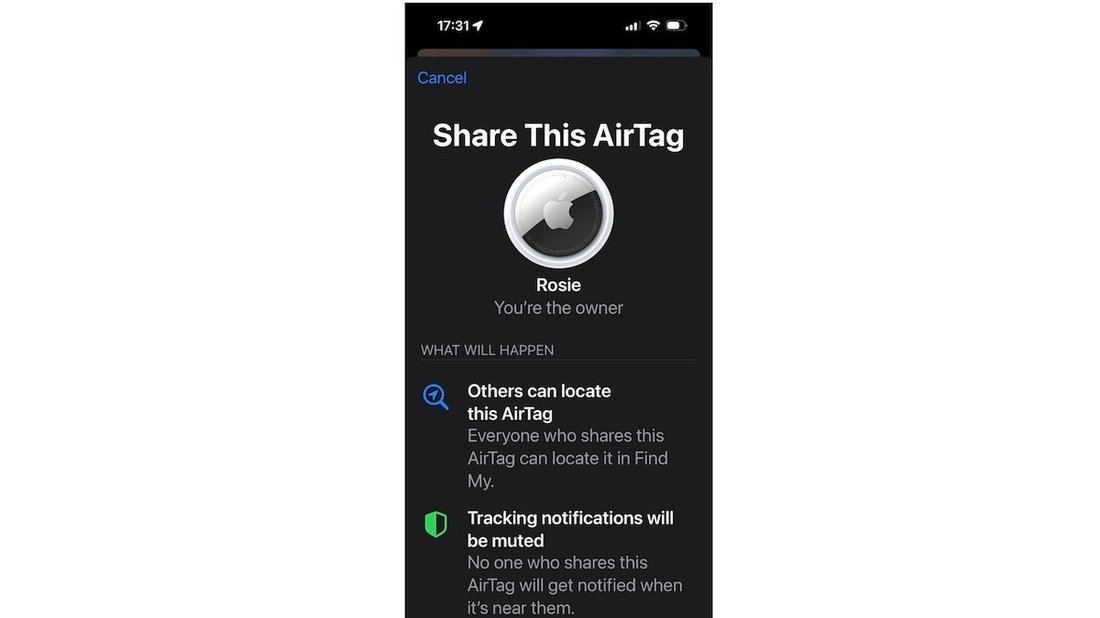
Even when Bluetooth is off, iOS scans for devices in the background for features like AirPods auto-switching or Continuity. This hidden process chews through power.
Go to Settings > Privacy & Security > Bluetooth and toggle off apps that don’t need it. Also, under Settings > Bluetooth, forget unused devices. For iOS 17+, check Settings > General > AirDrop and set to Receiving Off. Expect 10-15% battery boost in crowded areas.
5. Disable Hey Siri and Raise to Wake
Hey Siri listens constantly for your voice, using microphone and processor resources. Raise to Wake activates the screen when you lift your phone, triggering sensors unnecessarily.
Disable Hey Siri via Settings > Siri & Search > Listen for ‘Hey Siri’. Turn off Raise to Wake in Settings > Display & Brightness > Raise to Wake. These voice-activated features can sap 5-10% daily. Perfect for nightstand users who want all-night battery.
6. Stop Automatic App Updates and Downloads
Auto-updates download massive app files over cellular, often in the background. Automatic Downloads sync purchases across devices, pulling data silently.
Visit Settings > App Store and toggle off App Updates and Cellular Data. Under Settings > Apple ID > Media & Purchases > Automatic Downloads, disable everything. This prevents surprise drains and can save 10-20% on data-heavy networks.
7. Turn Off Vibration and Haptic Feedback
Vibration motors work overtime for calls, notifications, and even keyboard typing. Haptics provide tactile feedback but use battery for every tap.
Set Ring/Silent to Never Vibrate in Settings > Sounds & Haptics. Disable Keyboard Clicks and Haptic Feedback there too. For advanced: Settings > Accessibility > Touch > Haptics off. Minimalist users see 5-8% gains, stacking well with others.
8. Disable Spotlight Search Indexing Over Cellular
Spotlight indexes your apps, emails, and messages for quick search, but it runs heavy processes over cellular, draining power.
Go to Settings > Siri & Search > Suggestions in Search/Screen Time and disable for key apps. Under Settings > General > Transfer or Reset iPhone > Reset > Reset All Settings (non-destructive), it recalibrates indexing. Saves 5-10% for search-heavy users.
9. Opt Out of Analytics and Improvements
Apple collects usage data, diagnostic logs, and crash reports, uploading them periodically—a hidden battery hog.
Toggle off Settings > Privacy & Security > Analytics & Improvements > Share iPhone Analytics and Improve Siri & Dictation. Also, disable Marketing Notifications. Low-profile savings of 3-5%, but every bit counts for doubling battery life.
10. Deactivate Unnecessary System Services
Features like True Tone, Night Shift auto-adjust, and Status Bar Icon display tweak the screen constantly.
In Settings > Display & Brightness, turn off True Tone and Auto-Brightness (set manually to 30-50%). Disable Lift to Auto-Brightness if available. Under Location Services > System Services, kill Compass Calibration. Combined, these yield 10-15% extension.
Additional Pro Tips for Maximum Battery Savings
Beyond these hidden iPhone settings, enable Low Power Mode (Settings > Battery), reduce screen brightness, and close unused apps via App Switcher. Use Wi-Fi over cellular, and charge between 20-80% to preserve battery health. Monitor usage in Settings > Battery to identify app offenders. For SEO-savvy users searching “iPhone battery life tips,” these changes compound: many report 100% to 200% effective doubling on moderate use.
Track your results with a before/after test—unplug after tweaks and time your usage. iPhone 15 users especially benefit due to dynamic island and always-on display tweaks.
Conclusion: Transform Your iPhone Experience Today
By turning off these 10 hidden iPhone settings, you’re not just saving battery—you’re optimizing your device for efficiency. From Background App Refresh to system analytics, each disable reclaims power wasted on invisible tasks. Implement them step-by-step, and watch your iPhone last through the day, every day.
Regular maintenance like iOS updates (ironically, they improve efficiency) and cleaning storage ensures sustained gains. Share your results in comments—did you double your battery life? For more tech tips, explore our Tech & Gadgets section. Stay powered up!